Screen Color
A lighting mode that follows the colors on your screen: one color for a lightbar, or the screen spread across a keyboard's keys.
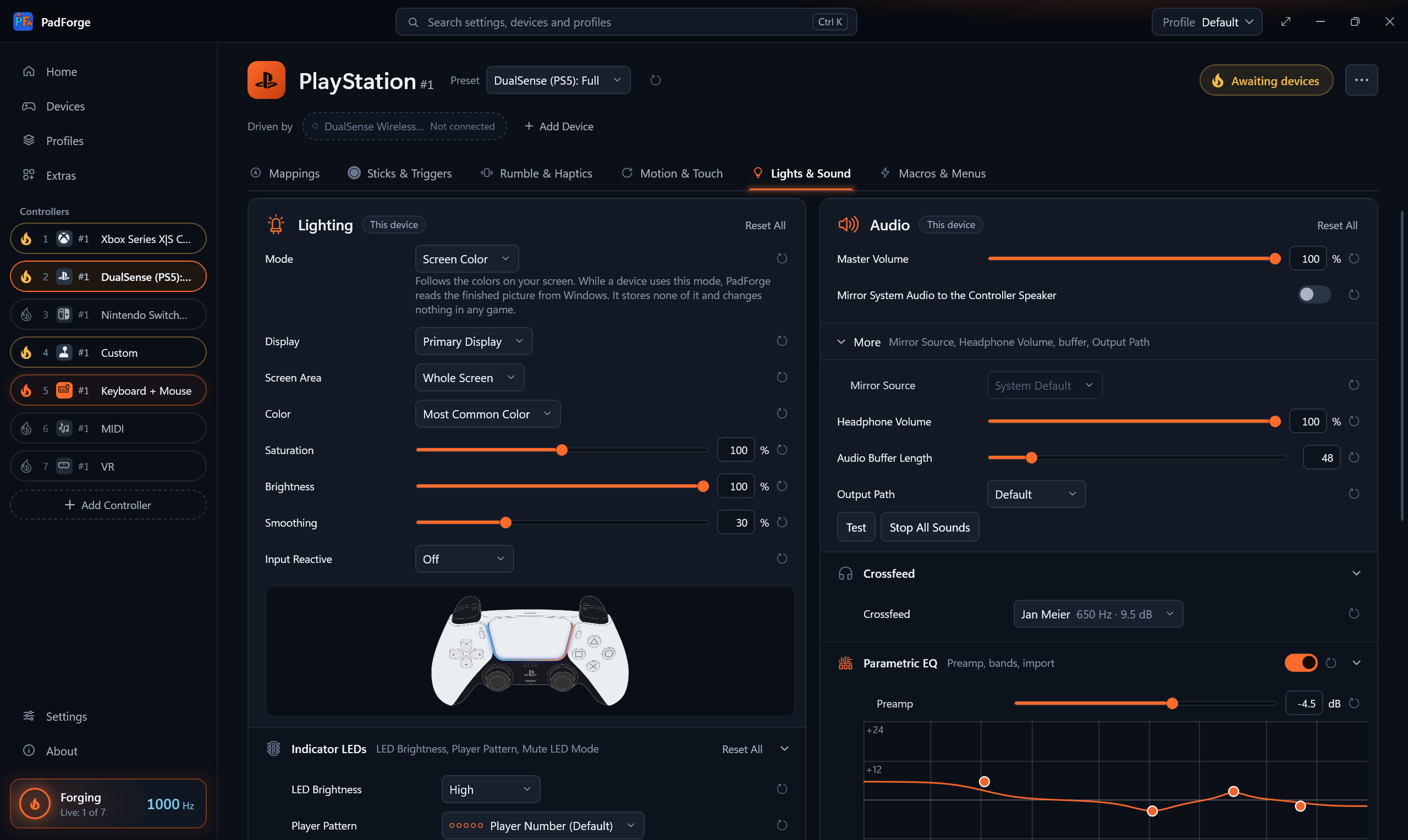
Screen Color is a base mode on the Lighting card of a controller's Lights & Sound section (Lighting). Pick Screen Color in the Mode box and the device takes its color from one area of one display. PadForge reads the finished desktop picture from Windows while a device uses the mode. It stores none of it, and it reads nothing from a game and writes nothing into one.
Where it works
Every device whose Lighting card has the Mode box can use it: a DualSense, DualSense Edge or DualShock 4 lightbar, a PS Move sphere, the lightbar a Web Controller draws, and a mouse, keyboard or lighting row from Mice, Keyboards and Vendor Rows. The Set Lightbar Mode and Cycle Lightbar Modes macros offer it too.
A game's lightbar, a game mod's color, a macro's color and the Input Reactive pulse cover Screen Color the way they cover any base mode, and it comes back when they end (see Priority chain).
Under the Mode box the card says Follows the colors on your screen. While a device uses this mode, PadForge reads the finished picture from Windows. It stores none of it and changes nothing in any game.
The card's preview shows a blue-to-orange wash for this mode. The preview reads nothing from the screen.
The settings
| Setting | Default | Range | What it does |
|---|---|---|---|
| Display | Primary Display | Primary Display, then each display as Display 2 (2560 x 1440) and the like | The display to read. A saved display that is unplugged shows as Display 2 (not connected), and the device reads the primary display meanwhile. Within a second of the display coming back, it reads that display again. |
| Screen Area | Whole Screen | Whole Screen, Top Left, Top, Top Right, Left, Center, Right, Bottom Left, Bottom, Bottom Right, Custom | The part of the display to read. Each of the eight edges and corners and Center is a third of the display on each side. |
| Left Edge | 25% | 0 to 99% | Custom only. Where the area starts, from the display's left edge. |
| Top Edge | 25% | 0 to 99% | Custom only. Where the area starts, from the display's top edge. |
| Width | 50% | 1 to 100% | Custom only. An area that would run past the right edge stops there. |
| Height | 50% | 1 to 100% | Custom only. An area that would run past the bottom edge stops there. |
| Color | Most Common Color | Most Common Color, Average Color | How the area becomes one color. |
| Saturation | 100% | 0 to 200% | 0% is the color's gray, 100% the color as it is, and above 100% a more vivid color. |
| Brightness | 100% | 0 to 100% | A share of the color's strength. |
| Smoothing | 30% | 0 to 100% | How slowly the light follows a change. 0% jumps at once. Each percent adds 1 ms to the fade's time constant, so 100% is 100 ms and the default settles within about 100 ms. |
| Spread the Screen Across This Device’s Lights | On | On, off | Shown only for a device with more than one light. On, each light shows the part of the area under its own place on the device. Off, the whole device shows one color. |
The steps run in that order: the area, then Color, then Saturation, then Brightness, then Smoothing. Each row has a reset button.
Average Color is the mean of the area. Most Common Color counts the area's colors by hue and weighs each one by how colorful and bright it is. Grays and near-blacks count for little, so a dark scene with one strong color shows that color, and a scene with no strong color shows its gray.
Spread across the lights
With the spread on, PadForge cuts the area into a picture of at most 32 by 16 cells, and every part of the area lands in one cell. Each light takes the cell under its place:
- A device that reports where each light sits, such as a Windows Dynamic Lighting keyboard, uses those positions.
- A keyboard that reports no positions uses the standard keyboard layout that holds the most of its keys.
- Zones and edge lights are placed in order from left to right.
A light with none of these shows the device's one color. A color set for a key, a group or a single light on the section's Key Colors or Zone Colors card stays over the picture. A game, mod or macro color covers the picture the way it covers the one color.
What it needs
PadForge reads the screen through Windows' Desktop Duplication. Where that cannot run on a PC, such as a laptop with two GPUs or a PC where too many programs already duplicate the display, it reads through Windows.Graphics.Capture instead. That second way needs Windows 10 version 1903 or later.
- Windows.Graphics.Capture draws a yellow border around a captured display on builds that cannot turn it off. PadForge turns the border off wherever Windows allows it.
- On Windows 10 versions before 2004, the pointer shows in the picture Windows.Graphics.Capture hands over. Desktop Duplication never includes it.
- A rotated display is read the way it shows on screen.
While Windows holds the desktop, for a UAC prompt or the lock screen, the light keeps its last color and the card says Windows is holding the screen for now, so the light keeps its last color. PadForge tries again at least once a second.
When neither way runs, the card says PadForge can’t read the screen on this PC right now and keeps trying. Save Snapshot in Settings records the reason. The waits between tries grow to 8 seconds. Save Snapshot on the Settings page writes the reason Windows gave. A capture that ends three times in a row with no picture also brings that line up.
A display change, such as a new resolution, an HDR switch or a display unplugged, rebuilds the capture. The light keeps its last color meanwhile, and the card shows no line unless the rebuild fails.
The card checks these states and the list of displays once a second, and only while the Lights & Sound section shows with the mode on Screen Color. The light itself follows the screen whatever page is open.
HDR
On a display with HDR on, PadForge reads the desktop in 16-bit color and converts it against the white level Windows draws SDR content at, the SDR content brightness slider in Windows' HDR settings. A white window on the desktop shows as full white on the light. Anything brighter than that white clips to full, and a color outside sRGB clips at its edge. When Windows does not report the white level, PadForge uses 200 nits.
Through Desktop Duplication, a change to the slider takes effect the next time the capture starts. Through Windows.Graphics.Capture, PadForge reads the slider again every second.
Speed and cost
- About 30 pictures a second at the most. When reading a picture takes longer than its share, PadForge spends no more than a quarter of its time reading.
- A screen that has not changed sends no new picture.
- The GPU shrinks the desktop to at most 64 cells across before PadForge reads it, so no full-size frame reaches the processor.
- One capture serves every device that reads the same display, and devices with the same settings share one calculation.
- The capture runs on its own thread at below-normal priority, only while a device reads it. It stops 2 seconds after the last device leaves the mode, the slot's profile changes it or the engine stops.
Limits
- A keyboard or headset that stores each picture in its own memory is sent no changing colors, since a stored picture could only show them late, and each write wears the device's memory. It keeps its last steady color. A keyboard that also has a Windows Dynamic Lighting interface takes the changing colors through it, and its row's line says how to turn that interface on.
- A lightbar is one light, so the spread does nothing on a DualSense or DualShock 4.
- The light is black until the display's first picture arrives.
See the technical page, Screen Color Internals. The capture follows Prismatik, AlkaidLab's foundation-sunshine fork of Sunshine, ScreenCapture.NET, RazerAmbilight, OpenRGBEffectsPlugin, Aurora and alienfx-tools, credited on PadForge's About page.
Last updated for PadForge 6.0.0.