Your First Controller
From a fresh install to a game seeing a virtual pad. About five minutes, and nothing here assumes prior knowledge.
You need PadForge installed and running. If it is not, Installation covers that in two minutes.
1. Create the virtual controller
On the Dashboard, click the Add Controller card at the bottom of the controller list. The same popup opens from the Add Controller card in the sidebar's controller section.
Pick Xbox. Almost every PC game with controller support reads Xbox-style input natively, so it is what to pick when you do not know what to pick. The other types are there when you need them: PlayStation for ports with Circle and Cross prompts, Nintendo for games with Switch prompts (a virtual Switch Pro or Switch 2 Pro Controller), Extended for sim titles that read DirectInput, Keyboard + Mouse, MIDI, and VR for a SteamVR hand pair.
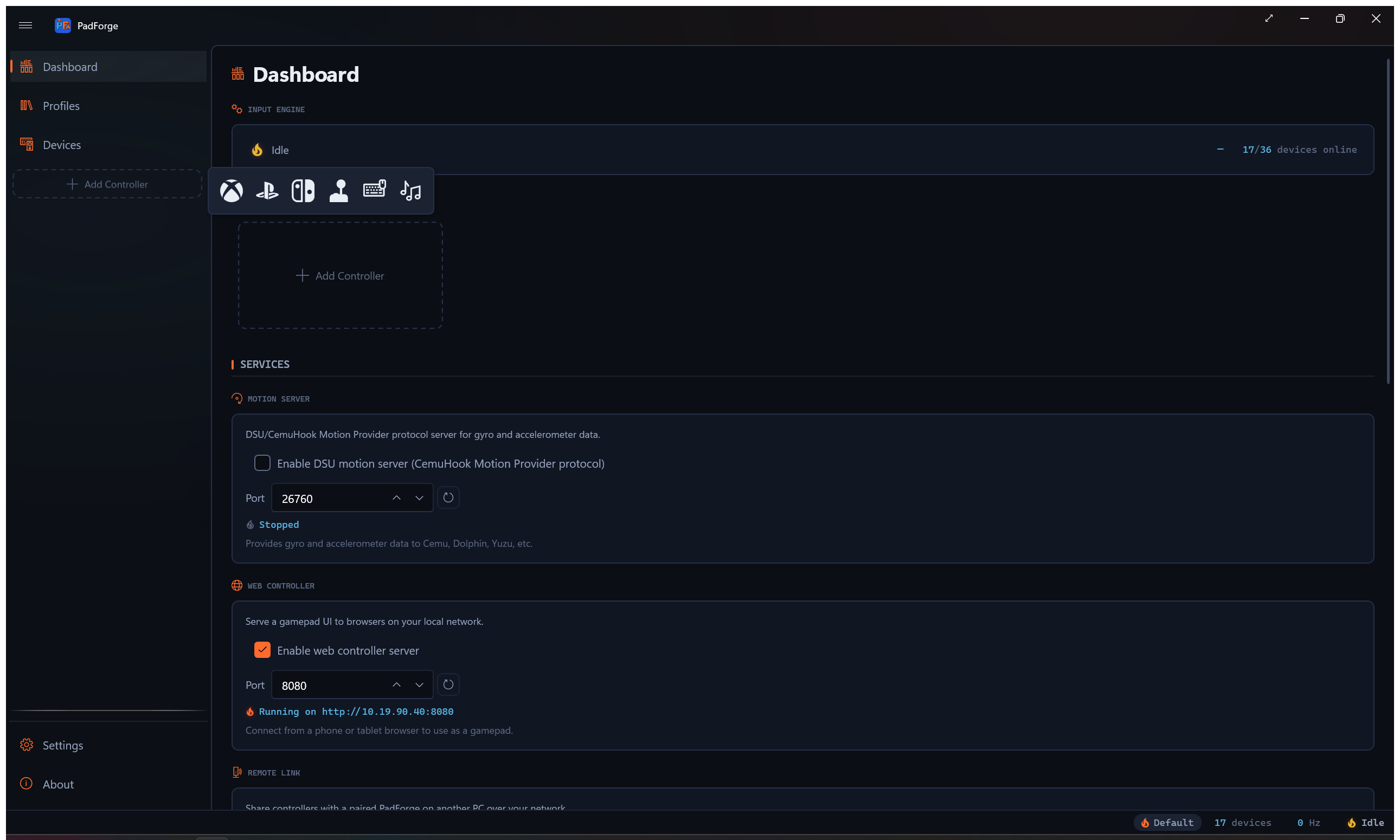
Adding the slot installs nothing yet. The first time you assign a pad to an Xbox, PlayStation, Nintendo, or Extended slot (step 3), PadForge installs the HIDMaestro driver automatically. There is no button to click, and the startup UAC prompt already covered it.
2. Plug in your pad
Connect the physical controller you want to use, wired or Bluetooth. Open the Devices page. A card for the pad appears the moment Windows sees it, with its name, type, and capabilities on the card.
3. Assign it to the slot
Click the pad's card to select it, then under Virtual Controller Assignment in the detail pane click the slot pill for the controller you created in step 1. A slot badge appears on the card, and the physical pad now routes through that virtual controller.
Because your pad is a recognized gamepad, PadForge fills in the default mapping on assignment: sticks, triggers, buttons, and D-pad, all pre-assigned to their standard positions. The slot is already playable.
4. See it working
Back on the Dashboard, click the slot's card to open its configuration, then open the Mappings tab. Press buttons and move sticks on your pad. The Value column updates in real time, and what you see there is exactly what the game gets.
5. Launch a game
Start any game with controller support. It sees a standard Xbox pad.
One thing can go wrong here: if the game reacts twice to every press, it is seeing both your physical pad and the virtual one. Install HidHide from the Settings page, then on the Devices page select your pad and tick Hide from Games (HidHide) under Input Hiding in the detail pane. Pads assigned after HidHide is installed get that box ticked automatically. If you do not see double input, you do not need it.
Where to go next
- A Five-Minute Remap changes your first binding.
- The Guides each walk one task end to end, from gyro aiming to using your phone as a controller.
- The Features pages document every control on every tab.
Last updated for PadForge 4.5.0.