Driver Management
PadForge needs one driver (HIDMaestro, which auto-installs the first time you create a virtual controller) and offers three optional ones (HidHide, Windows MIDI Services, and SteamVR) that install and uninstall from Settings.
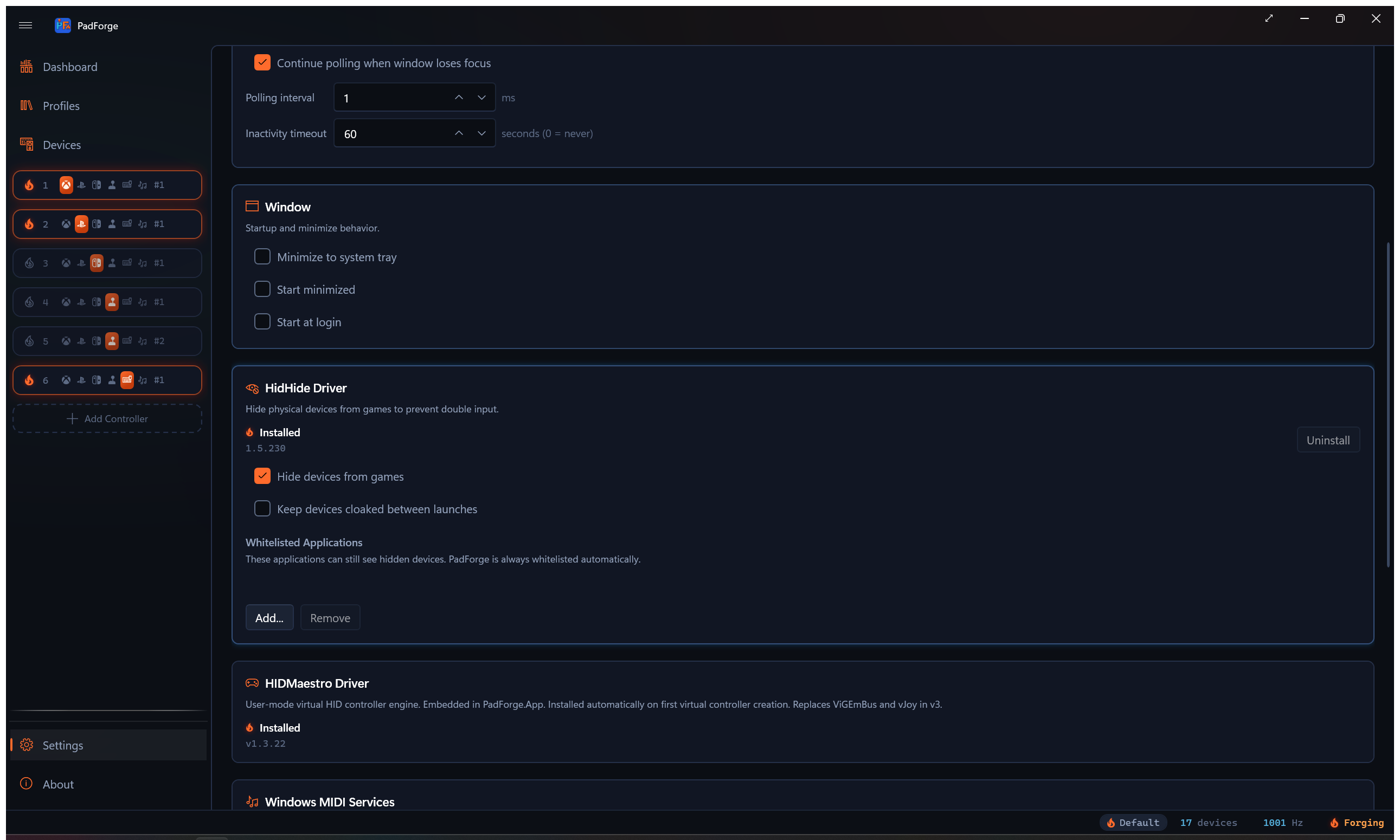
What's required vs optional
| Component | Status | What it does |
|---|---|---|
| HIDMaestro | Required for any virtual controller other than Keyboard+Mouse and MIDI. Auto-installs on first use. | Creates the virtual controller that matches each slot's shape (Xbox Series, DualSense, Switch Pro, Logitech wheel, and so on). 231 device profiles. |
| Keyboard+Mouse | Built in. No driver. | Maps controller inputs to keyboard and mouse presses. |
| HidHide | Optional. Install when games show double input. | Hides physical controllers from games so they only see the virtual ones. |
| Windows MIDI Services | Optional. Install for MIDI input or the MIDI controller type. | Virtual MIDI endpoints for sending notes and CC to DAWs and music software, and the input path that reads a MIDI keyboard as a mapping source. Needs Windows 11 24H2 (build 26100) or later. |
| SteamVR | Optional. Install for the VR controller type. | VR runtime for virtual VR controllers. Installs from Valve's servers with no Steam account or Steam client needed (several GB). |
Upgrading from an older PadForge? Older versions needed ViGEmBus and vJoy. HIDMaestro replaces both. If either is still on your PC, PadForge finds it on first launch and offers to remove it (see Legacy driver cleanup).
First-run auto-install
HIDMaestro installs itself the first time PadForge creates a virtual controller (any Xbox, PlayStation, Nintendo, or Extended slot). PadForge already runs as administrator, so no extra prompt appears. Install takes a few seconds. No restart. The HIDMaestro card on the Settings page lights up and the Xbox, PlayStation, Nintendo, and Extended slot types turn on.
HidHide, Windows MIDI Services, and SteamVR do not auto-install. They sit on the Settings page until you click Install.
Status indicators
Each driver card on the Settings page shows an ember flame next to its status text.
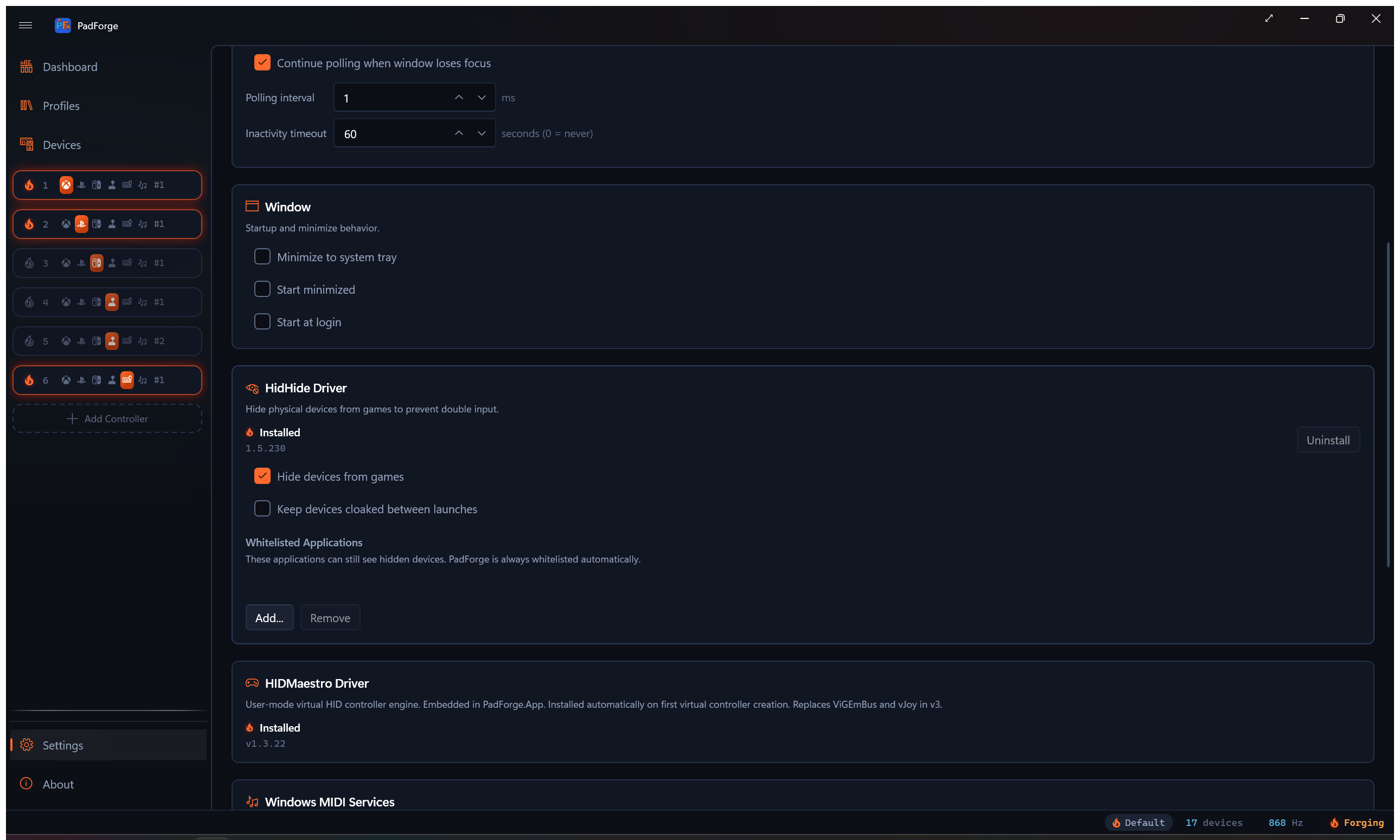
| Flame | Meaning |
|---|---|
| Lit flame (orange, glowing) "Installed" | Driver ready. HidHide, HIDMaestro, and Windows MIDI Services show their version number below. The SteamVR card has no version line, and its text changes to "Running", "Running, driver connected", or "Running, controllers live" while SteamVR is active. |
| Unlit flame (outline only) "Not Installed" | Install before the matching slot type works. |
HIDMaestro auto-installs, so its flame stays lit. Driver status lives on the Settings page and nowhere else. The Dashboard carried a Drivers text row through 4.3.2 and no longer does.
What happens with a driver missing
PadForge runs whether or not the optional drivers are installed. Missing drivers only limit the features that need them.
| Missing | What you lose |
|---|---|
| HIDMaestro | It auto-installs on first use, so it isn't normally missing. If that install fails, Xbox, PlayStation, Nintendo, and Extended slots can't create a virtual controller. Keyboard+Mouse and MIDI still work. |
| HidHide | Hide from Games (HidHide) has no effect. Games may see the physical and the virtual at the same time. |
| MIDI Services | The MIDI slot type won't switch on. Its button stays visible and shows the tooltip "MIDI (requires Windows MIDI Services)". Every other slot type works. |
| SteamVR | The VR slot type won't switch on. Its button stays visible and shows the tooltip "VR (requires SteamVR)". Every other slot type works. |
Admin rights
PadForge always runs as administrator. The UAC prompt fires once per launch, when PadForge itself starts. Everything after that (HIDMaestro auto-install, HidHide install and uninstall, Windows MIDI Services install and uninstall, the SteamVR install and uninstall, and HidHide whitelist edits) runs inside that same session, so no second prompt appears.
HIDMaestro
One driver that publishes the virtual controllers. Each Xbox, PlayStation, Nintendo, and Extended slot uses one HIDMaestro device profile. VR slots ride HIDMaestro's OpenVR driver instead and have no profile. A profile decides how the virtual controller looks to Windows and games: its name, its make and model, its buttons and axes, and its force-feedback support.
The Nintendo slot type carries two profiles: Switch Pro (the default) and Switch 2 Pro. Pick between them from the slot's preset dropdown. Neither can be customized, so the slot deploys the chosen profile as-is, with Nintendo button lettering, motion passthrough (games read gyro and accelerometer from the virtual pad), and rumble. The remaining Nintendo profiles (Joy-Cons, GameCube adapter, NSO retro pads) live in the Extended category.
The 231 profiles cover
- Xbox 360, Xbox One, Xbox Series, Elite, Adaptive
- DualShock 3, DualShock 4, DualSense, DualSense Edge
- Switch Pro, Switch 2 Pro, Joy-Cons (both generations), GameCube adapter, NSO retro pads (N64, SNES, Genesis)
- Logitech G-series wheels (G29, G920, G923, G27)
- Thrustmaster and Fanatec wheels and pedals
- HOTAS and flight sticks (Thrustmaster T-Flight HOTAS, Logitech X52, VKB, VIRPIL, Winwing)
- Hori, 8BitDo, Nacon, Razer, other third-party gamepads
- A Custom profile for the Extended category, with up to 8 axes, 128 buttons, and 4 POV hats.
Install when you want
- Any Xbox, PlayStation, Nintendo, or Extended virtual controller
- Force feedback in racing wheels and sticks
- A custom controller shape for niche games
Install
HIDMaestro installs itself the first time PadForge creates a virtual controller. The HIDMaestro card on the Settings page is status-only. There is no Install button. Because PadForge already runs as administrator, no extra prompt appears. The flame lights up once install finishes, and Xbox, PlayStation, Nintendo, and Extended slots become available.
Uninstall
There is no in-app Uninstall button for HIDMaestro. Removing it through Device Manager is not supported. If you stop using PadForge, deleting the program leaves HIDMaestro installed but idle. It only acts when PadForge asks it to create a virtual controller.
For the contract between PadForge and HIDMaestro, see HIDMaestro Deep Dive.
HidHide
Hides physical controllers from apps so games only see PadForge's virtual ones. Fixes the "double input" problem where every press counts twice because games detect the real pad and the virtual one at the same time.
Install when you see
- Button presses counting twice
- Menus scrolling at double speed
- Jerky or doubled character movement
- Two controllers in a game when only one is plugged in
- Games auto-picking the wrong controller
Installing it before any of these show up is a fine plan.
How PadForge drives HidHide
PadForge runs HidHide on its own. You do not need the HidHide Configuration Client.
| Feature | Detail |
|---|---|
| Per-device hiding | Toggle Hide from Games (HidHide) on each device card (Devices page). |
| Automatic whitelist | PadForge adds itself so it can still read hidden controllers. The entry stays in the driver's whitelist between sessions. Harmless, and it keeps hidden controllers readable when Keep Devices Cloaked Between Launches is on. |
| Engine-aware | By default, hiding holds only while the engine runs. Stop the engine or close PadForge and the controllers reappear. |
| Hides the whole device | One toggle covers the device, not one interface. PadForge blacklists every HID interface under the controller's base container, the nodes between that interface and the base on classes HidHide filters, and the base container itself when it is one of those classes and all of its children are HID. XInput and WGI cannot then reach the pad through a sibling path. |
| Visible rows keep their interface | A device PadForge lists as its own row with hiding off is left alone, and no other device's hide blocks a parent above it. A handheld whose built-in pad and touchpad are separate rows can hide one and keep the other. |
| Transport switches | A pad that moves between USB and Bluetooth is hidden on the first pass either way. The hide also sweeps present nodes reporting that pad's serial number, so a second pad of the same model is never touched. |
| Master switch | Settings > HidHide Driver > Hide Devices from Games (global on/off). Turning it off mid-session unhides every controller right away. |
| Keep Devices Cloaked Between Launches | Settings > HidHide Driver checkbox, off by default. Leaves physical controllers hidden even while PadForge is closed. Turn it on when another app (Steam, for example) scans for controllers between PadForge sessions and should keep seeing only the virtual ones. |
Whitelist
Other controller utilities (Steam Input, for example) need their own whitelist entry to see hidden controllers.
- Add... browses for an .exe.
- Remove drops the selected entry.
Install steps
- Open Settings. Scroll to HidHide Driver.
- Click Install. The installer runs inside PadForge's session, which is already running as administrator, so no extra prompt appears.
- No restart is needed. A controller that was already connected picks HidHide up the next time it connects, so reconnect it if hiding does not work right away.
Turn on Keep a Diagnostics Log under Settings to see what hiding actually did. Each pass records the devices it hid, the interfaces the visible-row rule held back, and which rule the transport sweep used. When hiding is requested and the HidHide control device will not open, the log says so and names the Windows error, instead of failing quietly.
Uninstall steps
- Turn off Hide from Games (HidHide) on every device. Uninstall stays disabled while any device has hiding on.
- Open Settings. Scroll to HidHide Driver.
- Click Uninstall. It runs inside the same administrator session, so no extra prompt appears.
Every physical controller becomes visible again the moment the driver leaves.
Windows MIDI Services
System-wide virtual MIDI endpoint (named "PadForge MIDI 1", "PadForge MIDI 2", and so on for each MIDI slot) that any music app can subscribe to. Turns a gamepad into a MIDI controller. No loopMIDI bridge needed.
Install for
- Driving a DAW (Ableton Live, FL Studio, Reaper) from a gamepad
- Playing MIDI notes from controller buttons during a live set
- Sending MIDI CC from sticks and triggers to synth parameters
- Feeding VJ or stage-lighting software that takes MIDI
- Mapping a MIDI keyboard or control surface as an input (see MIDI Input)
Windows version
Needs Windows 11 24H2 (build 26100) or later. On older Windows the Install button stays disabled.
Install steps
- Open Settings. Scroll to Windows MIDI Services.
- Click Install.
- PadForge downloads the installer from GitHub (around 210 MB). A progress overlay appears.
- The installer runs on its own. The flame lights up when it finishes.
Uninstall steps
- Delete or retype every MIDI slot on the Dashboard.
- Open Settings. Scroll to Windows MIDI Services.
- Click Uninstall.
SteamVR
The runtime behind the VR slot type. PadForge installs it Steam-free from Valve's servers: no Steam account, no Steam client. It is several GB.
Install steps
- Open Settings. Scroll to SteamVR.
- Set Install Location if you do not want the default path, by typing a path or using Browse. The row only shows while SteamVR is missing.
- Click Install. The download runs from Valve's servers and the flame lights when it finishes.
Uninstall steps
Uninstall only appears for an install PadForge itself made. A SteamVR that arrived with the Steam client is left alone, and PadForge shows no removal button for it.
- Close SteamVR. The uninstall refuses while it is running.
- Open Settings. Scroll to SteamVR.
- Click Uninstall. It removes the Steam-free install and frees the space, including the
logsandconfigsubfolders SteamVR keeps inside it. VR virtual controllers stop working until SteamVR is installed again.
Reading real VR hardware as an input source pauses for the rest of the session after an uninstall, and comes back the next time PadForge starts. PadForge holds SteamVR's client library open while it is running and lets go of it during the uninstall, so it does not go back to it until a fresh launch. Virtual VR controllers are unaffected by this: they run inside SteamVR's own process, not PadForge's.
For the slot type itself, see Virtual VR Controllers.
Legacy driver cleanup
Older PadForge versions needed ViGEmBus and vJoy. HIDMaestro replaces both. If either is still on your PC, PadForge finds it on first launch and offers to remove it.
| Button | What happens |
|---|---|
| Uninstall | PadForge removes the drivers it found. Reboot when prompted. |
| Keep | The dialog closes. The old drivers stay installed. They will not interfere with HIDMaestro, but they take up space. |
The dialog appears once. After you pick either button, it does not come back on later launches.
Compatibility matrix
| Driver / Service | Windows 10 (x64) | Windows 11 (x64) | Windows 11 24H2+ (x64) | ARM64 | x86 (32-bit) |
|---|---|---|---|---|---|
| HIDMaestro | Yes | Yes | Yes | Yes (1) | No |
| HidHide | Yes | Yes | Yes | Yes (1) | No |
| Windows MIDI Services | No | No | Yes | Yes (1) | No |
| SteamVR | Yes | Yes | Yes | No | No |
| Keyboard+Mouse (no driver) | Yes | Yes | Yes | Yes (1) | No |
(1) Preliminary. Nothing in the ARM64 column has run on ARM64 hardware yet.
- HIDMaestro runs in user mode, so it installs with no reboot. It carries an x64 and an ARM64 driver and installs the one that matches the machine.
- HidHide is a kernel driver, so it has to match the machine: x64 on an x64 PC, ARM64 on an ARM64 PC. Neither install asks for a restart. It does not run on 32-bit Windows.
- Windows MIDI Services needs Windows 11 24H2 (build 26100)+. The Install button auto-disables on older Windows. On an ARM64 machine PadForge downloads Microsoft's ARM64 installer.
- SteamVR is x64. Valve ships no ARM64 build.
- Keyboard+Mouse needs no driver, so it works wherever PadForge itself runs.
- PadForge itself ships as two 64-bit builds: x64 for Windows 10 and 11, and ARM64 for Windows 11 on ARM64. Installation lists what the ARM64 build lacks. Neither build runs on 32-bit Windows.
Uninstall guards
PadForge blocks driver removal while a slot still needs it.
| Driver | Uninstall blocked when |
|---|---|
| HidHide | Any device has Hide from Games (HidHide) on. |
| MIDI Services | Any MIDI slot exists. |
| SteamVR | Any VR slot exists, SteamVR is running, or the install did not come from PadForge. |
Delete the slots or turn the feature off. Then Uninstall becomes available. (HIDMaestro has no Uninstall button, so it needs no guard.)
The slot guards read your saved slots, not what the engine is running, so they hold with the engine stopped. Switching a slot from one type to another releases the type it left and locks the type it joined, immediately.
Trouble
Install issues
| Problem | Fix |
|---|---|
| Click Install and nothing happens | An earlier installer run may still be in progress, or the launch failed quietly. No UAC prompt is involved (PadForge already runs as administrator). Wait a few seconds and retry. If it still does nothing, restart PadForge and try again. |
| Flame stays unlit after install | Retry. If it still fails, restart the PC and retry. |
| HIDMaestro fails to install | An old ViGEmBus or vJoy install can leave leftovers behind. Remove them from Windows Settings > Apps > Installed apps, then restart PadForge. |
| MIDI Services download fails | Check the internet connection. PadForge pulls about 210 MB from GitHub. |
| MIDI Install button disabled | Needs Windows 11 24H2 (build 26100)+. Check Settings > System > About in Windows. |
Runtime issues
| Problem | Fix |
|---|---|
| Xbox / PlayStation / Nintendo / Extended slot picked but no virtual controller appears | HIDMaestro auto-installs on first use. If that install failed, see "HIDMaestro fails to install" under Install issues above. |
| Clicking the MIDI slot type does nothing, and its tooltip reads "MIDI (requires Windows MIDI Services)" | Install MIDI Services (needs Windows 11 24H2+). |
| PadForge disappears when I uninstall Windows MIDI Services | Fixed in 4.3.0. Older builds were closed by Windows Restart Manager, which asks running programs to quit so an installer can reach files they hold open. PadForge now declines that request and stays up through the uninstall. |
| UAC prompt on every launch | Expected. PadForge needs administrator rights to drive its drivers, so Windows asks at startup. Everything after that runs without a second prompt. |
| Double input (every press counts twice) | Install HidHide. Turn on Hide from Games (HidHide) for the physical controller on the Devices page. |
| Double input still there after HidHide | Restart the game. Some games only detect controllers at launch. Reconnect the controller if the install was new, since a controller that was already connected picks HidHide up the next time it connects. |
| Virtual controller shows up but games do not see it | Restart the game once after PadForge is running. Some games and Steam only detect controllers at launch. |
| HIDMaestro slot stuck on "Initializing" | Give it a few seconds. If it never finishes, check the inactivity timeout under Settings. A slot whose devices go offline drops its virtual controller after that timeout. The slot itself stays and comes back when the devices return. |
Driver conflicts
| Problem | Fix |
|---|---|
| HidHide hides controllers from other apps | Add those apps to the whitelist on the Settings page (see HidHide Whitelisted Applications). |
| Antivirus flags a driver installer | HIDMaestro and HidHide are open-source, signed drivers. Add an exception or pause real-time scanning during install. |
Related pages
- Installation: first-time setup and driver install.
- Settings: where the driver cards live.
- Controller Slots: which driver each slot type needs.
- Devices: per-device hiding with HidHide.
- HIDMaestro Deep Dive: how PadForge talks to HIDMaestro.
- Troubleshooting: more help.
Last updated for PadForge 4.5.2.