Settings
Language, theme, engine timing, window behavior, drivers, and the settings file on disk all live on one page in the sidebar.
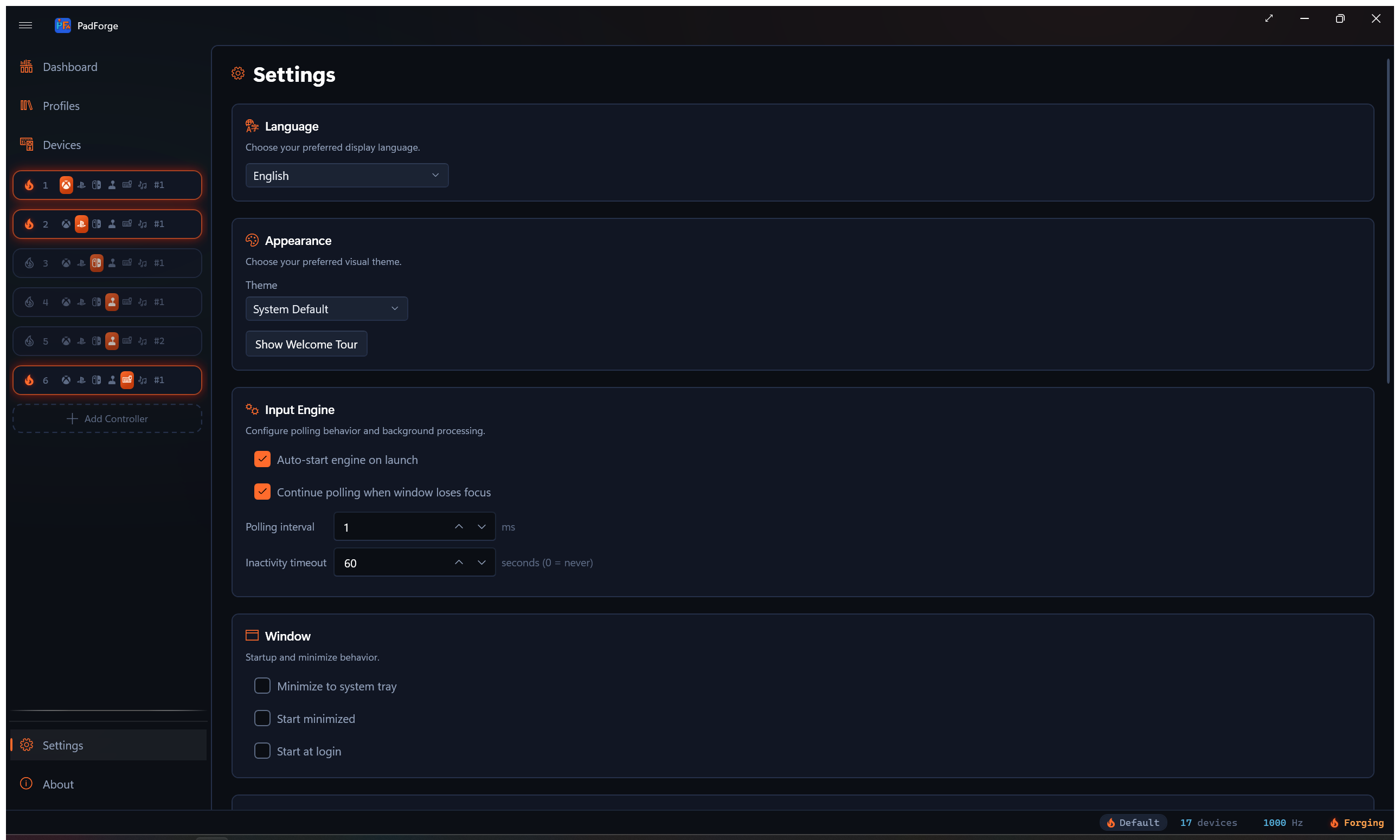
Language
A dropdown at the top of the page. Changes apply right away. No restart. The picked language saves and comes back on the next launch.
PadForge ships with 10 locales.
| Locale | |
|---|---|
| English | Italian |
| German | Japanese |
| Spanish | Korean |
| French | Dutch |
| Brazilian Portuguese | Simplified Chinese |
New translations land as community pull requests.
New in 3.2: Profile Shortcuts dropdowns keep their picked value when you switch language. Earlier builds cleared them when culture changed. See Profiles.
Appearance
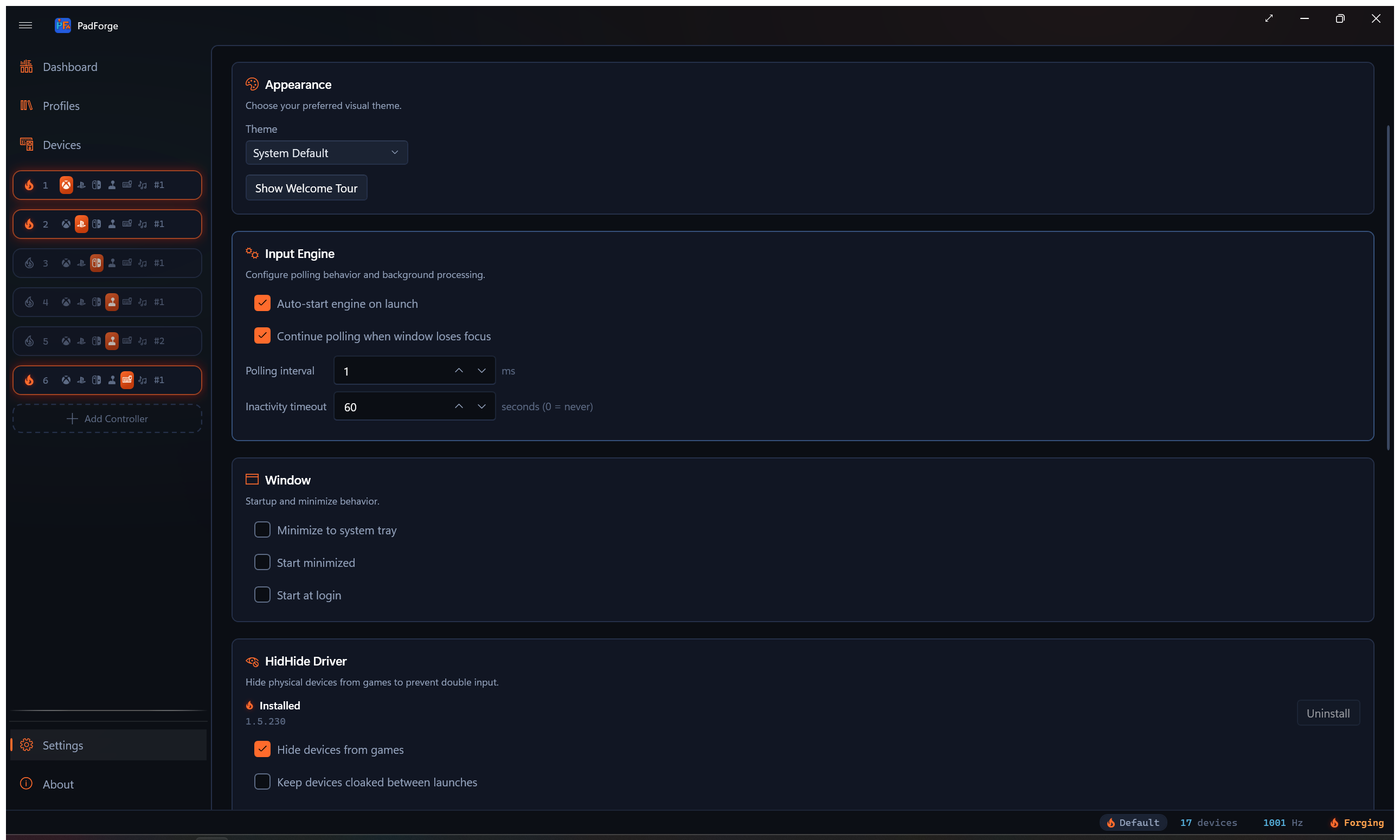
Theme
| Option | Behavior |
|---|---|
| System Default | Follows your Windows theme, read at launch and again whenever you re-pick this option. |
| Light | Always light. |
| Dark | Always dark. |
Changes apply right away.
Show Welcome Tour
Re-runs the first-run welcome tour, the spotlight walkthrough that points out the main areas of the app. Click it any time you want the tour again.
The 2D-versus-3D controller view is set on the Pad page, not here. See 3D and 2D Visualization.
Window
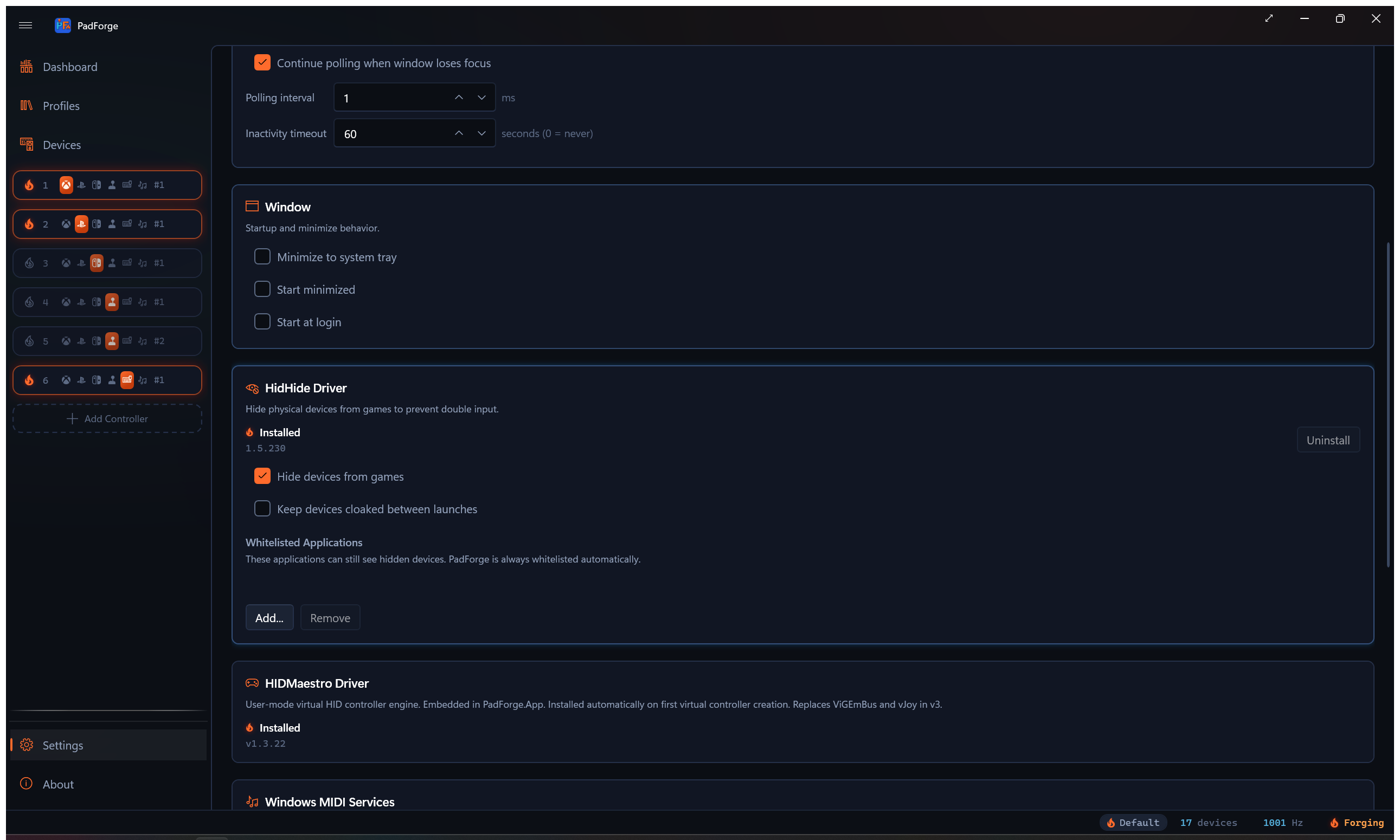
Controls how PadForge acts as a Windows app. Five switches here. Combine them with Auto-start engine (in the Input Engine card above) for a fully background install.
Minimize to System Tray
Sends PadForge to the notification area instead of the taskbar when you minimize. Double-click the tray icon to bring the window back.
Close to System Tray
Keeps PadForge running when you click the window's close button or press Alt+F4. The window hides in the notification area and the engine keeps going. Double-click the tray icon or pick Show to bring the window back, and pick Exit in its menu to quit.
Always Show in System Tray
Keeps the tray icon visible while the window is open, so Show and Exit in its menu are always one click away. Off by default. Pair it with Close to System Tray to quit from the tray without closing the window first.
Start Minimized
Opens PadForge with the window hidden. Combine with Minimize to system tray for a launch with only a tray icon.
Start at Login
Registers a logon scheduled task so PadForge runs when you log into Windows. PadForge is elevated, and Windows will not launch an elevated app from a Startup-folder shortcut, so the task runs it at highest privileges with no UAC prompt.
Hands-off setup: turn on Auto-start engine, Start minimized, Minimize to system tray, and Start at login. PadForge launches at login, starts the engine, and sits in the tray. Virtual controllers are live by the time you open a game.
Input Engine
Controls the polling loop that reads physical controllers, runs mappings and deadzones, and writes the virtual controllers.
Auto-Start Engine on Launch
Starts the engine when PadForge opens. Off means you start it by hand from the Dashboard power button.
Turn it off if you want PadForge to open without making virtual devices live.
Continue Polling When Window Loses Focus
Keeps the engine running when PadForge is not the foreground window.
Leave this on. Without it, the engine stops the moment you tab into a game and virtual controllers go dead. Turn it off only if you use PadForge as a passive diagnostic.
Flydigi Enhanced Protocol
Turns on the extra buttons and motion sensors that supported Flydigi controllers expose beyond their standard gamepad report.
If Flydigi's own software is running, PadForge says so on the device. Both can hold the same controller interface, and a Vader 5 Pro has been reported dropping and reconnecting repeatedly while both had access. Stop the Flydigi service while using PadForge, or keep the controller hidden and take the service out of the HidHide whitelist.
Read Logitech G-Keys
Reads the G-keys and extra mouse buttons on Logitech gaming gear through the vendor's G-key SDK, and presents them as their own device row. See Logitech G-Keys.
The SDK ships with Logitech Gaming Software 8.55 or later, not with G HUB. The status line under the checkbox says which step is missing: no SDK on the machine, a registered SDK whose file is gone, a library that loaded but is not the G-key SDK, or an SDK that refused to start because Logitech Gaming Software is not running. Once it connects, the line counts key events.
In Logitech Gaming Software, make PadForge the persistent profile. This is done in Logitech's software, not in PadForge, and it has nothing to do with PadForge's own profiles. Without it the keys only reach PadForge while its window is in front.
Polling Interval
How often the engine reads input, in milliseconds. Default: 1 ms (~1000 Hz).
| Value | Frequency | Fits |
|---|---|---|
| 1 ms | ~1000 Hz | Competitive play, lowest latency (default) |
| 2 ms | ~500 Hz | Responsive, a bit lower CPU |
| 4 ms | ~250 Hz | Balanced for most games |
| 8 ms | ~125 Hz | Casual play, real CPU savings |
| 16 ms | ~60 Hz | Lowest CPU, matches 60 fps |
Lower means quicker reads and more CPU. Higher means slower reads and less CPU. Most users should leave the default. Raise it when CPU is tight or the machine runs on battery.
A number field with up / down arrows. Range: 1-16 ms.
Inactivity Timeout
Seconds a virtual controller stays alive after all of its mapped physical devices go offline. Default: 60 s. Set to 0 to disable (the controller stays around indefinitely). One timeout governs every virtual controller type: Xbox, PlayStation, Nintendo, Extended, VR, Keyboard + Mouse, and MIDI.
When a slot's mapped pads disconnect (laptop sleeps, USB hub unplugged, battery dies), PadForge holds the virtual controller open for this many seconds. If the devices come back, the controller stays in place. If not, PadForge tears it down to free its kernel slot (the XInput slot, for Xbox types). Surviving controllers of the same type then re-bind to lower kernel slots so the order stays contiguous, and shift back as slots reactivate. Slot configuration is kept either way. Plug the devices back in and the virtual controller comes back on its own.
Range: 0–3600 seconds.
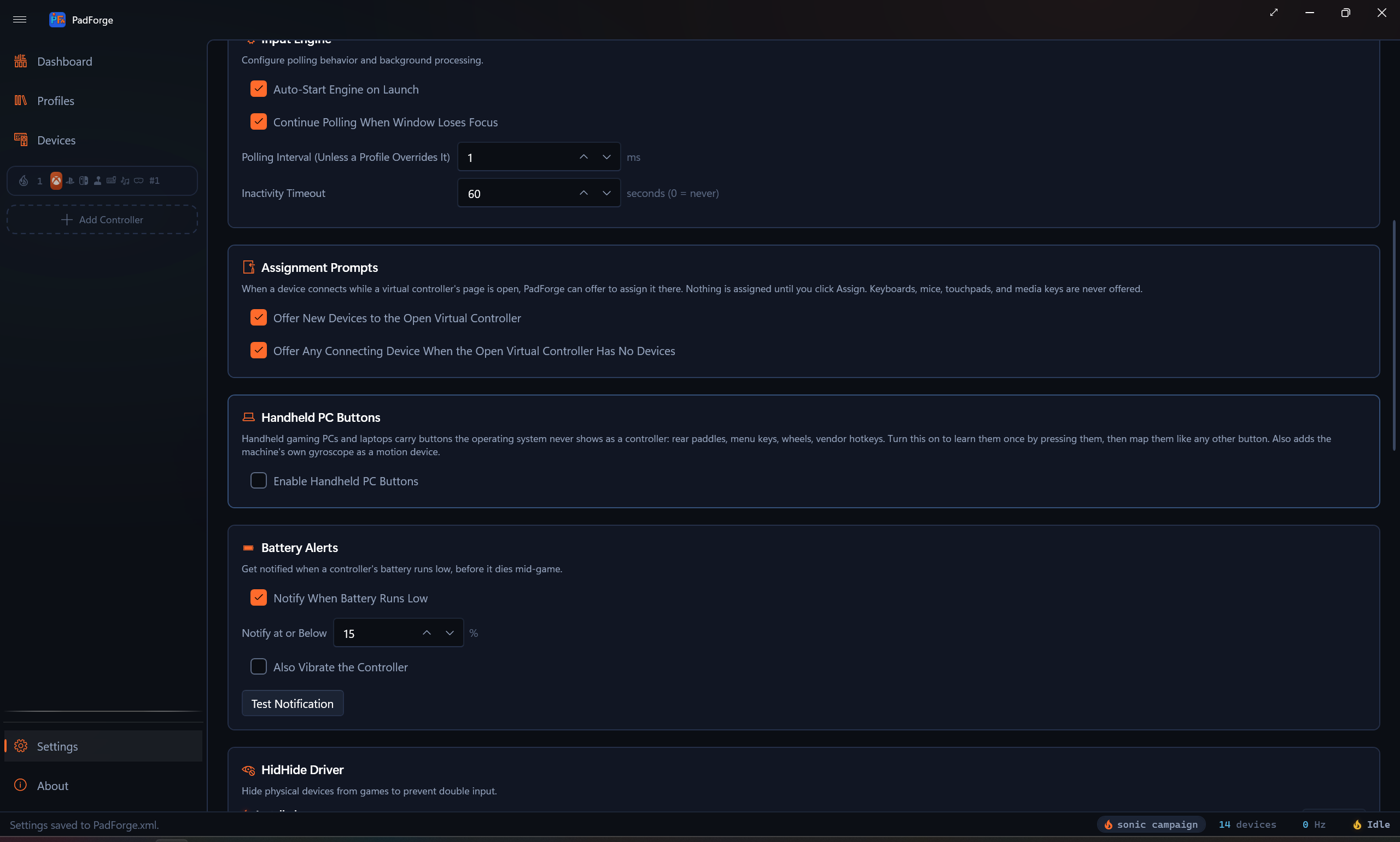
Assignment Prompts
When a device connects while a virtual controller's page is open, PadForge can offer to assign it there. A banner appears under the device bar with the device's name, an Assign button, and Not Now. Nothing is assigned until you click Assign. Keyboards, mice, touchpads, and media keys are never offered.
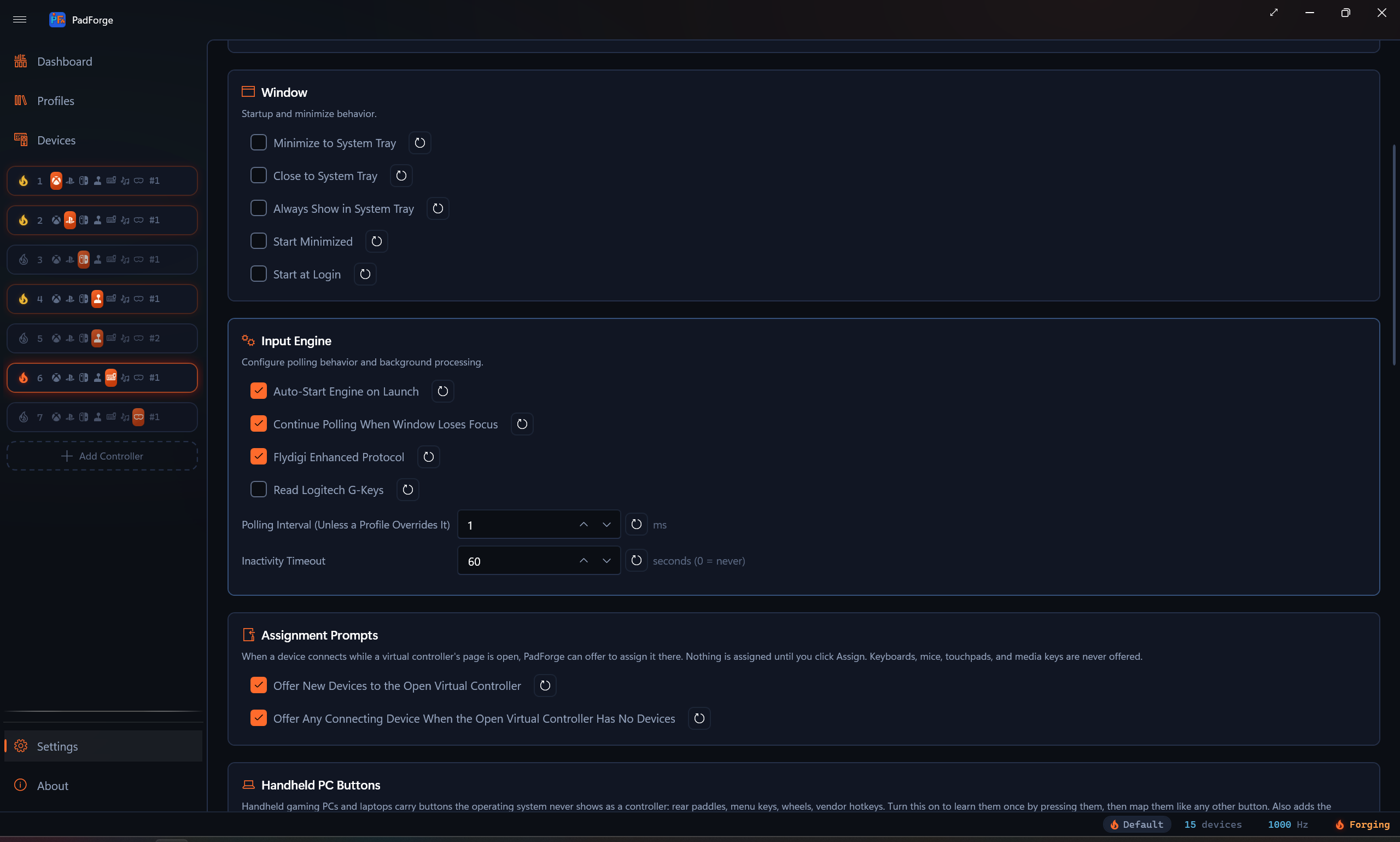
- Offer New Devices to the Open Virtual Controller fires only for a device PadForge has never seen before. Devices it already knows connect without a prompt.
- Offer Any Connecting Device When the Open Virtual Controller Has No Devices fires for any device, new or already known, as long as the open virtual controller has nothing assigned yet. Once it has a device, this prompt no longer appears.
Assign runs the same path as dragging the device onto the slot: the auto-map, input hiding defaults, and the Mappings tab refresh all happen exactly as they do for a dropped device. Not Now dismisses that device for that slot until PadForge restarts. Neither prompt fires on startup or when the engine restarts, since both re-enumerate every device at once.
PadForge never assigns a device on its own. Sim rigs and arcade setups carry many devices with no obvious home for each, so the app only ever offers, and both offers can be switched off here.
Battery Alerts
Get notified when a controller's battery runs low, before it dies mid-game.
- Notify When Battery Runs Low turns the alerts on.
- Notify at or Below sets the percentage that triggers one.
- Also Vibrate the Controller adds a buzz on the pad itself, so the warning reaches you without looking at the screen.
The same rumble drives identify: buzzing a device is how you tell which of several identical pads is which.
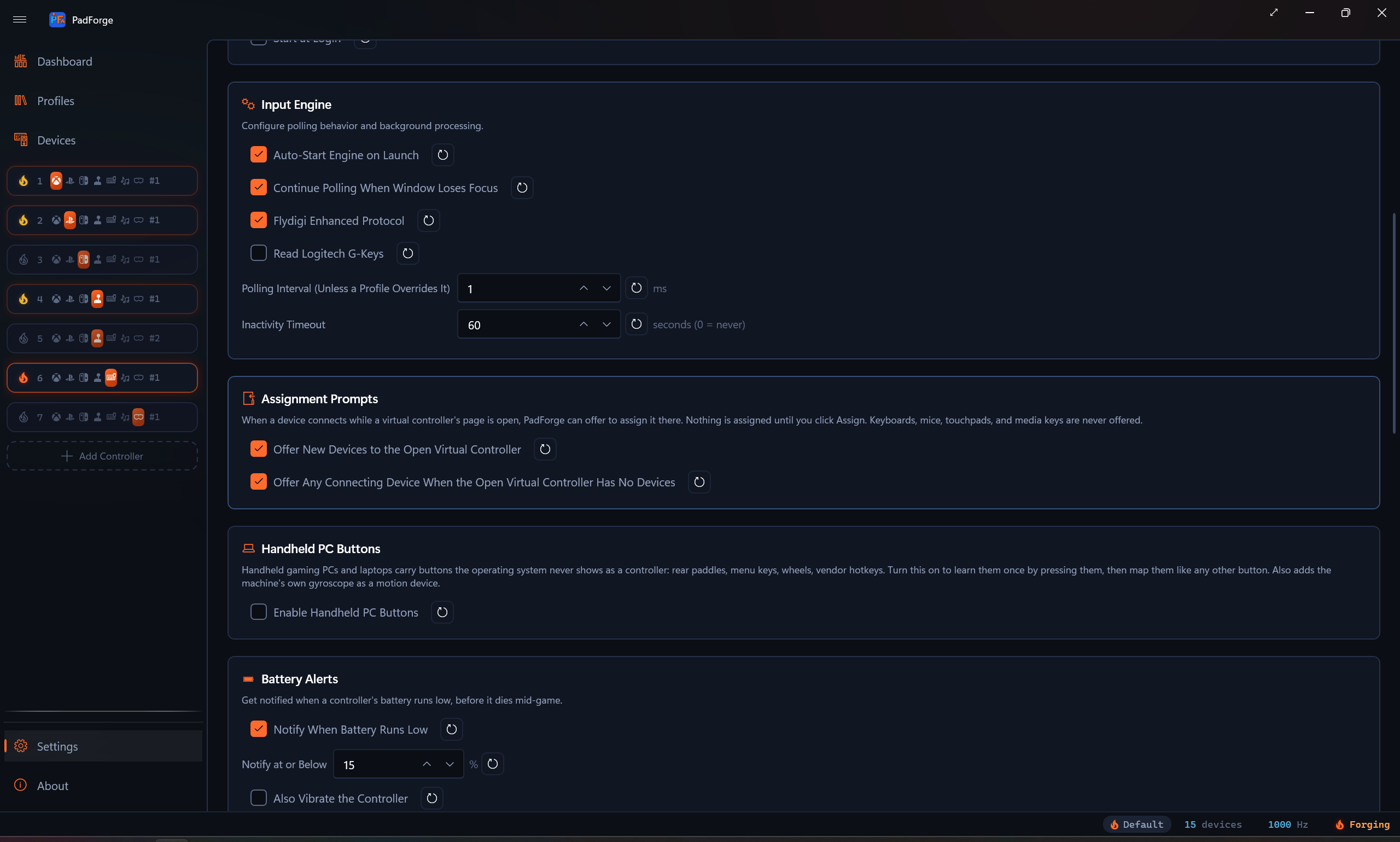
Driver Management
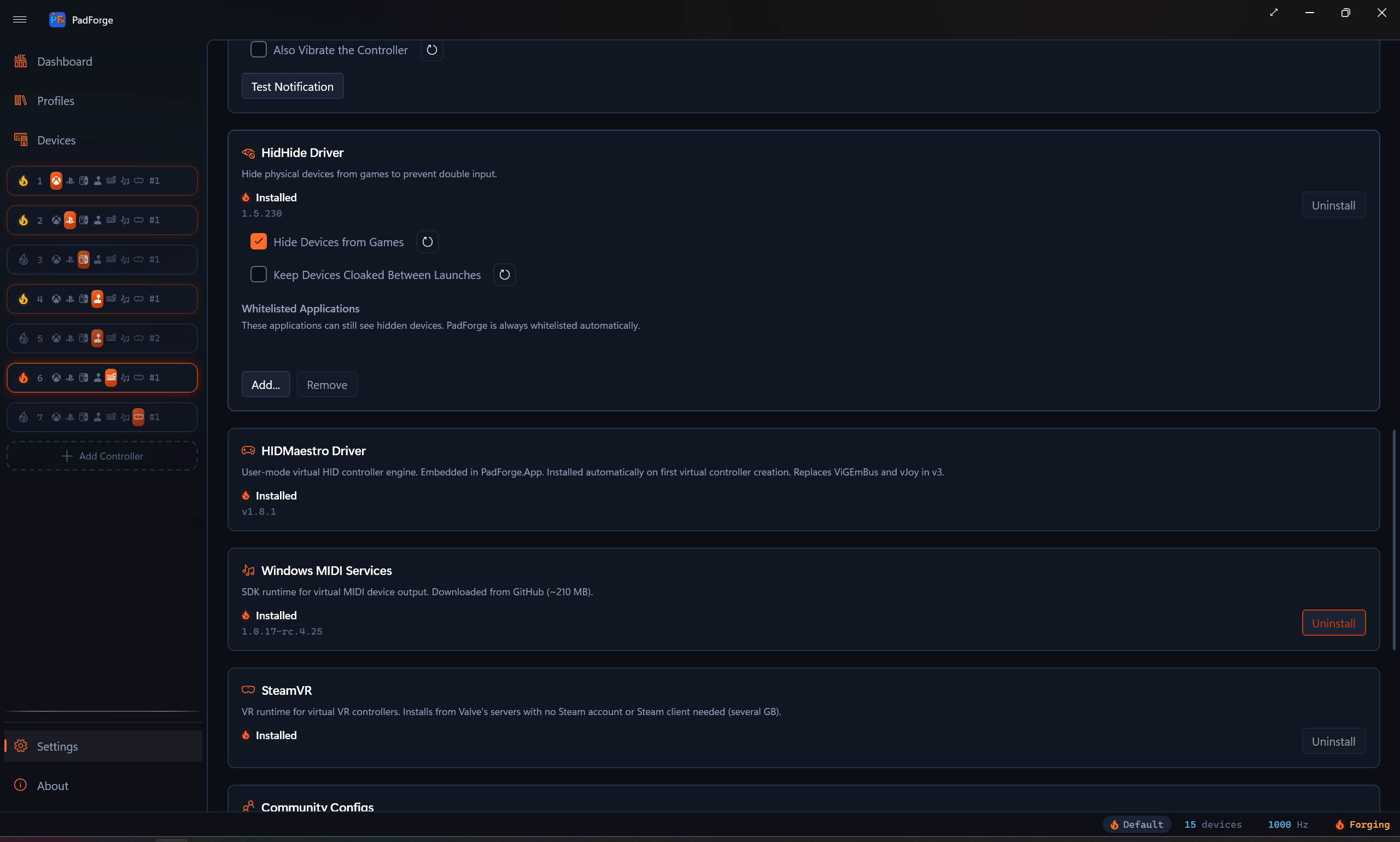
Four driver cards. Each card has an ember flame beside its status text (lit when installed, an unlit outline when not). HidHide, HIDMaestro, and Windows MIDI Services also show the installed version.
- HidHide Driver card: Install and Uninstall buttons.
- HIDMaestro Driver card: status only. The driver installs itself the first time you create a virtual controller and is required for every Xbox / PlayStation / Nintendo / Extended / VR slot.
- Windows MIDI Services card: Install and Uninstall buttons (button is disabled on Windows 10 and pre-24H2 Windows 11).
- SteamVR card: needed only for VR slots. It describes itself as VR runtime for virtual VR controllers. Installs from Valve's servers with no Steam account or Steam client needed (several GB).
PadForge is already elevated from its startup UAC prompt, so the Install / Uninstall buttons run their installer in the same elevated session without a second prompt.
Driver summary
| Driver | What it does | When to install |
|---|---|---|
| HidHide | Hides physical controllers from games so they only see the virtuals. Stops double input. | Games see both the physical and the virtual. |
| HIDMaestro | Single user-mode driver that creates Xbox, PlayStation, Nintendo (Switch Pro), and Extended (DirectInput) virtual controllers. 231 device profiles. Replaces ViGEmBus and vJoy in v3. | Installs itself the first time you create an Xbox, PlayStation, Nintendo, Extended, or VR slot. Required for those five slot types. |
| Windows MIDI Services | Sends MIDI virtual-controller output. Needs Windows 11 24H2 (build 26100)+. | You drive a DAW, synth, or other MIDI app from a controller. |
| SteamVR | Valve's VR runtime. PadForge fetches it directly, with no Steam account and no Steam client. | You want a VR slot. The VR tile stays disabled without it. |
Uninstall guards
PadForge blocks three driver uninstalls until you clear what still depends on them.
- HidHide stays locked while any device still has the cloak armed. Disarm the cloak on the Devices page first.
- Windows MIDI Services stays locked while any slot still outputs MIDI. Delete those slots or switch them to another output on the Controller Slots page first.
- SteamVR stays locked while any VR slot exists. Delete those slots or switch them to another type first.
Each guard reads the slots you have saved rather than what the engine is currently running, so it holds with the engine stopped, which is when most people go tidying up drivers. Switching a slot's type releases the old type's driver and locks the new one straight away.
The SteamVR card
Before installing, the card offers an Install Location. It defaults to C:\SteamVR and takes any full path on any drive. A bare drive root is refused, because the uninstall side deletes the recorded directory and pointing that at an entire drive is not a mistake worth allowing.
Uninstall appears only for an install PadForge itself created. PadForge works that out by checking whether it recorded the path and whether Steam's own registry entries point at the same folder. A SteamVR installed through the Steam client belongs to Steam, shows no Uninstall button here, and is never touched. The uninstall also stays disabled while any VR slot exists, and refuses while SteamVR is running.
SteamVR keeps its own log and settings inside the folder you chose, as logs and config subfolders. Removing the install takes them with it.
Hide Devices from Games
This checkbox sits inside the HidHide Driver card. It only shows when HidHide is installed. Master switch for input hiding. Two pieces sit under it.
- HidHide cloaking makes physical controllers invisible to games at the OS level.
- Input hook suppression stops mapped raw inputs reaching other input APIs.
On (default) means the per-device hide toggles on the Devices page do what they say. Off forces every controller visible no matter what the per-device toggles are set to. Use it as a panic button.
Keep Devices Cloaked Between Launches
The second checkbox in the HidHide Driver card, also shown only when HidHide is installed.
Off (default) clears every HidHide cloak when PadForge exits, so other sessions see your controllers normally.
On leaves the cloaks in place between launches. Pick this when another app (Steam launching after PadForge exits, for example) scans for pads while PadForge is closed and you want it to keep seeing the physical controllers as hidden. The next PadForge start re-asserts the cloaks with no visible flicker.
Flipping Hide Devices from Games off still decloaks right away, no matter what this is set to.
HidHide Whitelisted Applications
When HidHide is installed, a Whitelisted Applications section drops in under its card. The whitelist picks which apps can still see hidden controllers.
PadForge whitelists itself. You may also want to whitelist:
- Other controller-config tools
- Emulators that read raw hardware
- Diagnostic apps like joy.cpl
| Button | Action |
|---|---|
| Add... | Browse for an .exe. That program sees physical controllers even when hidden. |
| Remove | Drops the selected entry. PadForge is whitelisted automatically and never appears here, so there is nothing of its own to preserve. |
For full driver detail see Driver Management.
MIDI Configuration
When a slot outputs MIDI, its config bar shows:
| Setting | What it does |
|---|---|
| Channel | MIDI channel (1-16). |
| CC Count | Number of Control Change outputs. How many axes send CC. Clamped so the highest CC stays within range, so the max is 128 minus Start CC (128 only when Start CC is 0). |
| Start CC | Base CC number (0-127). Axis CCs count up from here. |
| Note Count | Number of Note outputs. How many buttons send Note messages. Clamped so the highest note stays within range, so the max is 128 minus Start Note (128 only when Start Note is 0). |
| Start Note | Base note (0-127, 60 = Middle C). Button notes count up from here. |
| Velocity | Note On velocity (0-127). Higher = louder. |
PadForge creates one virtual MIDI device per slot. No port to pick. Different slots can target different channels.
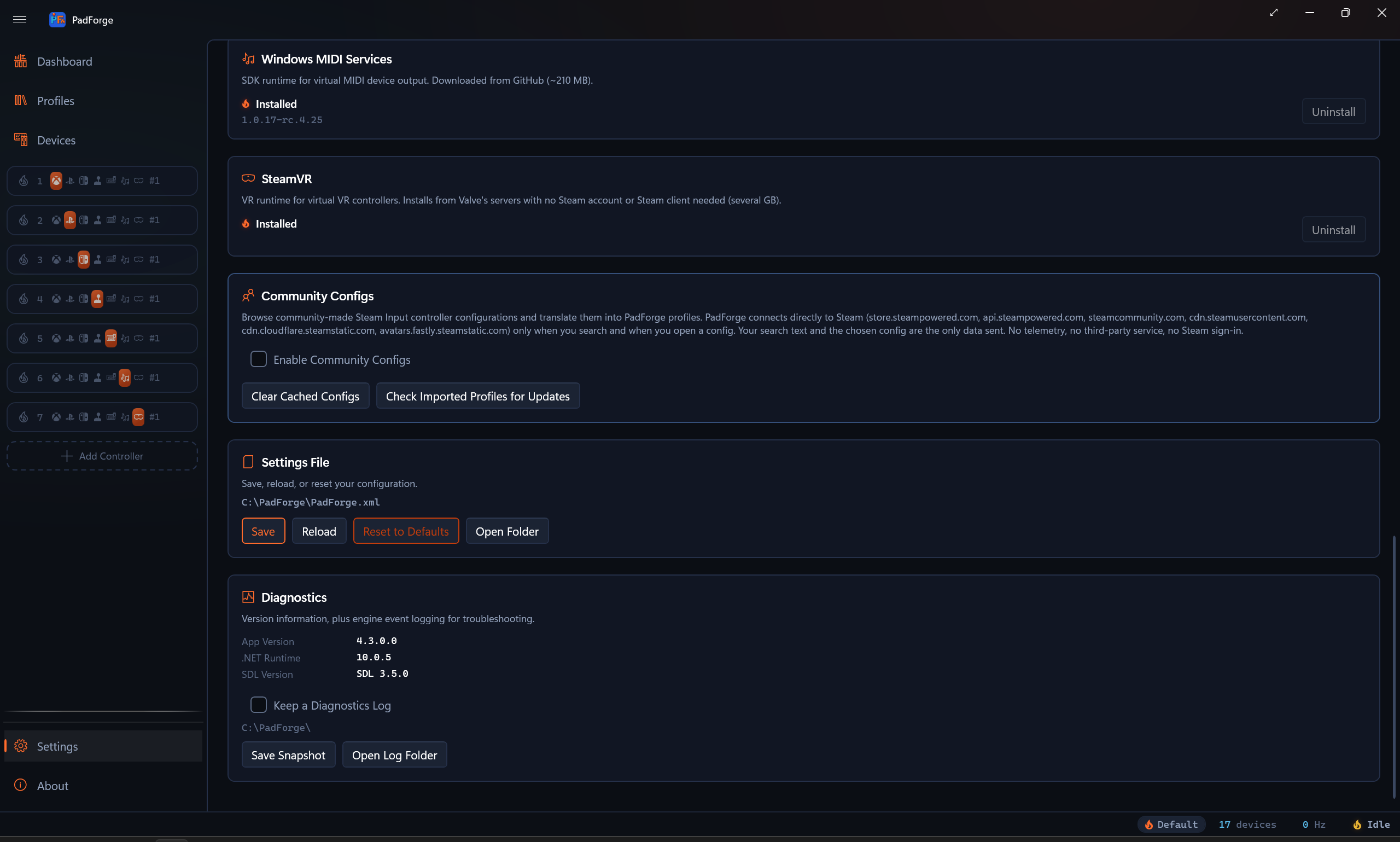
Community Configs
Controls the Steam Workshop Config Import feature: browsing community-made Steam Input controller configs and translating them into PadForge profiles.
Enable Community Configs
The master opt-in, off by default. PadForge sends nothing to Steam until you check it.
With it on, PadForge connects directly to Steam, and only when you act (a search, opening a config, or the update check below). The servers are all Steam's own: store.steampowered.com, api.steampowered.com, steamcommunity.com, cdn.steamusercontent.com, cdn.cloudflare.steamstatic.com, and avatars.fastly.steamstatic.com. Your search text and the chosen config are the only data sent. No telemetry, no third-party service, no Steam sign-in.
The Browse Community Configs button on the Profiles page works either way. With the opt-in off, its dialog opens on an explanation panel and offers the enable step there.
Show Legacy Workshop Configs
Appears once the opt-in is on. Configs from before 2017 have no downloadable file on Steam's servers, so PadForge lists them with a LEGACY badge and reads them through your Steam install instead. Off by default. See Legacy configs.
Clear Cached Configs
Empties the local Workshop cache (search results, config files, artwork) at %LOCALAPPDATA%\PadForge\SteamWorkshopCache. No confirmation, and nothing of value is lost: the cache refills as you browse. Imported profiles live in PadForge.xml, not the cache, and survive a clear. The status bar confirms with "Workshop cache cleared".
Check Imported Profiles for Updates
Asks Steam whether any config you imported has been updated since the import, in one query.
| Outcome | What you see |
|---|---|
| Everything current | Status bar: "Imported profiles are up to date (3 checked)". |
| Updates found | A Workshop Updates dialog lists each stale profile and its config, with Browse Community Configs as the re-import route. |
| No imported profiles | Status bar: "No profiles imported from the Steam Workshop yet". |
| Opt-in off | Status bar: "Enable Community Configs to check for updates". Nothing is sent. |
Settings File
Every slot, mapping, deadzone, profile, macro, and preference lives in one XML file: PadForge.xml.
Location
The full path shows at the top of this section. Use it to back up, copy between machines, or share for bug reports.
Buttons
| Button | Action | When to use |
|---|---|---|
| Save | Writes the in-memory config to disk. | Force-save, or confirm changes hit disk. |
| Reload | Throws out in-memory changes, re-reads from disk. | Undo since last save, or pick up an external edit. |
| Reset to Defaults | Restores factory defaults. | Last resort for a broken config. No undo. |
| Open Folder | Opens the config folder in Explorer. | Backup or sharing. |
If unsaved changes exist, an orange "Unsaved Changes" warning sits under the buttons.
Auto-save
Most settings auto-save on their own. A change reaches the engine within ~250 ms, and the file on disk is written after about 2 seconds of quiet, one write per editing burst. You do not need to click Save after every change.
The Save button is there for two cases.
- Force-save before a risky operation.
- Batch-save after a rapid run of changes.
Diagnostics
Version information, plus engine event logging for troubleshooting.
Version info
| Field | Description |
|---|---|
| App Version | PadForge version |
| .NET Runtime | .NET runtime in use |
| SDL Version | SDL3 library version |
Paste these into any issue you file.
Keep a Diagnostics Log
Off by default. A healthy install writes no log.
Ticking it writes engine events continuously to diagnostics.log, in the
folder shown under the checkbox, which is the folder PadForge runs from.
The setting persists, so it survives a restart and covers sessions that
start with Windows. That matters because a launch-time environment
variable cannot reach an auto-started session, which is the case this
was built for.
At 8 MB the file rolls over to diagnostics.log.old, so leaving it on
for days costs one file plus its rollover. Each launch writes a marker
line, so several sessions in one file stay easy to tell apart.
Save Snapshot
Writes the engine's most recent events to a new timestamped file and opens Explorer with it selected.
PadForge always keeps its recent engine events in memory, whether or not the log is on, so this captures the moments around something that just happened without having had logging enabled beforehand. Use it right after a glitch.
Open Log Folder
Opens the folder holding diagnostics.log and any snapshots.
Related pages
- Installation: first-time setup.
- Dashboard: engine status and overview.
- Controller Slots: add and manage virtual controllers.
- Devices: physical controllers and assignments.
- Driver Management: driver install detail.
- Profiles: per-app config and Profile Shortcuts.
- Steam Workshop Config Import: the feature behind the Community Configs card.
- Troubleshooting: more help.
Last updated for PadForge 4.5.1.