A Five-Minute Remap
Change what a button does: the walkthrough swaps A and B, and the same moves cover any rebind you will ever make.
You need a virtual controller with a physical pad assigned to it. That is Your First Controller.
1. Open the mapping table
On the Dashboard, click the slot's card to open its configuration, then open the Mappings tab. One table drives the whole slot: each row is one output the game sees. Rows run in order: buttons, D-Pad, triggers, left stick, right stick. PlayStation slots add touchpad and motion rows at the end, and Nintendo slots add the motion pair.
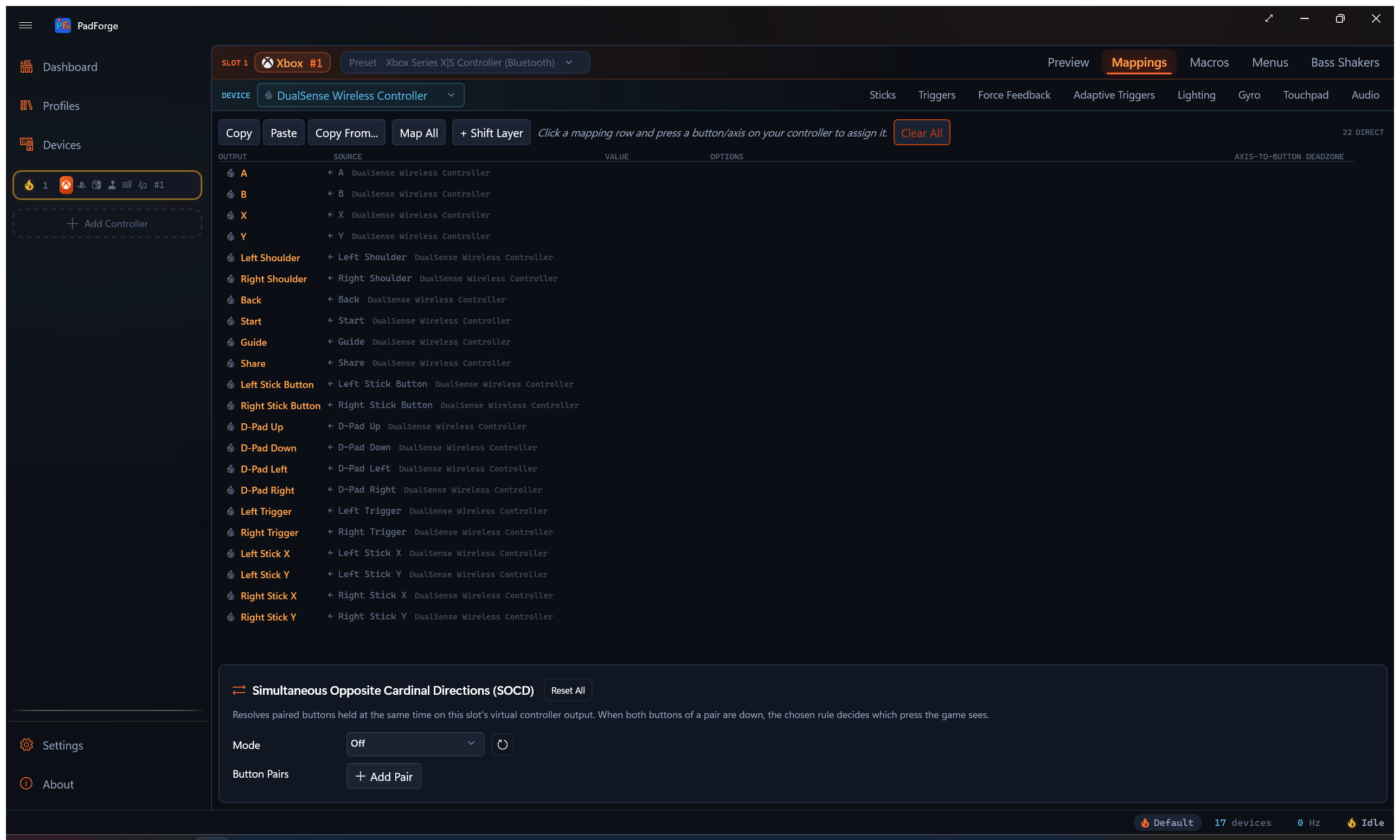
2. Record the first swap
- Find the A row. Button rows sit at the top, A first.
- Click the record icon on that row. The icon switches to a stop glyph, its tooltip reads "Recording...", and the row pulses orange.
- Press B on your physical pad.
PadForge captures the press, fills in the source, and stops recording. The A output is now driven by the physical B button.
Tip: Press only the input you want. Wiggling a stick while pressing a button can catch the stick instead.
3. Record the other half
Do the same on the B row: click its record icon, press A on the pad. The swap is complete.
4. Verify on the spot
Press A and B on the pad and watch the Value column. Each press lights
the swapped row in real time, and what you see there is exactly what the
game gets. No save step, no apply step. Your mapping persists in
PadForge.xml next to the executable.
When recording grabs the wrong input
Use the source dropdown instead. It is one list of every input the slot can see, grouped under device-name headers, with the (Any Device) group first. Pick an entry ("B", "Axis 3", "POV 0 Up") and it assigns on the spot, same result as recording.
Clearing has three scopes:
| Control | Where | What it resets |
|---|---|---|
| Clear | on the row | the primary source and its options (invert, half-axis, deadzone) |
| Clear | on an extra source | that source only, the emptied slot stays on the row |
| Clear All | Mappings tab toolbar | every row completely, tuning included, after a confirmation |
When you want to remap everything
Map All, on the Preview tab or the Mappings tab toolbar, walks every row in order: it highlights a row, prompts for the matching input, captures it, and moves on. The fastest way to set up an unrecognized device (a generic joystick, an arcade encoder) from scratch.
Where to go next
- Multiple sources on one row, invert and half-axis options, and combine modes: Button and Axis Mappings.
- A second binding set on the same pad, held or toggled: Shift Layers.
- Timed sequences on one press: Macros.
Last updated for PadForge 4.5.0.