Troubleshooting
Common problems and how to fix them. If your issue is not on this page, check GitHub Issues.
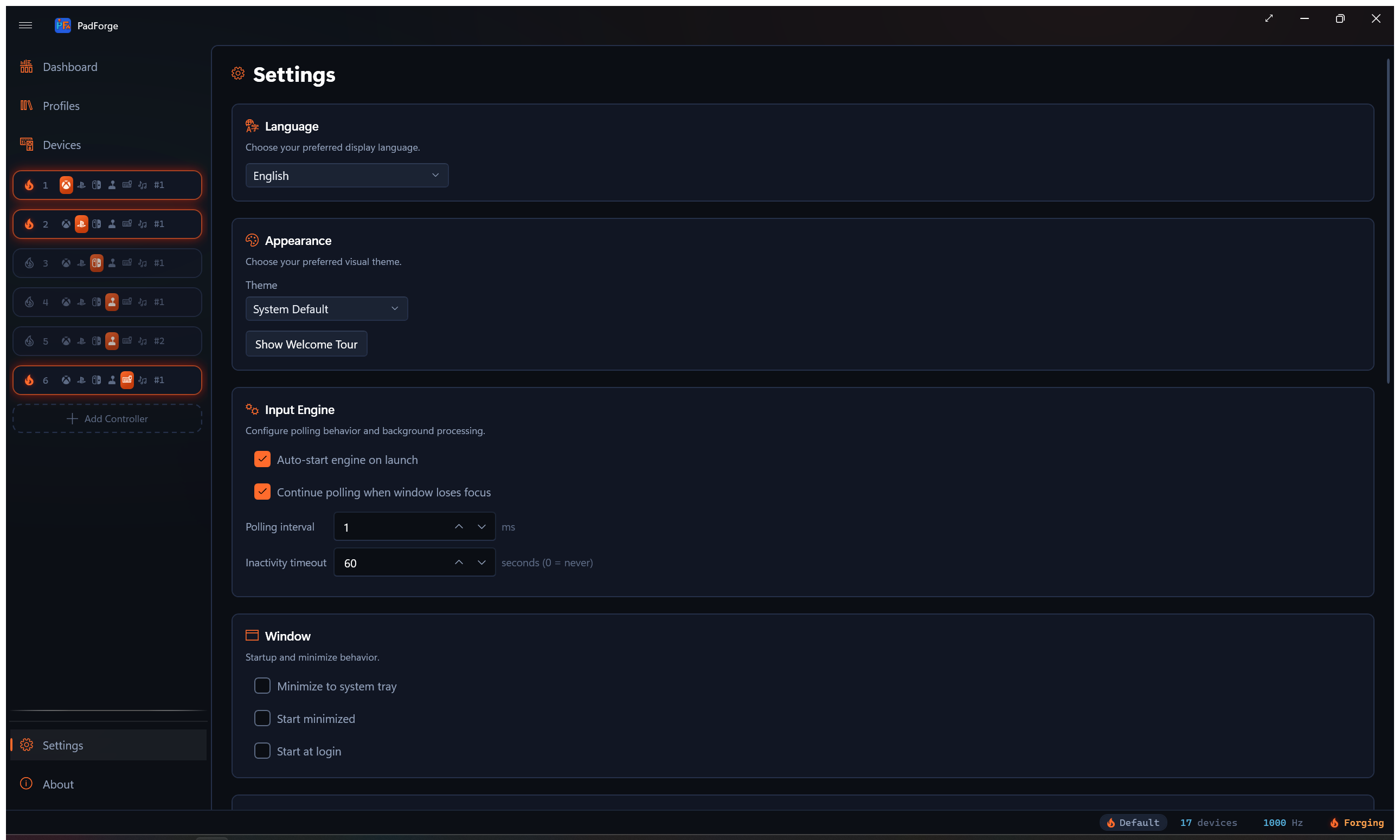
Related pages: Installation, Settings, Driver Management, Devices.
No Devices Detected
The Devices page is empty or the Dashboard shows "0/0 devices online"
- Try a different USB port. Use one directly on the computer, not a hub.
- Try a different cable. Some cables are charge-only.
- Restart PadForge. Some devices need a fresh launch.
- Check Windows Device Manager. If the device does not appear under "Human Interface Devices" or "Sound, video and game controllers," the issue is the device or its driver.
- For Bluetooth controllers, pair and connect in Windows Bluetooth settings before starting PadForge.
- If HidHide is installed, another tool may have cloaked the device. PadForge adds itself to the HidHide whitelist automatically while "Hide Devices from Games" is on in Settings. With that toggle off, decloak the device in the HidHide Configuration Client, or turn the toggle on and let PadForge manage hiding.
- Close other controller tools (DS4Windows, BetterJoy, reWASD, x360ce). They may intercept access.
- A DualShock 3 pairs through PadForge itself, with no separate driver tool to install. Connect it by USB, click Pair on the Devices page, and follow the dialog. When it finishes, unplug the pad and press the PS button to connect over Bluetooth. It then streams with rumble and the player-number LED.
Controller Detected but Not Mapping
The controller appears on Devices but produces no output or wrong output on the virtual controller.
- Unknown or unusual controllers may need manual mapping.
- Assign the device to a slot. Select at least one numbered toggle on the Devices page.
- Map inputs manually via Record on the Mappings tab for each button and axis.
- Enable "Force Raw Joystick Mode (Bypass Gamepad Remapping)" on the Devices page if SDL3's remapping produces wrong outputs. Re-record all mappings afterward.
- Check live input on the Devices page. If axes and buttons do not respond there, the issue is at the driver or HID level.
- Check the source dropdown on each mapping row. Confirm it points to the correct input device.
Virtual Controller Not Appearing in Games
A slot is created and a device assigned, but games do not detect the virtual controller.
- Install HIDMaestro from Settings for Xbox, PlayStation, Nintendo, or Extended output.
- Install Windows MIDI Services from Settings for MIDI output.
- Confirm the slot is enabled. The power icon on the Dashboard card should be green.
- Confirm the engine is running. The Dashboard should show "Running" with a green icon.
- Restart the game. Some games only scan for controllers at startup.
- Check the game's input settings. Some games require manual controller selection.
- For Extended controllers, verify in
joy.cpl(Win+R >joy.cpl). If controllers are not listed, see "Extended Controllers Not Working" below.
Nintendo Slot Not Seen by a Game
A Nintendo virtual controller is active but the game does not react to it.
- Install HIDMaestro from Settings. The Nintendo output rides the same driver as Xbox, PlayStation, and Extended.
- Games see the slot as the picked Nintendo profile, a Nintendo Switch Pro Controller or a Nintendo Switch 2 Pro Controller. XInput-only games never read either one. Use an Xbox slot for those.
- Steam Input detects it as a Pro Controller with Nintendo glyphs. For games without native Switch Pro support, let Steam Input translate it, or switch the slot to Xbox output.
- Gyro and accelerometer pass through from the assigned pad, so emulators and Steam Input gyro read real motion.
- Face buttons follow Nintendo lettering, so A sits on the right and B on the bottom. Prompts that look swapped against an Xbox pad are the Switch layout working as intended.
- The Nintendo slot has no Customize surface. It deploys a catalog profile as-is. The profile picker offers Nintendo Switch Pro Controller (the default) and Nintendo Switch 2 Pro Controller.
Double Input in Games
Every press registers twice, menus scroll too fast, or the game shows two controllers.
The game is reading both the physical controller and PadForge's virtual controller.
- Install HidHide from Settings.
- Enable "Hide Devices from Games" on the Settings page.
- On the Devices page, enable "Hide from Games (HidHide)" per device.
- PadForge always whitelists itself, so it keeps seeing hidden devices. Add other apps (emulators, tools) that need a hidden device under Whitelisted Applications on Settings.
- Restart the game after changing HidHide settings. HidHide blocks only programs that open the controller after the hide lands. A program that already had it open keeps it until the controller reconnects.
- Check the game's controller settings. Disable the physical controller and keep the virtual one.
- If using Steam, start PadForge before Steam, or unplug and reconnect the controller once PadForge is running. Steam opens controllers when it starts and holds them, so a pad connected before PadForge hid it stays visible to Steam under its real name, and Steam Input reads it alongside the virtual one. If Steam usually starts first, turn on Keep Devices Cloaked Between Launches in Settings. Otherwise disable Steam Input for the game or close Steam entirely.
- BLE controllers (e.g., Xbox via Bluetooth) are properly hidden by HidHide on current PadForge builds. If peek-through still happens, check that the per-device "Hide from Games (HidHide)" toggle is on and that "Hide Devices from Games" is enabled in the HidHide section of Settings.
Rumble Not Working
No vibration from the physical controller when games send force feedback.
- Set Overall Gain above 0% on the Force Feedback tab.
- Set both left motor and right motor strength above 0%.
- Click Test Rumble to verify hardware support. No vibration means the device lacks rumble motors or driver support.
- Confirm a device is assigned to the slot and connected (green status dot).
- Check rumble support on the Devices page capabilities list. Devices without native rumble attempt haptic fallback, but results vary.
- Try a different game. Not all games use force feedback.
- Close other controller software (Steam Input, DS4Windows, reWASD) that may intercept rumble.
- A DualShock 3 rumbles once it is paired through PadForge's Pair flow on the Devices page. Rumble is native over that connection. A DS3 running through some other driver may not pass rumble.
- For Extended output, the game must send HID PID 1.0 force feedback. See "Force Feedback Not Working" below.
Audio Rumble Not Working
Audio Rumble is enabled but the controller does not vibrate, or the Level meter stays flat.
- Confirm audio plays through the system default render device. The Level meter should show activity.
- Level meter flat during playback? Toggle Enable Audio Rumble off and on to restart WASAPI capture.
- Set Overall Gain above 0%. It applies to audio rumble too.
- Increase sensitivity (default 4, try 8-12, range 1-20).
- Raise Bass Cutoff (Hz) (default 80, range 20-200) to capture more mid-bass.
- Set both motor scale sliders above 0%.
- Click Test Rumble. No vibration means the device lacks rumble motors.
- Some apps (DAWs, certain games) open audio in exclusive mode, blocking WASAPI loopback.
- At least one audio output device must be active in Windows Sound settings.
Bass Shakers Output Silent
"Route Rumble to an Audio Output" is on but nothing plays on the shaker or subwoofer.
- Check the status line on the Bass Shakers tab. "Audio output is not running." means the routing is off or the engine is stopped. "The selected output device is unavailable. Audio stays off until it returns." means the chosen Output Device disappeared. Pick another or reconnect it.
- The feature works with Xbox, DualShock 4 / DualSense, and Nintendo Switch Pro virtual controllers, plus Extended virtual controllers with force feedback, such as racing wheels. Other slot types have no game feedback to route.
- Game feedback and Test Rumble play through the audio output. Macro rumble stays on the controller by design. Test Rumble on the Force Feedback tab is therefore a valid audio-path check, as are the per-voice Test buttons and Frequency Sweep on the Bass Shakers tab.
- Set Master Gain above zero and enable at least one voice with its own gain above zero.
- Run Frequency Sweep (20 to 120 Hz over eight seconds) and note where the shaker responds strongest, then set the voice frequencies there.
- Bluetooth audio devices add noticeable latency. Use a wired output if the thump lags the game.
Extended Controllers Not Working
Extended (HIDMaestro) controllers do not appear in games or joy.cpl.
- Accept the UAC prompt at PadForge startup. PadForge always runs as administrator. Canceling the prompt blocks startup entirely, so the engine never initializes HIDMaestro.
- Verify the HIDMaestro driver shows "Installed" on the Settings page.
- Check
joy.cpl(Win+R >joy.cpl). If empty, create an Extended slot on the Dashboard first. - Restart PadForge after installing HIDMaestro.
- If a slot stays stuck on "Initializing," check the Inactivity Timeout in Settings. After the timeout, a slot whose mapped devices stay offline has its live virtual controller torn down to free its kernel slot. The slot configuration (mappings, profile, position) is preserved. The virtual controller recreates automatically when the devices return online.
Force Feedback Not Working
Games send force feedback but the physical controller does not vibrate on an Extended slot.
- Confirm the game sends HID PID 1.0 force feedback. Most native DirectInput FFB games do. XInput-only games do not. Use Xbox or PlayStation output for XInput rumble.
- Set Overall Gain above 0% on the Force Feedback tab.
- Set motor strength sliders above 0%.
- Click Test Rumble to confirm the physical controller supports rumble.
- HIDMaestro Extended profiles publish constant, ramp, periodic (sine, square, triangle, sawtooth), and condition (spring, damper, inertia, friction) effects. Effect types outside that set may not produce rumble.
- Restart the game. Some games only initialize FFB at startup.
MIDI Not Available
The MIDI button in the "Add Controller" popup is dimmed and does nothing, with the tooltip "MIDI (requires Windows MIDI Services)".
- Install Windows MIDI Services from Settings.
- Windows MIDI Services requires Windows 11 24H2 (build 26100) or later. Earlier Windows 11 builds and any Windows 10 build are unsupported by Microsoft's SDK.
- Restart PadForge after installing.
- Verify the "Windows MIDI Services" service is running (Win+R >
services.msc). - "Failed to create MIDI session" means the SDK initialized but cannot reach the service. Restart the service or reboot.
No MIDI Output
A MIDI slot is active but no messages reach the DAW or synthesizer.
- In the DAW, look for "PadForge MIDI N" in the MIDI input list.
- Set the receiving app to read from the PadForge MIDI endpoint.
- Confirm the engine is running and the slot is enabled (green power icon).
- Match the MIDI channel (1-16) between PadForge and the receiving app.
- Verify CC numbers (axes) and note numbers (buttons) match what the receiving app expects.
- Use a MIDI monitor (MIDI-OX or Windows MIDI Services console) to confirm PadForge is sending. If messages appear there but not in the DAW, the issue is DAW configuration.
My Macro Doesn't Fire
A macro trigger is configured but pressing the trigger does nothing.
- All trigger components must be active simultaneously. Partial presses do not fire.
- For axis triggers, the input must exceed the configured threshold percentage.
- Check the macro's Layer. "Any layer" fires regardless of the engaged layer. Base and named layers fire only while that layer is engaged, exactly like a mapping row. A macro scoped to a shift layer is inert the whole time that layer is off.
- Check the trigger mode. Several fire by design only on a specific press shape:
- On Long Press fires after the trigger is held for the Hold Time. A quick tap does nothing.
- On Short Press fires on release before the Hold Time elapses. Holding past it fires nothing.
- On Single Press, On Double Press, and On Triple Press wait out the Press Window and fire only on the matching press count.
- Turbo repeats only while the trigger is held.
- Confirm the macro's enable checkbox is checked.
- Confirm the engine is running and the slot is enabled.
- If the Source dropdown is set to Assigned Devices but no device is assigned, there is nothing to read. Switch to Virtual Controller or assign a device.
- Check for conflicting macros with overlapping triggers on the same slot.
Mouse Actions from Macros Aren't Working
A macro with Mouse Move, Mouse Button, or Mouse Scroll produces no visible effect.
- Match the axis source. Virtual Controller reads the slot's combined output, Assigned Devices reads the physical device directly.
- Adjust the sensitivity slider if movement is too fast or too slow.
- Confirm the trigger is firing (see "My Macro Doesn't Fire" above).
- Anti-cheat software may block simulated mouse input.
Macro Won't Stop Running
A macro keeps firing after the trigger is released, or runs with no trigger at all.
- A macro set to Always fires every frame while the slot is active. No trigger required. That is its design.
- A macro set to Toggle latches: the first press turns the actions on, and holds and repeats stay active until the second press. Tap the trigger again to release it.
- Uncheck the macro's enable checkbox to stop it.
- Delete the macro if it is no longer needed.
- Disable the slot (power icon on the Dashboard card) to stop all its macros.
Keyboard+Mouse Not Working
A Keyboard+Mouse slot is active but key presses or mouse movement do not appear in games.
- Verify the slot type is Keyboard+Mouse on the Dashboard card.
- Assign physical inputs to keyboard keys or mouse buttons on the Mappings tab.
- Adjust mouse sensitivity on the Sticks tab or macro action settings.
- Anti-cheat software (EAC, BattlEye, Vanguard) may block simulated input.
- Confirm the engine is running and the slot is enabled.
Settings Not Saving
Changes revert after restart or the settings file does not update.
- Wait for autosave. PadForge saves after changes settle. Unexpected closes may lose recent edits.
- Click Save on the Settings page to force an immediate save.
- Confirm PadForge has write access to its folder.
PadForge.xmllives next to the executable. "Error saving settings" in the status bar indicates a permissions issue. - Click "Open Folder" on Settings and verify
PadForge.xmlexists and is not read-only. - Add a PadForge exception if antivirus software blocks file writes.
- If "Error loading settings" appears on startup, the XML is corrupted. Delete
PadForge.xmland restart. PadForge creates fresh defaults. Or click "Reset to Defaults." - If the folder is synced by OneDrive, Dropbox, or similar, concurrent access across machines can corrupt the file. Move PadForge to a non-synced folder.
App Won't Start or UAC Prompt Issues
PadForge does not start, closes immediately, or shows a UAC prompt every time.
- UAC is expected. PadForge always runs as administrator. HIDMaestro driver registration, HidHide whitelist edits, and the polling loop all run in that one elevated process.
- Clicking "No" on UAC blocks startup. Windows does not start an administrator-required app when the user declines the prompt. Run PadForge again and accept the prompt.
- PadForge allows only one instance. Check Task Manager for existing PadForge processes.
- Check for
crash.lognext toPadForge.exe. It appears only after a crash and records the error. Attach it to a bug report. - PadForge ships as a single self-contained
PadForge.exewith the .NET runtime and SDL3 embedded. Nothing needs installing separately. If startup still fails with nocrash.log, the download may be truncated or corrupt. Re-downloadPadForge.exefrom the release page.
High CPU Usage
PadForge uses significant CPU, causing fan noise or slowdowns.
- Increase the polling interval in Settings > Input Engine. Default is 1 ms (~1000 Hz). Try 4 ms (~250 Hz) or 8 ms (~125 Hz) for casual use.
- Disable "Continue Polling When Window Loses Focus" if PadForge is only needed during gameplay.
- Remove unused virtual controller slots.
- Disable Audio Rumble on unused slots (runs WASAPI capture and real-time DSP).
DSU Motion Not Working in Emulator
The emulator does not receive gyroscope or accelerometer data.
- Enable "Enable DSU Motion Server (CemuHook Motion Provider Protocol)" on the Dashboard: Status should show "Listening on :26760".
- Match the port (default 26760) between PadForge and the emulator. "Port 26760 in use" means another app (BetterJoy, DS4Windows) is on that port.
- Use
127.0.0.1as the server address. PadForge binds to loopback only. - Confirm the controller has motion sensors on the Devices page. Any controller PadForge reads gyroscope or accelerometer data from feeds the DSU server: DualSense, DualShock 4, DualShock 3, Switch Pro, Switch 2 Pro, Joy-Cons, and the Wii Remote all report motion.
- DSU protocol supports slots 1-4 only. Assign the motion device to one of those slots.
- The DSU server binds to loopback only, so no firewall rule is involved. An emulator on another machine cannot reach it at all.
- In the emulator's motion settings, add a DSU server at
127.0.0.1with the matching port and select the correct slot.
Web Controller Not Connecting
The browser shows "Disconnected" or cannot reach the web controller URL.
- Enable the web controller on the Dashboard: Status should show "Running" with a URL.
- Both devices must be on the same Wi-Fi or LAN network.
- PadForge creates a firewall rule automatically.
- "Port 8080 in use" means another app occupies that port. Change the port in the Web Controller section of the Dashboard.
- "Access denied for port 8080 (run as admin)" means Windows reserved it or another service holds it. Change the web controller port on the Dashboard to a free one.
- Rotate the browser device to landscape orientation.
- Try Chrome, Firefox, or Edge if WebSocket issues occur.
Web Controller drops on iOS Safari After Tab Switch
On iPhone or iPad Safari, the web controller shows "Disconnected" after locking the screen, switching tabs, or returning from another app.
iOS Safari kills WebSocket connections when the page loses focus. The web controller page detects the dropped socket, shows "Disconnected. Tap to reconnect.", and retries every three seconds, or the moment the tab comes back to the foreground. If it does not come back, do this:
- Tap the page to bring it back into focus.
- Pull down to refresh, or close the tab and reopen the URL.
- Keep Safari in the foreground while playing. Background-tab WebSockets are not reliable on iOS.
- Add the page to the Home Screen as a PWA for a more stable foreground session.
Remote Link PC Not Appearing
A second PC runs Remote Link but does not show up under "Nearby PCs (Not Paired)."
- Enable Remote Link on both PCs from the Dashboard. A PC only announces itself while it is on.
- Both PCs must be on the same local network. Discovery is a same-subnet broadcast, so a separate guest network, VLAN, or Wi-Fi band hides them from each other.
- Some networks block broadcast. Open Or Connect by Address (Advanced), enter the other PC's address and port, and click Pair / Connect.
- Allow PadForge through the firewall on each PC. For per-port rules, open UDP 27501 for discovery and TCP 27500 (or your changed listening port) for the connection.
- For play across the internet, swap connection codes. Copy This PC's Code on the Dashboard, have the other person paste it into their Connect box while you paste theirs, then you both click Pair / Connect. That opens a direct path with no VPN and no port forwarding. Broadcast discovery does not cross the internet, so the code is how the two PCs find each other. If PadForge warns that the network cannot make direct connections (a mobile hotspot or carrier-grade NAT), fall back to a VPN like Tailscale and connect by address.
Remote Link Pairing Fails
Pairing does not complete, or the six-digit codes differ on the two screens.
- Check that the two codes match before confirming. A mismatch means the PCs did not reach each other directly. Cancel and retry.
- Confirm on both PCs. Pairing needs both sides to accept.
- A failed handshake creates no device and shares nothing. Start pairing again from one side.
- A PC you revoked cannot reconnect until you pair it again.
Shared Device Not Showing After Pairing
Two PCs are paired but the owner's controller does not appear in the consumer's device list.
- Confirm the pairing is active. Each PC lists the other under Paired PCs on the Dashboard.
- Remote Link shares controllers, wheels, and HOTAS hardware, not arbitrary USB devices.
- On the consumer, assign the shared device to a slot and map it like a local controller.
- Auto-reconnect is on by default. With it off, the PCs do not relink on their own after a drop. Turn it back on in the Remote Link settings, or re-pair.
Remote Link Feedback or Keyboard Not Working
A shared device drives the game, but rumble, LEDs, or keyboard output do not reach the owner PC.
- Feedback returns only for what the physical device supports: rumble, Xbox trigger rumble, wheel force feedback, adaptive triggers, lightbar, player LEDs, Guide button LED brightness, speaker audio, and HD haptic tones. A device without a given feature shows nothing for it.
- Keyboard, mouse, and macros from a shared device are blocked when Limit This PC to Gamepad Input Only was ticked for that paired PC (its row under Paired PCs shows "gamepad only"). To allow them, revoke the PC and pair again with the box unticked.
- See Force Feedback, Impulse Triggers, Lighting, and Controller Audio for the per-feature setup, which also applies over the link.
Profile Not Switching Automatically
Auto-profile switching is enabled but PadForge does not switch when the game is in the foreground.
- Confirm "Auto-Switch Profiles Based on Foreground Application" is checked on the Profiles section.
- Verify the executable path matches (case-insensitive, full path). Use the file browser button to avoid typos.
- For games launchable from multiple locations, separate paths with the pipe character (
|). - Add the game's own executable, not the launcher's (Steam, Epic, etc.).
- PadForge always runs elevated, so it can read the foreground path of elevated games. If a protected process still is not detected, add the game executable that actually owns the window.
- Save after configuring. Profile data must persist to
PadForge.xml.
Community Configs (Steam Workshop) Issues
"Steam Is Unreachable" in the Browse Community Configs dialog.
- Check your internet connection and click Retry.
- Corporate or school networks sometimes block Steam. The connection uses standard HTTPS (port 443).
- Already-imported profiles keep working offline. They live on this PC.
An imported profile double-inputs or fights the original Steam config.
The imported profile replaces what the Steam config did. Disable Steam Input for the game (Steam > game properties > Controller), or close Steam, and cloak the physical pad on the Devices page.
An imported profile does nothing in game.
- Assign your physical controller to both of the profile's pads. Imports ship with no device assignments.
- Confirm the profile is active (load it, or add the game's executable via Edit for auto-switch).
See Steam Workshop Config Import for the full feature guide.
Sensitivity Curves Not Responding
A sensitivity curve is set but stick or trigger output seems unaffected.
- Check the correct axis. X (horizontal) and Y (vertical) have independent curves.
- If the preset is "Linear," no modification is applied. Select a different preset or add custom points.
- Click Reset to restore Linear, then apply a new preset to verify functionality.
- A large deadzone leaves little range for the curve to affect. Reduce the deadzone to test.
- Custom control points placed nearly linearly produce no visible change. Spread them further apart.
- Per-direction max range settings may cause asymmetric behavior. Review them on the Sticks tab.
- Non-default deadzone shapes (Axial, Hybrid, Sloped) interact differently with curves. Try Scaled Radial to isolate the issue.
Steam Controller Conflicts
Controller behaves unexpectedly, is not detected, or rumble stops. Especially Switch Pro or Switch 2 Pro.
- Disable Steam Input for the specific controller in Steam > Settings > Controller.
- Close Steam entirely if not in use.
- Switch 2 Pro Controller. Steam may lock the WinUSB interface. Close Steam before connecting, or disable Switch controller support in Steam.
Buttons Map to Wrong Outputs
Buttons do not match expected positions, trigger two inputs, or produce no input.
- Enable "Force Raw Joystick Mode (Bypass Gamepad Remapping)" on the Devices page to bypass SDL3's remapping.
- Re-record all mappings manually with Record on the Mappings tab.
- Verify in
joy.cplthat buttons work correctly at the Windows level. - Known affected devices: certain third-party controllers with non-standard HID layouts.
Opposite Buttons Cancel Each Other
Two opposite directions held together and one, or both, vanish from the game.
- That is SOCD cleaning doing its job. The Simultaneous Opposite Cardinal Directions (SOCD) card on the Output tab resolves paired buttons held at once.
- The Mode decides the outcome. Last Wins (Snap Tap): the most recent press wins, and releasing it re-presses the still-held partner. Neutral: holding both releases both until one is let go. First Wins: the earlier press keeps winning until it is released.
- The rule applies to the slot's final combined output, so physical, mapped, and macro presses are all cleaned.
- To turn it off, set the Mode to Off or remove the pair under Button Pairs.
- Keyboard+Mouse slots have their own SOCD card with Key Pairs, applied to the slot's virtual keyboard output.
Force Raw Joystick Mode
Buttons map wrong, trigger double inputs, or shoulder/trigger/stick-click inputs are missing.
SDL3's gamepad mapping does not match the device's HID report layout (common with some third-party controllers).
- Go to the Devices page.
- Select the problematic device.
- Enable "Force Raw Joystick Mode (Bypass Gamepad Remapping)" in the Input Mode section.
- Go to the Mappings tab and manually record each button.
- Auto-mapping is unavailable in raw mode, but raw indices will be correct.
Mouse or Keyboard Input Issues
Mouse buttons don't register, mouse movement is barely visible, or mouse axes can't be recorded.
- Mouse buttons map like any other input. On the Mappings tab, click Record on a row and press the mouse button.
- Mouse axes show relative deltas, not absolute positions. Fast movements produce larger values.
- When recording a mouse axis mapping, move the mouse in the desired direction. Detection is instant.
- PadForge does not automatically consume mouse or keyboard inputs. Enable "Consume Mapped Inputs (Hooks)" or "Hide from Games (HidHide)" manually if needed (a warning appears before enabling).
Stick Drift After Calibration
The stick drifts even after setting deadzones.
- Go to the Sticks tab.
- Leave the stick at rest. Do not touch it.
- Click Calibrate Center.
- PadForge measures the actual rest position and applies an offset so the deadzone centers correctly.
Flick Stick Doesn't Turn the Camera
A Flick Stick source is selected but sweeping the stick does not rotate the view.
- Map "Flick Stick (Right Stick)" to Mouse X from the input dropdown in Mappings, on any layer. Flick Stick produces mouse movement, so it needs a Mouse X row to land on.
- Point the stick and the camera turns to match. Sweep the rim to fine-turn.
- The game's camera must follow the mouse. Flick Stick drives the camera through mouse input, not a stick axis.
- Tune it on the Sticks tab under Flick Stick. "Flick Stick (Left Stick)" and per-touchpad variants are available from the same dropdown.
Volume Macro Issues
Volume changes direction is wrong, or the OSD appears when it should not.
- Wrong direction. Enable Invert Axis on the volume action settings.
- Unwanted OSD. Disable Show Volume OSD on the volume action.
- Volume not changing. Confirm the trigger fires (see "My Macro Doesn't Fire" above).
Shift Layer Won't Engage or Won't Turn Off
The activator input is set but the layer never turns on, a long press never registers, or a toggled layer stays stuck on.
- Check the Mode. Hold keeps the layer on only while the activator is held. Toggle and Latch flip the layer on a press and keep it on until you press again. Sticky (one-shot) turns the layer on with a tap, then drops it the moment you use a mapped input on the layer and release. Cycle steps through an ordered list of layers, one per press.
- Check the Delay. In Hold mode it is a debounce: the activator must stay held that long before the layer changes. In Toggle, Latch, or Sticky mode a non-zero Delay turns the activator into a long press, so the layer flips only when the hold crosses that time and a quick tap does nothing. Lower the Delay to 0 if a tap should register.
- Check Fire on Release. With it on, the activator waits until the button is let go before firing, so it looks dead the whole time the button is held. If a hold delay is set, the press must last that long for the release to count.
- For an Axis activator, the input must cross the threshold. Default is 0.5 of full deflection.
- For a Chord activator, both inputs must hold at the same time.
- The activator can live on a different physical device than the slot it shifts. Confirm that device is online.
- Last engaged wins on conflicts. If a different slot's activator fired more recently, that layer is active instead.
- Look at the engaged-layer flyout at the bottom of the screen. If it never appears, the activator never registered the input.
A toggled layer won't turn off.
- Tap the activator again to release a Toggle layer.
- Set Auto-Cancel After Inactivity (Toggle mode) so the layer drops itself after an idle stretch. It is 0 (off) by default. Enter a time in milliseconds. The layer turns back off after that long with none of its own mapped inputs active, and the timer restarts on every layer input.
Impulse Triggers Tab Not Visible
The Impulse Triggers tab is missing on a slot you expected to have it.
- The tab only appears when the assigned physical pad has trigger motors. Xbox One, Xbox Elite (Series 1 / Series 2), and Xbox Series X|S pads have them. Xbox 360 and most third-party pads do not.
- The tab is per pad per slot. Pick the right physical device in the assigned-devices dropdown.
- A DualSense does not get this tab. Its trigger motors are driven from the Adaptive Triggers tab instead. Xbox impulse data a game sends routes there automatically as trigger vibration, gentler than Xbox impulse-trigger motors. If the buzz feels weak, raise the Vibration effect strength on the Adaptive Triggers tab.
Xbox Elite Paddles Do Nothing
The four paddles of an Xbox Elite controller never light a mapping row, while the rest of the pad works.
- Check how the controller is connected. Over USB and the Xbox Wireless Adapter, PadForge reads the paddles from the Windows GameInput service, which takes Windows 11 24H2 or 25H2 at build 26100.8973 or 26200.8973 (July 28, 2026) or later. Run
winverto see your build. The GameInput redistributable is not required. - On Windows 10 and older Windows 11 that route stays off. An Elite Series 2 can pair over Bluetooth, where the paddles come from the controller's own Bluetooth LE service. The first Elite has no Bluetooth.
- The paddles are sources named Right Paddle 1, Left Paddle 1, Right Paddle 2 and Left Paddle 2. Record a mapping by pressing one, or pick it from the source dropdown.
Custom Expression Macro Won't Fire
A Custom Expression macro is set up but the formula never crosses 0.5.
- Open the formula editor and watch the live preview value while you press the variable inputs. A button or trigger variable that never moves off 0, or a stick variable that never moves off 0.5, is not bound.
- Each variable needs a recorded input. Click Record on a variable row and press the input.
- The macro fires on the rising edge (0 → over 0.5). It does not refire until the value drops below 0.5 and rises past it again.
- Buttons and POV directions read as 0 or 1. Triggers read 0 at rest up to 1 fully pressed. A stick axis reads 0.5 at rest and moves toward 0 or 1 as you push it, so a resting stick showing 0.5 is normal, not a binding failure.
- Verify the formula syntax. Parse status under the formula box shows ✓ valid or parse error.
Touchpad Overlay Doesn't Drive the DS4 / DualSense Touchpad
The Touchpad Overlay window is enabled but touch input doesn't reach the game.
- The overlay drives the touchpad on the assigned PlayStation slot only. Confirm the slot type is PlayStation, not Xbox or Extended.
- The slot needs at least one mapped device. The overlay forwards finger contacts. The slot needs to exist for them to land somewhere.
- If the slot's source is a real DualSense or DS4, that pad passes its own touchpad through to the game, and that takes priority over the overlay. Remove or hide the physical pad from the slot to let the overlay drive the touchpad instead.
Touchpad Pressure Reads in Steps
A touchpad's Pressure source jumps between 0%, one fixed level, and 100% instead of reading smoothly.
- That is Synthetic Pressure. On pads that report a touch as full pressure (DualShock 4, DualSense, Steam Controller 2015), it shapes the Pressure sources into three steps: no touch reads 0%, a resting touch reads the Touch Pressure Level, and a pad click reads 100%.
- Turn off "Enable Synthetic Pressure" in the device's touchpad settings to return to raw readings.
- A pad without a true pressure sensor reports touch as full pressure by hardware. Synthetic Pressure is the only way to get graded values out of it. Smooth analog pressure needs a pad that actually senses it.
NFC Reader Not Detected
A USB NFC reader is plugged in but does not appear as a device, or the NFC Tags dialog says no reader is detected.
- PadForge reads through the Windows Smart Card service (
SCardSvr) over the PC/SC stack. Openservices.mscand confirm "Smart Card" is running. Windows stops it automatically when the last reader is unplugged. - Use a PC/SC contactless reader (CCID), such as the ACR122U. Readers without a PC/SC driver do not enumerate.
- A reader plugged in after launch is picked up automatically. PadForge retries roughly every 5 seconds, so wait a moment.
- Register a tag before mapping it: open the NFC Tags dialog via Register / Manage NFC Tags, tap the tag on the reader, name it, click Register. Each registered tag becomes a bindable button.
- An unregistered tag only pulses the "Any NFC Tag" button, not a per-tag button. Register the specific tag to bind it on its own.
- PadForge reads only the tag UID (NTAG21x, MIFARE, amiibo all work). It does not read tag memory, authenticate sectors, or write tags.
Media Keys (Consumer Control) Not Mapping
Play/Pause, volume, or other media keys on a keyboard or remote do not show up as a mappable source.
- The keyboard or remote must expose a media-key device. Windows presents a keyboard's media-key row as a separate Consumer Control device. A basic keyboard without a media row exposes none and is not enumerated.
- Media keys arrive on a separate path from normal keys. Pick the media-key device itself as the mapping source, not the keyboard.
- Consumer Control is an input source only. PadForge cannot suppress media keys, so they still reach the OS even when mapped. There is no "consume" option for them.
- Standard media keys have stable mappings. An uncommon usage gets a session-only "Consumer 0xNNNN" slot whose index is not stable across restarts, so re-record those after an update.
Wii Remote IR Pointer Not Working
A Wii Remote is connected but the IR Pointer source stays centered or does not aim.
- The IR pointer needs a sensor bar or any IR light source in view of the remote's camera. It reads the two sensor-bar dots. With no dots visible it reports centered.
- A powered USB sensor bar or a pair of IR emitters both drive it. The bar only needs to emit IR, it carries no data.
- Aim the remote at the bar. When the camera loses the dots the source relaxes to center and re-acquires when a dot returns.
- Map IR Pointer X and IR Pointer Y to stick axes. Tune sensor-bar position, vertical offset, and smoothing on the Pointer tab. Sensitivity is per source, on the mapping row itself.
- A right Joy-Con's IR Brightness source is different. It reports a single cover/proximity value, not an X/Y pointer.
Joy-Con 2 Mouse Not Working
A Joy-Con 2 is connected but its optical mouse sensor produces no Mouse Motion output.
- The sensor rides the custom SDL fork's BLE Switch 2 driver, which is embedded inside
PadForge.exe. Release builds always carry it. Only a source build running against a stockSDL3.dlllacks the driver, and there the source stays silent with no error. - Connect the Joy-Con 2 over Bluetooth. The mouse data comes through the wireless Switch 2 path.
- Map Mouse Motion X and Mouse Motion Y to stick axes or scroll. Adjust the per-source Sensitivity if the cursor moves too fast or slow.
Battery Level Not Showing
A controller's battery glyph or percentage is missing on the Devices page.
- Battery shows only when the device reports a level. Many wired controllers and some Bluetooth pads report nothing, so no indicator appears.
- The reading refreshes about every 5 seconds, not every frame. Give it a moment after connecting.
- An offline device shows no battery. Confirm the green status dot first.
- If SDL cannot read the battery for the device, PadForge cannot either. There is no manual override.
Controller Won't Auto-Disconnect When Idle
The idle auto-disconnect timeout is set but the controller never disconnects, or it disconnects too soon.
- Idle Disconnect is off by default (0). Set a timeout in minutes on the device's Power section to enable it.
- It only affects Bluetooth controllers. A wired (USB) controller has no radio link to drop, so it stays connected even with a timeout set.
- Xbox, Valve (Steam Controller), and Switch 2 pads receive a direct power-off. Sony pads, the Wii Remote, and other Bluetooth controllers drop their Bluetooth link instead, which needs the controller to report a valid MAC address (Bluetooth pads do). A pad that reports none stays connected.
- Aiming with the Wii IR pointer or Joy-Con 2 mouse counts as activity, so you are not disconnected mid-use.
- Charging does not pause the countdown. An idle pad disconnects even while charging, and dropping Bluetooth does not interrupt the charge.
HD Haptic Tones Sound Wrong or Garbled
Audio routed to a controller's haptic actuator plays beeps fine but speech and music come through as buzz.
- This is a hardware limit, not a bug. These controllers (Nintendo Joy-Con and Switch Pro, Steam Controller 2015, Steam Deck, Steam Controller 2026) reproduce sound through haptic actuators, not a speaker.
- A haptic actuator plays one frequency at a time. PadForge reduces the audio to that one dominant tone plus a volume envelope each tick. Simple alert tones and melodic cues survive. Speech and full music do not.
- Joy-Con and Pro tones fold into roughly 41-626 Hz. A note outside that band is shifted by whole octaves until it fits, so it keeps its pitch class but not its register. The 2015 Steam Controller and Steam Deck play pitch only, with no working volume, so they feel flatter.
- DualSense and DualShock 4 do not use this path. They play through their actual speaker. A Wii Remote likewise uses its speaker.
- Switch 2 (Joy-Con 2, Pro Controller 2) does not play haptic tones. Its actuator is driven for rumble feel only.
Wii Remote Motion Drifts or Turns the Wrong Way in an Emulator
A Wii Remote feeds an emulator through a Nintendo or PlayStation slot or the DSU server. Steering drifts after a tilt, the orientation is off, or a sharp turn goes the wrong way.
- On the Gyro tab, uncheck Apply Gyro Tuning to Motion Passthrough. It is off by default. With it on, the tab's defaults run smoothing and a 3°/s deadzone on the rate the emulator integrates, and the integrated orientation walks away from the real one. The tab's live readouts show the calibrated rate, not the tuned one, so they look fine while this happens.
- Set Held As on the Grip card to the hold you are using: Pointing for aiming at the screen, Sideways, Face Up for the NES-style hold, Wii Wheel, Face Toward You for the wheel shell, Upright for the pointer at the ceiling. The two sideways holds use different rotations, so a wheel played with Sideways, Face Up selected steers on the wrong axis.
- Hold the remote still for a moment after changing the grip. The change recenters the gravity estimate and the tilt neutrals.
- If the remote still drifts at rest, set it down and click Calibrate Gyro. The zero is calibrated on connect. The driver applies a fixed Motion Plus scale and reads no calibration block from the remote, so a fast turn can read a little short. That is a known limitation, not a setting.
- In both sideways holds the D-pad turns with the grip, so Up on the mapping table is up in the hold. Re-record a D-pad row if it was recorded in a different hold.
Hide from Games Leaves a Handheld's XInput Pad Visible or Hides Its Touchpad
On a handheld PC such as the Legion Go, Hide from Games (HidHide) on the built-in controller hides its touchpad but games still see the XInput pad, or the pad is hidden and the touchpad went with it.
- Update to 4.4.0. The built-in controller is a USB composite device whose XInput node is an interface under the composite parent, and earlier builds never blacklisted the nodes between the HID child and the parent. 4.4.0 hides every interface of the device that HidHide can filter, the XInput node included. The Xbox 360 wireless receiver has the same shape.
- An interface that shows on the Devices page as its own row, such as the touchpad, follows its own Hide from Games (HidHide) checkbox. Leave it off and the touchpad stays visible while the pad is hidden. Turn it on to hide the touchpad too.
- A program that opened the pad before the entry landed keeps it until the pad reconnects. A built-in pad never reconnects, so a game or launcher started before you hid the pad keeps seeing it. Turn on Keep Devices Cloaked Between Launches in Settings and reboot once, so the entry is in place before anything opens the pad.
- Hide Devices from Games in Settings is the master switch. With it off, no per-device checkbox does anything.
- Add any emulator or tool that must still see the physical pad under Whitelisted Applications in Settings. PadForge whitelists itself.
Dual-Connected DualSense Goes Silent over USB
A DualSense paired over Bluetooth is plugged in by USB. Input moves to the cable, but the pad's speaker, headphone jack, and microphone go silent while Windows shows the audio endpoint as active.
- This is the pad's firmware. While a DualSense holds a Bluetooth link and a USB link at once, it mutes its USB audio interface in both directions. Windows reports the endpoint as active and playback runs without error, so no mixer shows the mute.
- 4.4.0 finishes the transport switch. When PadForge opens the pad's USB audio (controller audio passthrough, or a persona that plays through the pad), it drops the stale Bluetooth link once for that cable session. The drop lands within a few seconds. With no PadForge audio feature in use on the pad, nothing drops the link: connect the pad by one transport instead.
- A pad whose radio was dropped while the cable is in does not re-link on a PS press. To go back to Bluetooth, unplug the cable, then press PS.
- Unplugging, using the pad over Bluetooth, and plugging in again earns a fresh drop.
- The DualShock 4 is not affected. It has no USB audio interface.
GameMaker Game Drops to 5 FPS (Sonic UltraSaturn)
A GameMaker game such as Sonic UltraSaturn falls to about 5 fps within minutes while PadForge runs, and its handle count in Task Manager climbs by the thousand every second.
- The game's runtime polls
joyGetPosExfor unplugged joystick ids every frame, and Windows answers each call with a full HID rescan. When two HID devices carry the same vendor and product id, that rescan leaks a DirectInput calibration registry key handle per device per call, about 1,200 handles a second, until the game crawls. The game does this with or without PadForge. PadForge's part is the second identity. - The Xbox slot's default profile, Xbox Series X|S Controller (Bluetooth), carries the same id (045E:0B13) as a real Xbox Series pad connected over Bluetooth. With such a pad present, pick another Xbox profile in the slot's profile picker. The Xbox 360 wired and Xbox Elite Series 2 profiles ran flat on the bench.
- A DualSense connected over Bluetooth and USB at once is also two devices with one id. Connect it by one transport, or let 4.4.0's dual-link drop finish the switch (see the entry above).
- Two real pads of the same model trigger the same path. Nothing in PadForge changes that.
Logs and diagnostics
PadForge writes no log files on its own. A healthy session leaves nothing on disk unless you ask for it. Next to PadForge.exe:
PadForge.xmlholds your settings.crash.logappears only after a crash. It records the error plus a tail of recent internal diagnostics. This is the file to attach to a bug report.
If PadForge has not crashed there is no crash.log, and that is normal.
Capturing a trace. For a problem that is hard to reproduce, open Settings and find the Diagnostics card.
- Save Snapshot writes the engine's most recent events to a timestamped file and shows it in Explorer. It works even with logging off, because those events are always held in memory, so it is the right button right after something goes wrong.
- Keep a Diagnostics Log records continuously to
diagnostics.loginstead. It stays on across restarts, so use it for something that only appears minutes into a session or on a PadForge that starts with Windows. Turn it back off when you are done.
Both land in the folder PadForge runs from, and the card shows the path.
PADFORGE_DIAG still works for benches: set it to a file path before launching and the same trace goes there for that session only.
Quick Reference
| Symptom | Fix |
|---|---|
| No devices | Check USB, cable, Device Manager |
| Detected but no mapping | Assign to slot, check source dropdown |
| No virtual controller in game | Install HIDMaestro / MIDI Services |
| Nintendo slot not in game | Install HIDMaestro. XInput-only games need an Xbox slot |
| Double input | Install HidHide, enable "Hide Devices from Games" |
| BLE controller not hidden | Enable per-device "Hide from Games" and "Hide Devices from Games" in Settings |
| Wrong button mapping | Force Raw Joystick Mode, re-record |
| Elite paddles do nothing over USB | Windows 11 24H2 or 25H2 at build 26100.8973 or later, or pair an Elite Series 2 over Bluetooth |
| Opposite buttons vanish | SOCD cleaning. Set Mode to Off or remove the pair |
| No rumble | Overall Gain > 0%, motor strength > 0%, Test Rumble |
| Audio bass rumble flat | Check audio playing, raise sensitivity |
| Bass shakers silent | Check the Bass Shakers status line. Game feedback and Test Rumble route to audio, macro rumble does not |
| Extended controller not in joy.cpl | Install HIDMaestro, verify driver status, restart PadForge |
| Extended FFB silent | Game must send HID PID 1.0 effects, check gain |
| MIDI button dimmed | Install Windows MIDI Services (Win 11 24H2 or later) |
| No MIDI output | Select "PadForge MIDI N" in DAW input |
| No motion in emulator | Enable DSU server, match port, use 127.0.0.1 |
| DSU port in use | Close conflicting app or change port |
| Web controller disconnected | Same network, check firewall, change the port on the Dashboard |
| iOS Safari drops the web controller | Keep Safari in the foreground or install the page as a PWA |
| Remote Link PC not appearing | Same network, enable on both, allow firewall, or connect by address |
| Remote Link pairing fails | Codes must match on both screens, then retry the handshake |
| Remote Link device missing after pairing | Check the pairing is active, assign the shared device to a slot |
| Remote Link feedback or keys missing | Device must support the feature, untick gamepad-only for keys |
| No NFC reader detected | Start the Smart Card service, use a PC/SC (CCID) reader |
| Media keys not mapping | Keyboard needs a media-key device, input only, no suppress |
| Wii IR pointer centered | Aim at a sensor bar or IR source, map IR Pointer X/Y |
| Joy-Con 2 mouse silent | Connect over Bluetooth, map Mouse Motion X/Y |
| Battery not showing | Wired/unsupported devices report none, refreshes every 5 s |
| Won't auto-disconnect when idle | Bluetooth only, off by default, set timeout in minutes |
| Haptic tone garbled on speech/music | Single actuator plays one tone, only beeps and cues survive |
| Profile not switching | Verify exe path, enable auto-switching |
| Sensitivity curve no effect | Check axis (X vs Y), preset not Linear |
| Settings lost | Wait for autosave, check file permissions |
| UAC prompt every launch | Expected. PadForge always runs as administrator. |
| App crashes on start | Check crash.log next to PadForge.exe, re-download the exe |
| High CPU | Increase polling interval in Settings |
| Steam conflict | Disable Steam Input or close Steam |
| Macro doesn't fire | All triggers simultaneous, check threshold, mode, and Layer |
| Mouse macro not working | Check axis source, adjust sensitivity |
| Macro won't stop | A Toggle macro releases on the second press. Otherwise disable the macro or slot |
| Keyboard+Mouse not working | Check slot type, add mappings |
| Mouse buttons not registering | Record the button on a mapping row |
| Stick drift after deadzone | Calibrate Center on Sticks tab |
| Flick Stick not turning camera | Map Flick Stick (Right Stick) to Mouse X |
| Volume macro wrong direction | Enable Invert Axis |
| Volume OSD unwanted | Disable Show Volume OSD |
| DualShock 3 not connecting | Pair through PadForge, unplug, press PS over Bluetooth |
| Shift layer stuck or won't engage | Check mode, Delay, Fire on Release, axis threshold, activator online. A Toggle layer releases on a second tap or via Auto-Cancel |
| Impulse Triggers tab missing | Slot needs an Xbox One/Elite/Series pad. DualSense uses the Adaptive Triggers tab |
| Custom Expression macro silent | Watch live preview value. Rising-edge means it must cross 0.5 |
| Touchpad Overlay no input in game | Slot must be PlayStation type. A real DualSense or DS4 in the slot overrides the overlay |
| Touchpad pressure in steps | Synthetic Pressure is on. Turn it off for raw readings |
| Wii Remote drifts or turns wrong in an emulator | Uncheck Apply Gyro Tuning to Motion Passthrough, set Held As to the hold |
| Handheld XInput pad still visible after hiding | 4.4.0 hides composite interfaces. Keep Devices Cloaked Between Launches, reboot once |
| Dual-connected DualSense silent over USB | Firmware mute. 4.4.0 drops the stale Bluetooth link, or connect by one transport |
| GameMaker game at 5 fps | Two devices share one id. Pick another Xbox profile, one transport per pad |
Related Pages
- Installation: First-time setup guide
- Settings: Engine and driver configuration
- Driver Management: Driver installation
- Dashboard: Engine and driver status
- Controller Slots: Virtual controller creation and management
- Devices: Device detection and input state
- Button and Axis Mappings: Input mapping configuration
- Stick Deadzones: Thumbstick deadzone and calibration
- Trigger Deadzones: Trigger range and deadzone
- Force Feedback: Rumble configuration
- Macros: Triggers and actions
- Profiles: Per-application profiles
- DSU Motion Server: Motion data for emulators
- Web Controller: Browser-based virtual controller
- Remote Link: Share a controller between PCs, on your network or across the internet
- Wii Controllers: Holds, emulator setup, and the Motion Plus limitation
Last updated for PadForge 4.5.2.