Dashboard
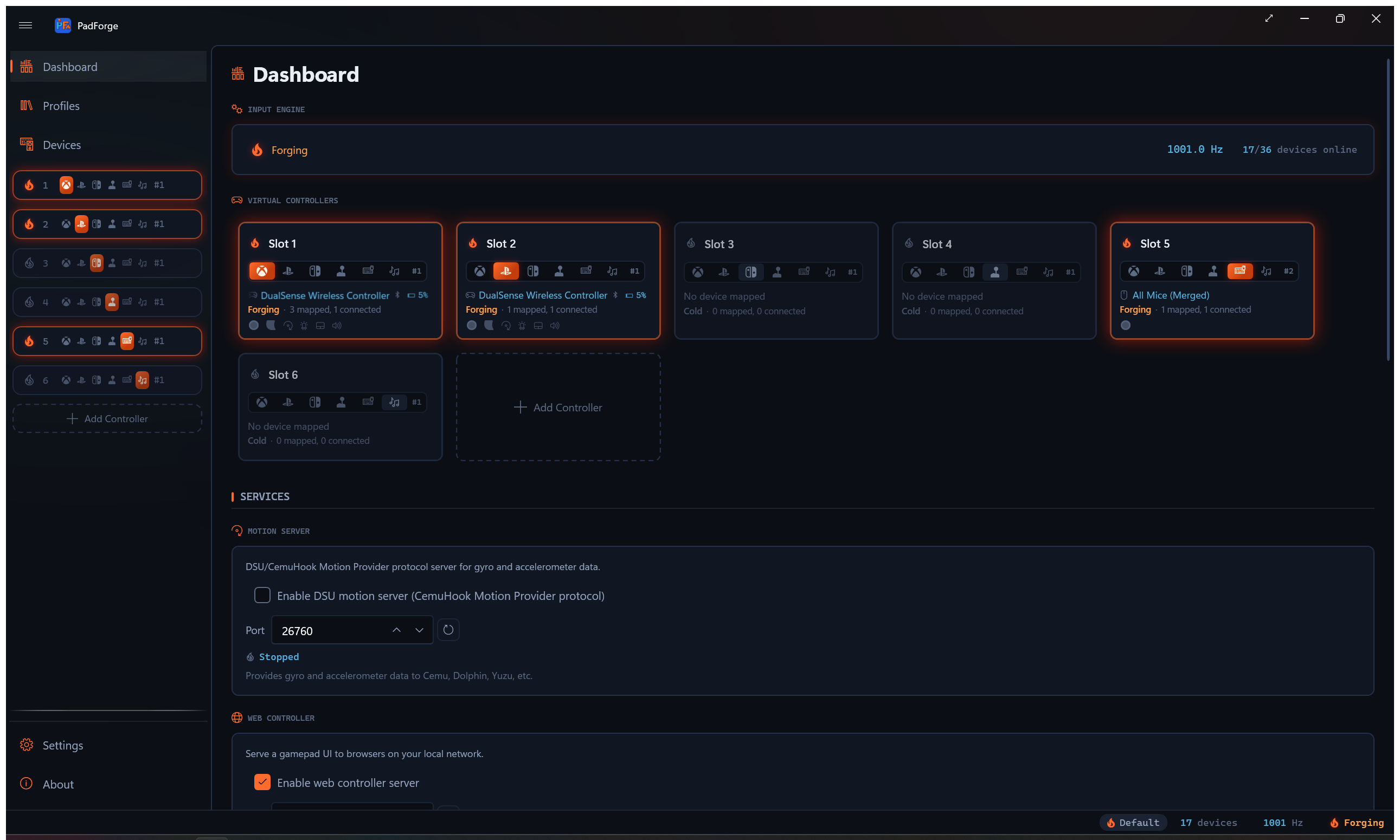
PadForge's home screen. Engine status, virtual controllers, and every service PadForge runs beside them, on one page.
Sections
Ten sections, stacked top to bottom: the engine and its slots, then a Services header, then input services, output services, and overlays.
| Section | Purpose |
|---|---|
| Input Engine | Master power switch and live polling readout. |
| Virtual Controllers | One card per slot, plus an Add card. |
| Web Controller | Browser-based controller for phones, tablets, and other PCs. |
| Remote Link | Share controllers with a paired PadForge on another PC. |
| Head Tracking | A head pose from OpenTrack or from a VR headset as six mappable axes. |
| Motion Server | DSU/Cemuhook gyro broadcasting for emulators. |
| Lightbar Mirrors | Forward a virtual PlayStation pad's lightbar color to Razer Chroma and Logitech LIGHTSYNC devices. |
| Razer Sensa HD Haptics | Translate controller rumble into Razer Sensa HD haptics. |
| Overlays | On-screen indicators: the menu ring or grid, the shift layer flyout, and profile switch announcements. |
| Touchpad Overlay | On-screen touch surface that drives a PlayStation slot's touchpad. |
Disconnected controllers and a stopped engine surface here. Driver install status lives on the Settings page under Driver Management.
The on/off toggles on this page ride the active profile, in two shapes. The Motion Server, Web Controller, and Touchpad Overlay toggles, the three Overlays checkboxes, and the two ports beside them are stored in every profile and follow it on each switch. The head-tracking UDP and FreeTrack toggles, the two Lightbar Mirrors, and Razer Sensa HD Haptics are stored as opinions: a profile records one only when you change the toggle while that profile is active, a profile with no opinion leaves the toggle alone on switch, and the global setting stands until some profile opines. Remote Link is the one toggle that stays global: a link between two PCs is not a per-game setting.
Input Engine
The engine card sits at the top with four elements in a row.
| Element | Description |
|---|---|
| Power flame | Starts and stops the engine. The flame's look shows state (see below). |
| Status text | "Forging", "Idle", "Stopping…", or "Stopped". |
| Polling frequency | Live polling rate in Hz, e.g. 987.3 Hz. Dash when stopped. |
| Device count | Online vs. total, e.g. 2/3 devices online. Online means plugged in right now. Total includes remembered devices. |
Power flame states
The power control is a flame. Its fill and glow show what the engine is doing.
| State | Look |
|---|---|
| Forging | Ember (orange) flame with a glow. Running and processing input. |
| Idle | Gold flame. The engine started, but no enabled slot has a connected device (a mapped device that is offline does not count once its grace period ends) and no linked PC is sharing input, so there's nothing to process. |
| Stopping | Gold flame, flashing while it winds down. |
| Stopped | Hollow flame outline in steel. No fill. |
Tip: Turn on Auto-Start Engine on Launch in Settings to skip the manual power click each time.
Virtual Controllers
Each virtual controller slot gets a card under the engine card.
Card layout
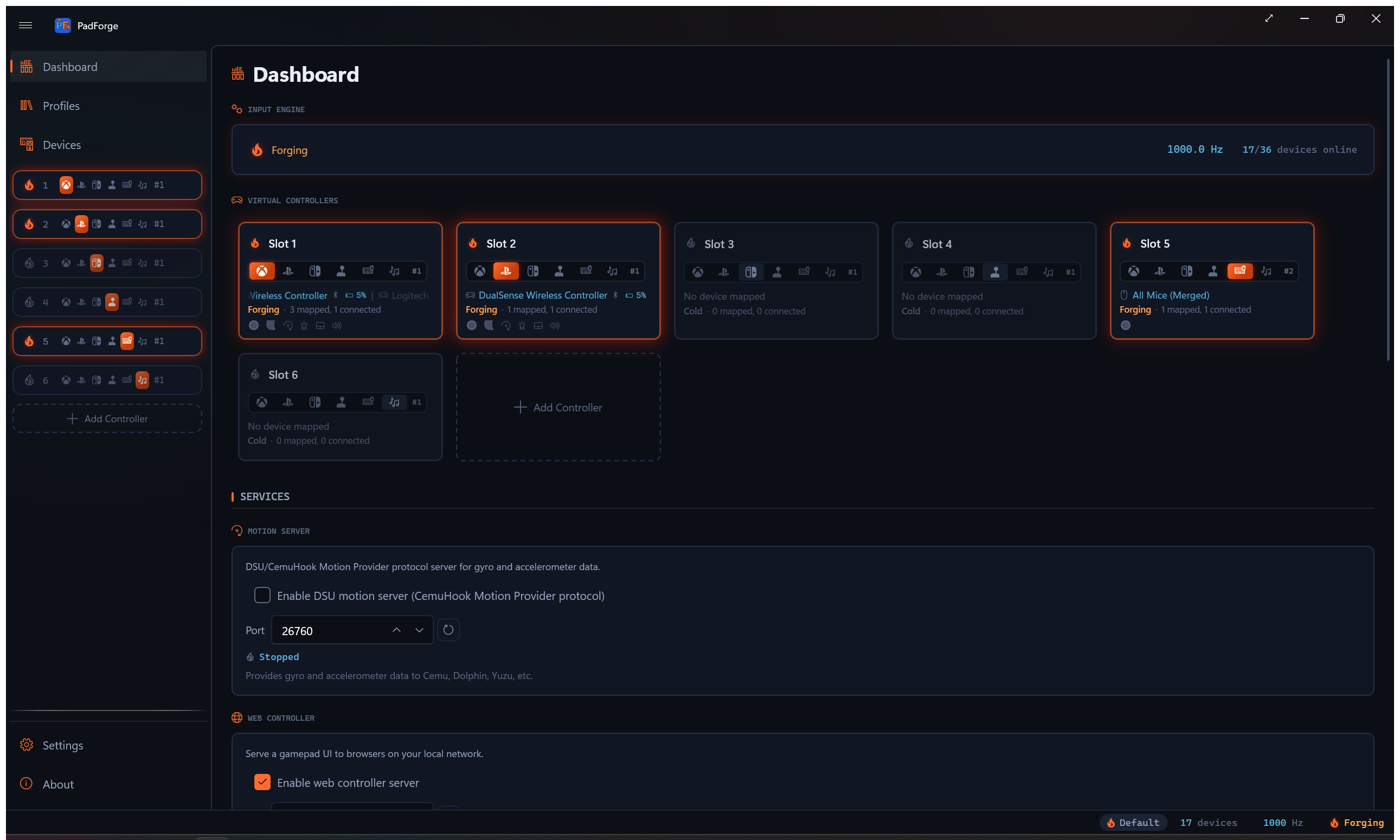
| Element | Location | Description |
|---|---|---|
| Power flame | Top-left | Slot status, shown as a flame (see below). Click to enable or disable. |
| Slot number | Next to the flame | Global controller number (1, 2, 3, ...). |
| Type track | Second row | A recessed segmented strip of seven type icons: Xbox, PlayStation, Nintendo, Extended, Keyboard + Mouse, MIDI, VR. The active type is lit ember. The others are dim. Click a dim icon to switch type. Two icons carry a dependency gate: with Windows MIDI Services missing the MIDI icon shows a no-entry cursor and "MIDI (requires Windows MIDI Services)", and with SteamVR missing the VR icon shows the same cursor and "VR (requires SteamVR)". The other five have no gate. |
| Per-type instance number | After the type track | Position within the type, e.g. #2 for the second Xbox slot. |
| Device roster | Third row | Every mapped device, each with a device-class icon, a Bluetooth icon on wireless links, and a battery icon plus percent when the device reports it. Offline devices dim. Hover for the full untruncated list, one device per line. Shows "No device mapped" when the slot is empty. |
| Status text + counts | Fourth row | The slot state in words (see below), then 2 mapped, 1 connected. |
| Stage ledger | Fifth row | One small icon per pipeline stage the slot's devices have: sticks, triggers, gyro, lighting, touchpad, audio. An icon glows ember when that stage carries a non-default setup and stays steel when it is untouched. Hover an icon for a per-device readout. |
| Delete button (X) | Upper-right | Removes the slot. Appears on hover. |
Slot status
The power flame and the status text both track the slot's state. Hovering the flame shows a short state tooltip (Disabled, Forging, Awaiting devices, Engine stopped, Virtual controller failed, Initializing). Cold and Idle have no tooltip of their own: a Cold slot shows "Awaiting devices" and an Idle slot shows "Forging".
| Status text | Flame | Meaning |
|---|---|---|
| Forging | Ember, with a glow | Enabled, a device is connected, output is live. Holds through the HIDMaestro inactivity grace period (default 60 s). |
| Idle | Ember, with a glow | A mapped device dropped offline. The controller holds through its grace period, so the flame stays the same as Forging until the timeout tears it down. |
| Awaiting devices | Gold | Enabled and mapped, but nothing is connected and the controller is down, or the engine is stopped. |
| Virtual controller failed | Gold. Steel outline if nothing is mapped | The slot's latest attempt to create its virtual controller failed. Outranks Awaiting devices. PadForge retries after you toggle the slot, switch its type or profile, or its devices drop offline and return. |
| Cold | Steel outline | Enabled with no devices mapped. |
| Initializing | Flashing ember | The controller is coming up. |
| Disabled | Steel outline | Turned off with the power flame. |
Click anywhere on a card (except the power flame, the type track icons, or the delete button) to open the slot's configuration: Button and Axis Mappings, Stick Deadzones, Trigger Deadzones, Force Feedback, Adaptive Triggers, Lighting, and Macros.
Reordering slots
Drag a card by its body to reorder slots inside the same type group. Xbox, PlayStation, Nintendo, Extended, Keyboard + Mouse, MIDI, and VR each reorder on their own. Cross-type drops are ignored. The per-type instance number (the #2 on the second Xbox slot) updates as soon as you drop.
Same-profile reorders are a pointer swap. No kernel rebuild, no game disconnection. Different-profile reorders rebuild only the positions whose profile changed. See Controller Slots.
Add Controller
An Add Controller card sits at the bottom when at least one type still has room. Click it to pick a type. The card disappears when every type is at capacity. See Controller Slots for limits.
Web Controller
A browser-based controller you can open from any device on the same network.
| Control | Description |
|---|---|
| Enable Web Controller Server | Starts and stops the web server. |
| Port | HTTP/WebSocket port. Default 8080. Range 1024-65535. |
| Status indicator | A flame beside the status text. Ember when running, steel outline when stopped. The text reads "Running on <url>" until clients connect, then "Running (<n> clients)". |
See Web Controller for full details.
Remote Link
Shares controllers with a paired PadForge on another PC over your network. A device on one PC shows up as an ordinary input device on the other.
| Control | Description |
|---|---|
| Enable Remote Link Server | Starts and stops listening for peers. |
| Reconnect Automatically | Re-establishes known pairings when they come back online. |
| Port | Link port with a reset button. Default 27500. |
| Status indicator | A flame beside the status text: ember and "Listening on <port>" when running, steel outline when stopped. |
Identity Protection
Sets how this PC stores its pairing identity. Secure: This PC Only keys it to the machine. The portable modes carry your pairings on a thumb drive between machines.
Paired PCs and Nearby PCs
Paired PCs lists your established pairings, each with rename, connect, and revoke, plus Revoke All. Nearby PCs (Not Paired) lists peers discovered on the network. Or Connect by Address (Advanced) reaches a peer by IP when discovery can't find it.
See Remote Link for full details.
Head Tracking
Reads a head pose from OpenTrack over its UDP output, from the FreeTrack 2.0 shared memory, or from a VR headset through an OpenXR runtime, and exposes it as six axes on a Head Tracker row on the Devices page. The three inputs are independent and can run together.
| Control | Description |
|---|---|
| Enable UDP Tracking Input | Enables the UDP listener independently of FreeTrack. |
| Enable FreeTrack 2.0 Shared Memory Input | Enables shared-memory input independently of UDP. |
| Enable OpenXR Headset Input | Reads a VR headset's pose through an OpenXR runtime, with or without SteamVR. |
| OpenXR Runtime | Which runtime to read from. System Default follows the machine's registered runtime. Changing this affects PadForge only and never the system default. Disabled while OpenXR input is off. |
| UDP Port | The port OpenTrack's UDP over network output sends to. Default 4242. Disabled while UDP input is off. |
| Rotation Range (Degrees) | Head rotation that moves yaw, pitch, and roll to full deflection. Default 90. |
| Translation Range (cm) | Head travel that moves X, Y, and Z to full deflection. Default 30. |
| Per-Axis Range | Overrides one axis on its own. Zero follows the range above. Rotation is in degrees, travel in centimeters. Each box shows the value you pinned, never the range it resolves to. |
| Status | Stopped while every input is off or the engine is stopped. The UDP and FreeTrack lines are Waiting for a tracker on UDP port <port>., Receiving over UDP from <address>., Receiving from FreeTrack shared memory., or UDP port <port> is in use by another program. The OpenXR lines are Starting the OpenXR session, Waiting for <runtime> to report a tracked pose, Reading <runtime>, No OpenXR runtime is installed, The OpenXR runtime reports no headset, This runtime cannot supply a background session, or The OpenXR session failed. See the diagnostics log. |
Each input toggle has its own authored profile opinion. The port, the two ranges and the per-axis overrides remain global. FreeTrack-only input opens no UDP socket and shows shared-memory status without a UDP waiting message.
Turning on OpenXR headset input also brings up the two VR Controller rows on the Devices page when the runtime reports hand controllers.
See Head Tracking for the OpenTrack setup and VR Controller Input for the OpenXR side.
Motion Server
Broadcasts gyroscope and accelerometer data over UDP using the DSU/Cemuhook protocol. Cemu, Dolphin, Yuzu, and Ryujinx read it for motion controls like gyro aiming.
| Control | Description |
|---|---|
| Enable DSU Motion Server (CemuHook Motion Provider Protocol) | Starts and stops the server. |
| Port | UDP port. Default 26760. Change only on conflict. Range 1024-65535. |
| Status indicator | A flame beside the status text. Ember when running, a steel outline when stopped. |
The DSU protocol caps at 4 slots, so only the first 4 virtual controllers broadcast motion data.
See DSU Motion Server for full details.
Lightbar Mirrors
Forwards the lightbar color a game sets on a virtual PlayStation controller to RGB peripherals. The color comes from the virtual pad, so any physical controller works. One section, two rows, each with its own checkbox and status line. Both are off by default.
| Row | Checkbox | Description |
|---|---|---|
| Razer Chroma | Mirror Lightbar to Razer Chroma | Mirrors to every Chroma device category through Razer Synapse with Chroma Connect. PadForge appears in Synapse's Connect tab. The status reads Razer Synapse not detected. Retrying. until Synapse answers, then Connected to Razer Chroma. |
| Logitech LIGHTSYNC | Mirror Lightbar to Logitech LIGHTSYNC | Mirrors to LIGHTSYNC devices through Logitech G HUB or Logitech Gaming Software. The status reads Logitech G HUB not detected. Retrying. until the engine answers, then Connected to Logitech LIGHTSYNC. |
See Lightbar Mirrors and Sensa Haptics for what feeds them and their limits.
Razer Sensa HD Haptics
Translates controller rumble into Razer Sensa HD haptics, so Sensa devices such as the Wolverine V3 line, the Kraken V4 Pro, and the Freyja shake with your games. One checkbox, Send Rumble to Sensa HD Haptics, off by default. Requires Razer Synapse 4 with Sensa HD Haptics, with the device's Haptic Source set to Sensa HD Games in Synapse. The status reads Razer Sensa runtime not found. Retrying. until the runtime answers, then Streaming rumble to Sensa HD Haptics. The ARM64 build reads Not Available on ARM64: Razer ships no ARM64 engine, so nothing starts there.
See Lightbar Mirrors and Sensa Haptics for the translation and its limits.
Overlays
The on-screen indicators PadForge shows while you play. Turning one off never changes what the input does, only whether it is announced. Three checkboxes, all on by default.
| Checkbox | What it shows |
|---|---|
| Menu Overlay | The on-screen ring or grid while a radial or touch menu is engaged. Menus still fire with the overlay off, so layouts you know by muscle memory can run without the picture. Per-menu position, size, and opacity live on each menu's own settings on the Menus tab. |
| Shift Layer Flyout | A flyout with the engaged shift layer's name and color while any slot holds a non-Base layer, whichever page is open. When several slots hold one at once, the selected pad wins, then the lowest-numbered slot. |
| Profile Switch Overlay | The new profile's name when a macro switches the active profile. Automatic per-app switches don't show it. They flare the profile pill in the status bar instead. |
Touchpad Overlay
An on-screen, transparent touch surface you can pin to any monitor. Drives the touchpad on the assigned DualShock 4 or DualSense slot. Useful when no physical touchpad or phone is handy.
| Control | Description |
|---|---|
| Enable Touchpad Overlay | Shows the transparent overlay window. |
| Opacity | Slider plus percentage box, 0-100%, with a reset button. |
| Reset Position | Recenters the overlay on its monitor. |
| Status indicator | A flame: ember while the overlay is showing, steel outline when hidden. |
The overlay tracks up to five finger contacts, the Windows Precision Touchpad ceiling, and forwards them to whichever PlayStation-output slot has a touchpad bound. Multi-touch needs the OS to report touch events. Mouse drag falls back to one finger on slot 0. Three or more fingers on the overlay drag the window itself to a new spot.
Related pages
- Installation: first-time setup.
- Controller Slots: add and manage virtual controllers.
- Devices: view physical controllers and assign them to slots.
- Settings: engine options, appearance, drivers.
- Profiles: per-app profile switching.
- DSU Motion Server: gyro streaming for emulators.
- Web Controller: browser-based virtual controller.
- Menus: the radial and touch menus the Menu Overlay draws.
- Head Tracking: OpenTrack setup for the Head Tracking section.
- Lightbar Mirrors and Sensa Haptics: the Razer Chroma, Logitech LIGHTSYNC, and Sensa HD sections.
Last updated for PadForge 4.5.2.