Remote Link
Share a controller, wheel, or HOTAS between PCs, on your own network or across the internet. A device plugged into one drives a game on another, and the feedback comes back to the real hardware.
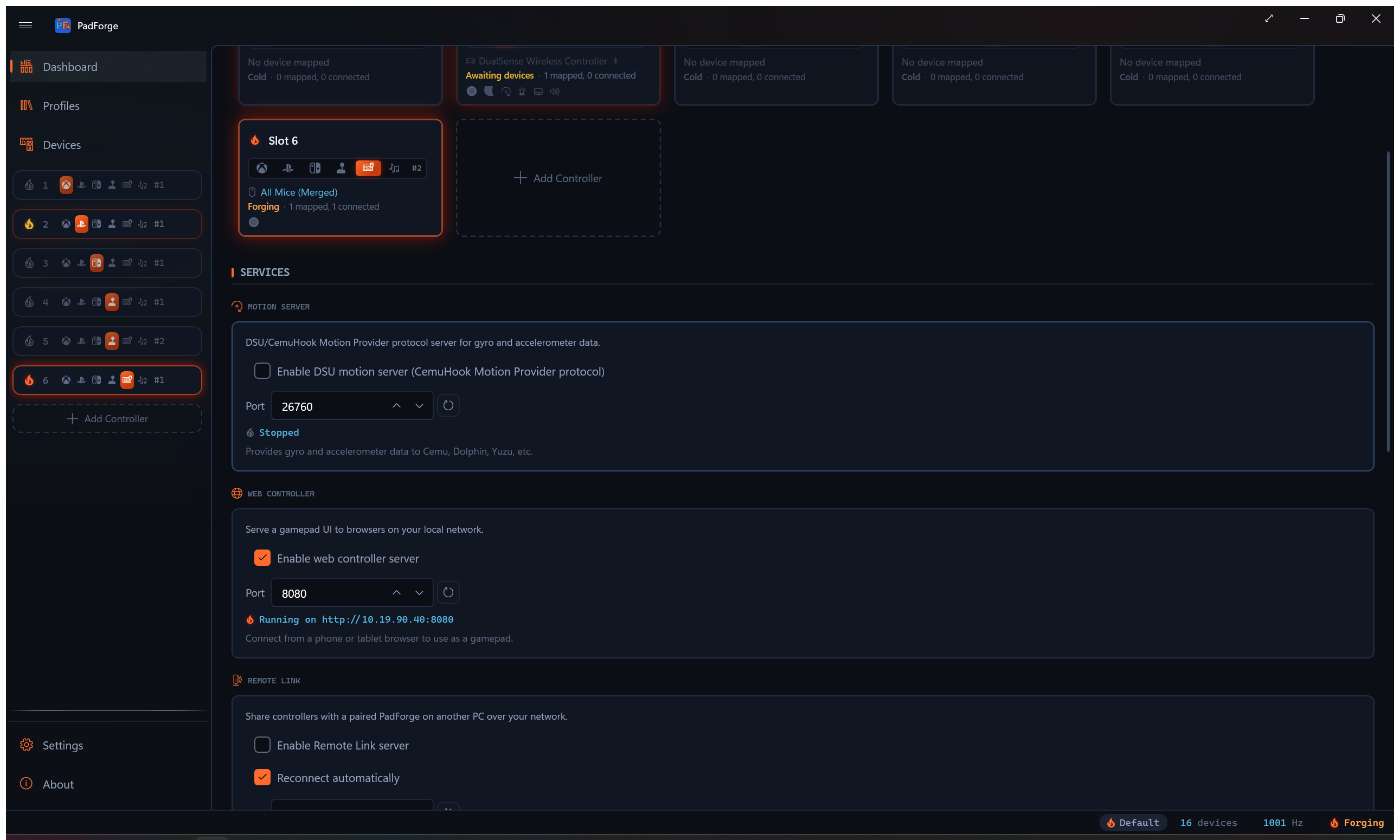
Remote Link connects two PadForge PCs, on the same network or on opposite sides of the internet. A device plugged into one PC (the owner) shows up in another PC's PadForge (the consumer) as an ordinary input device, ready to assign to a slot and map like anything else. The game on the consumer sees a virtual controller and never knows the hardware is in another room.
It works both ways at once, and across more than two PCs. Each PC can share its own devices and use the others' at the same time, and one shared controller can drive games on several PCs at once. Pairing is done a pair at a time, but a PC can be linked to many others.
What comes back
Feedback travels the other way too. When the game on the consumer drives the shared device, that feedback returns across the link and plays on the physical hardware where it lives:
- Rumble (both body motors)
- Xbox trigger rumble (the impulse-trigger motors on Xbox One and later pads)
- Wheel force feedback (native on Logitech, Fanatec, and Thrustmaster, with other wheels and FFB joysticks driven through their DirectInput haptic effects, and rumble as the last fallback)
- DualSense adaptive triggers
- Lightbar color
- Player-number LEDs
- Guide button LED brightness (Xbox pads, the Home button LED on the 2015 Steam Controller, and the Switch HOME button LED on a Pro Controller or right Joy-Con)
- Controller speaker audio
- HD haptic tones (pads with no speaker that play macro sounds through their actuators: Joy-Con, Switch Pro, Steam Controller, Steam Deck)
So a wheel shared from the den shakes in the den while the race runs on the PC in the office, and a DualSense lights its bar and buzzes its triggers on the couch while the game plays upstairs.
NFC tag taps
Tag reads travel with the input. Tap a tag on a shared Switch controller that has an NFC reader (a right Joy-Con, a Joy-Con pair, or a Pro Controller) and the tap fires NFC tag triggers on the PC using the device, so a tag can start a macro there just like on a local controller.
- Binding a tag trigger is all it takes. The PC using the device reports the demand across the link, and the owner powers up the controller's reader.
- Any NFC Tag fires with no registration on either PC.
- A named-tag trigger matches by the tag's button number, and each PC numbers its own registered tags. Register the same tags in the same order on both PCs so the numbers line up.
- A standalone NFC reader shares across the link like any other device and brings its tag names with it, so its tags only need registering on the PC it is plugged into.
- The Switch controller must be on Bluetooth. A USB-linked Switch controller cannot read tags, shared or not.
- Tag taps trigger macros, so a gamepad-only pairing blocks them.
Set it up
1. Turn on Remote Link on each PC
On the Dashboard, open the Remote Link section and enable it. Each PC starts listening and begins announcing itself to the local network.
2. Find the other PC
On the same network, a PC running Remote Link shows up under Nearby PCs (Not Paired). Click it and pair.
On different networks, or when discovery is blocked, use codes. Each PC shows a This PC's Code box, a dash-grouped string like A7K2M-.... Copy yours and send it to the other person over any chat. Paste theirs into Or Connect by Address (Advanced). You both click Pair / Connect, and the two PCs find each other with no VPN and no port forward. A code lasts an hour and re-mints itself when this PC's public address moves, so copy it fresh at connect time.
The same box still takes a plain address. Type 192.168.1.20:27500 to name a host directly.
3. Pair with a six-digit code
Start pairing from one side. Both screens show a six-digit code. Check that the two codes match, then confirm on both. The code is derived from the key exchange itself, so a match rules out anyone sitting in the middle of it.
Pairing only happens once per pair of PCs. To add another PC, pair it the same way. A PC can hold many trusted peers at once.
4. Share and assign
Once paired, each PC's shareable devices appear in the other's Devices list. Assign a shared device to a slot and map it like any local controller.
Trust and reconnecting
Assign devices from the other PC
Both PCs need a build with remote assignment support.
Web controllers already travel over Remote Link like other input devices. Remote assignment lets you choose their destination slots from the PC sharing them. For a two-PC streaming setup:
- On the gaming PC, open Remote Link > Paired PCs, find the streaming PC, and check Allow Remote Assignment Changes. The same option is available during pairing. It starts off, including for existing pairings.
- On the streaming PC, find the gaming PC under Paired PCs and click Assign Shared Devices.
- Select a shared device, then check the virtual controllers it should feed on the gaming PC. Clear a checkbox to remove that assignment. One device can feed several controllers.
The dialog shows the destination PC and active profile. Changes use that PC's normal mapping and save process without opening its window or changing the foreground application. Other devices and assignments stay in place.
The grant covers the peer's own shared devices and this PC's existing virtual controllers. Create destination controllers locally before assigning them. This control does not edit profiles or mappings. Gamepad-only restrictions still apply. Turning the permission off blocks further changes and preserves assignments already made.
If the destination's settings change while the dialog is open, review the refreshed assignments before clicking again. If a request times out, click Refresh to check the actual state. A missing reply does not establish whether the change was applied. Reopen the dialog after reconnecting a PC.
Automatic reconnect
Pairing records the other PC as trusted. After that, trusted PCs reconnect on their own the moment they find each other, on the local network or across the internet, with no code to re-enter. Auto-reconnect is on by default and can be turned off in the Remote Link settings.
Trust is tied to each PC's cryptographic identity, not its name. Renaming a PC does not break a pairing. The display name is only there so you can tell your paired PCs apart.
To end a pairing, find the PC under Paired PCs and click Revoke. Revoke All drops every trusted PC at once. A revoked PC cannot reconnect until it pairs again.
Staying safe: gamepad-only
A paired PC can drive this one's gamepad output. Whether it can also reach your keyboard, mouse, and macros is your choice. The pairing dialog has a gamepad-only checkbox. It starts off, so tick it when you pair a PC you do not fully control. To change the setting for a PC you already paired, revoke it and pair again.
With gamepad-only on, a shared device can act as a virtual gamepad and nothing else. Its keyboard and mouse output is suppressed, and it cannot run macros on this PC.
Identity protection
Each PadForge install has a Remote Link identity, the key that pairings trust. You choose how it is stored:
| Mode | Stored as | Use when |
|---|---|---|
| Secure: This PC Only | Encrypted to this PC | The normal choice. The identity never leaves this machine, and any Windows user on it can use it. |
| Portable: Password Protected | Encrypted with a password you set | You want to carry one identity across installs. Pair once, then clone. |
| Portable: No Password | Plain, no password | A throwaway or test identity. |
A portable identity lets a group of PCs that share one install image pair once and then recognize each other everywhere. Most people never need to change this from Secure.
Network
Remote Link finds other PCs on your local network automatically. Discovery is a same-subnet broadcast, so the PCs being on the same Wi-Fi or switch is the usual local setup. Across the internet, codes replace discovery.
| Requirement | Details |
|---|---|
| Discovery | UDP broadcast on port 27501 (same subnet only) |
| Connection | Direct PC-to-PC on port 27500 by default, encrypted end to end. The port carries both a TCP listener (address dialing) and a UDP socket (hole punching). |
| Listening port | 27500 by default. Change it per PC in the Remote Link settings (any port from 1024 to 65535). The reset button next to the field restores 27500. |
| Internet reach | Outbound only. The public-address probe and the relay fallback both dial out, so no inbound rule and no port forward. |
| Firewall | Allow PadForge through the firewall on each PC |
If you write per-port firewall rules instead of allowing the whole app, open UDP 27501 for discovery and both TCP and UDP on the connection port (27500 unless you changed it) on each PC.
How the internet path works
PadForge probes its own public address, folds it into the code, and punches a direct UDP path to the PC whose code you pasted. Both sides punch, which is why both people paste and both click Connect.
Where a direct path cannot exist, the link falls back to the free public relays run by n0.computer, reached over an outbound WebSocket. The relay forwards opaque bytes. The handshake and session encryption are unchanged, so the relay operator sees ciphertext and nothing else.
After the first pairing, codes are done. Each PC publishes its current endpoints under its long-term identity key, so a paired PC that moves to a new network is found and reconnects on its own.
Some networks cannot be punched at all. On a mobile hotspot or carrier-grade NAT, the Remote Link card says so before you try, and names a VPN like Tailscale as the way around it. The relay still carries the link where the punch fails.
How the security works
Pairing runs a fresh key exchange and signs the whole exchange with each PC's long-term identity key, so each side proves it is the same PC it paired with before. The six-digit code is derived from the exchange after both sides commit to it, which is why a matching code rules out a machine in the middle. A failed handshake creates no device and shares nothing. Traffic after pairing is encrypted.
Limits
- Discovery is local only. It is a subnet broadcast, so it never crosses the internet. Reaching a PC on another network means swapping codes, or naming its address directly.
- A code is not a password. It authenticates nobody. The six-digit pairing check and the mutual key exchange are what gate trust, so a code someone else gets hold of still cannot pair with you.
- Input devices only. Remote Link shares what shows on the Devices page (controllers, wheels, HOTAS, keyboards, mice, MIDI, NFC readers), not arbitrary USB hardware.
- Every PC runs PadForge. Remote Link is PadForge-to-PadForge.
Related pages
- Dashboard: turn Remote Link on, pair, and manage paired PCs.
- Devices: see shared devices and assign them to slots.
- Controller Slots: create the virtual controller a shared device feeds.
- Force Feedback: the rumble and force-feedback that returns over the link.
- Impulse Triggers: the Xbox trigger-motor rumble that returns over the link.
- Wheel: native wheel force feedback, including over Remote Link.
- Lighting: the lightbar, player LEDs, and Guide button LED that return over the link.
- Controller Audio: the speaker audio that returns over the link.
- NFC Tags: the tag triggers a shared Switch controller or reader fires over the link.
- Troubleshooting: help when a PC does not appear or pairing fails.
Last updated for PadForge 4.5.0.