Shift Layers
A second mapping table that turns on while an input is engaged. Think of it as Shift or Caps Lock for your controller.
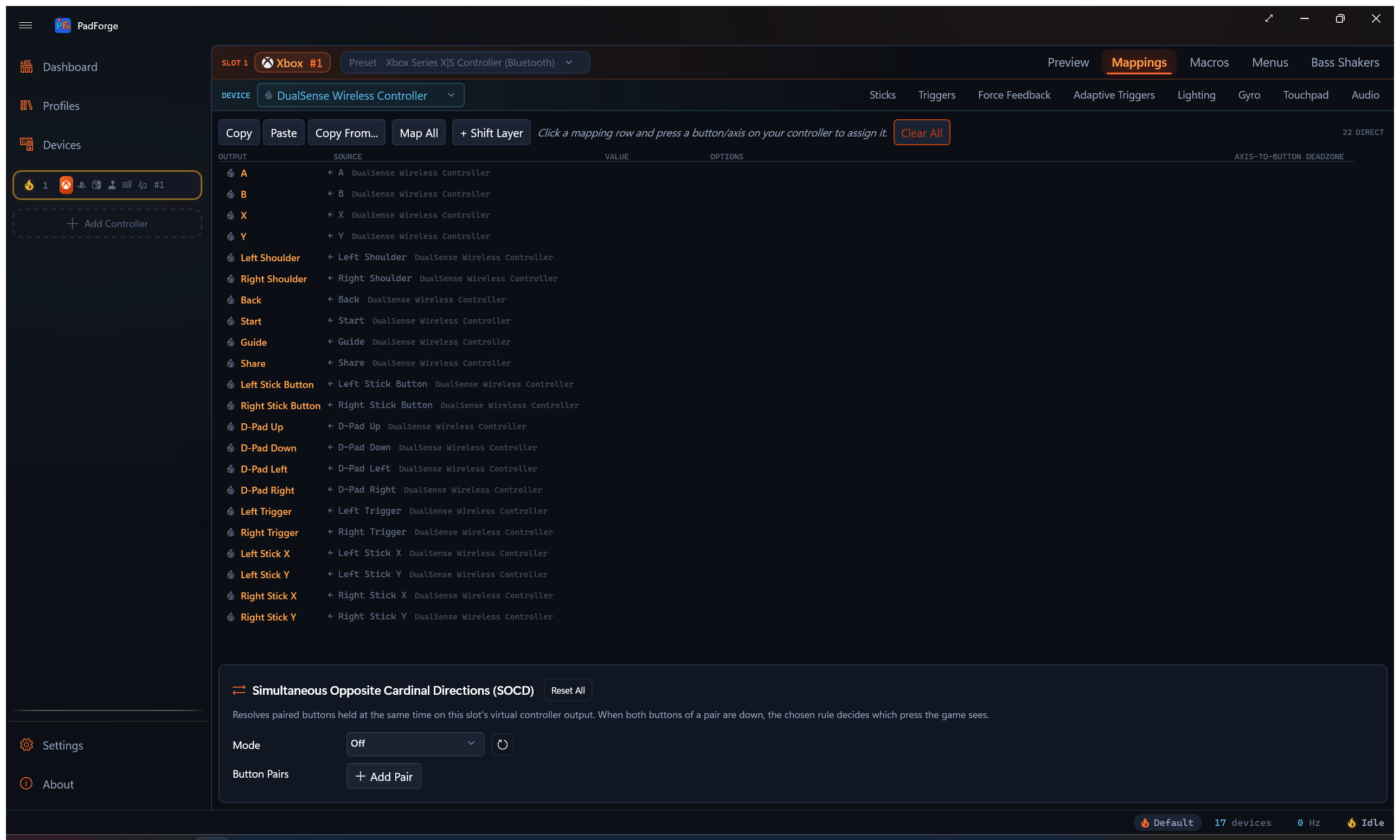
A shift layer overlays or replaces your Base mappings while an activator is engaged. Hold a button to remap your face buttons to pit-menu commands. Toggle a switch to swap from menu controls to gameplay. Cycle through three layouts with one bumper.
Each slot has its own layers. Open a slot, open the Mappings tab, and click + Shift Layer.
Concepts
Base layer. Always active. Every slot starts with one Base layer holding the rows you bind on the Mappings tab. A Configure Base dialog sets the Base tab's name, color, and icon.
Shift layer. A second (third, fourth) mapping table on the same slot. Active only while its activator is engaged.
Layer rows. Each mapping row belongs to one layer. Base rows belong to Base. Shift rows belong to the layer you bound them on. The same target can have a different row on each layer, so one button does one thing on Base and another while a shift layer is engaged.
Inherit Unmapped Targets from Base. A checkbox in the activator dialog. Off by default. The active shift layer replaces Base. Targets without a row on the layer output zero. Turn it on and the layer overlays Base. Targets without a row fall through to Base.
Do Not Inherit. A per-row checkbox in the mapping grid. It appears on a row only when the active layer inherits. Check it to keep one target off on this layer while the rest of the layer falls through to Base. Useful when you want one specific button silenced.
Make a shift layer
- Open a slot. Open the Mappings tab.
- Click + Shift Layer.
- The Shift Layer dialog opens. Fill in the fields below.
- Click Save. A new tab appears in the layer strip above the mapping grid.
- Click the new tab and bind rows the same way you bind Base rows.
The activator dialog
| Field | What it does |
|---|---|
| Layer Name | The label on the tab and the engaged-layer flyout (e.g. Pit Stop). |
| Activator Input | Cross-device picker with Record and Clear. The input that engages the layer. Can live on a different physical controller than the slot it shifts. Optional for Cycle and No Button, so you can wire a queue up incrementally. |
| Activator Kind | Button, Chord (A + B), or Axis Past Threshold. See the table below. |
| Mode | Hold, Toggle, Latch, Cycle, Sticky (One-Shot), or No Button. See the table below. |
| Only While in Layer | The layer the slot must be on for the activator's input to count. Any Layer (default) means the input always counts. The list holds Base and every layer on the slot. Hidden for No Button. See Per-layer activators. |
| Layer Color | Full color picker. Tints the tab and the flyout. Reset to clear. |
| Emoji icon | Not a labeled field. The square button to the left of the Layer Name box shows the layer's emoji and opens a picker when clicked. The emoji appears on the flyout when the layer engages. Defaults to ⇧. |
| Delay | Milliseconds the activator must stay held before the layer reacts. For Hold, a debounce. For Toggle, Latch, and Sticky, a long-press threshold: the layer flips once when the hold crosses this time, and a shorter tap does nothing. 0 reacts instantly. |
| Auto-Cancel After Inactivity | Toggle mode only. While the layer is toggled on, it switches itself off after this many milliseconds with none of the layer's own mapped inputs active. The timer starts when the layer engages and restarts on every layer input. 0 keeps the layer on until you toggle it off yourself. |
| Fire on Release | Waits until the button is let go before the activator fires. With a Delay set, the press must last that long for the release to count. Appears only for Toggle, Latch, Cycle, and Sticky (One-Shot). Hold reacts on both edges by nature and No Button has no input, so neither shows it. |
| Also Fire Activator's Own Mapping | Off by default. On lets the activator input drive its own row alongside the layer change. |
| Inherit Unmapped Targets from Base | Off by default. On = overlay with fallthrough. Off = replace. |
Activator kinds
| Kind | Engages when |
|---|---|
| Button | One button (or POV direction) is pressed. Default. |
| Chord (A + B) | Two inputs are held at once. The second input has its own device picker, so chords can cross devices (left bumper on the wheel plus button 1 on the H-pattern shifter). |
| Axis Past Threshold | An analog axis crosses the threshold. Default threshold is 0.5 of full deflection. Useful for clutch travel, paddle pulls, throttle past idle. |
Modes
| Mode | Behavior |
|---|---|
| Hold | Layer is active while the input is engaged. Release the input to drop back to Base. The keyboard-Shift model. |
| Toggle | Each press flips engagement. Press once to engage. Press again to release. The Caps-Lock model. Set Auto-Cancel After Inactivity to have the layer drop itself after a spell with no input of its own. |
| Latch | Press to latch this layer's own mappings on. Press again to return to Base. Pressing a different Latch button switches straight to that layer. Renamed from Custom. |
| Cycle | One control steps through a queue of layers. See Cycle queue for the Next and Previous buttons and the queue options. |
| Sticky (One-Shot) | One press engages. The next input you touch on any device assigned to the slot (button, stick, trigger, D-pad, or touchpad) fires on the layer while held, and the layer releases when you let that input go. Tap-then-tap muscle memory without holding. |
| No Button | A passive layer with no activator of its own. It owns a tab and its mappings but never self-engages. You reach it only by adding it to a Cycle queue. |
Toggle, Latch, Cycle, and Sticky normally fire on the press. Check Fire on Release in the activator dialog to move that to the release edge instead, so the layer flips when you let go of the button.
Toggle, Latch, Cycle, and Sticky engagement state does not persist across an app restart. Hold is stateless, so it survives by definition. A No Button layer has no engagement state of its own.
Cycle queue
A Cycle activator holds a queue of layers and two buttons that walk it.
- Next Button. The activator's own input. Each press steps the shared cursor forward one layer.
- Previous Button. A second input that steps the same cursor backward. It can live on a different device.
- Cycle Through Layers. A checkbox list of which layers sit in the queue.
- Wrap Around. On by default. Step past the last layer and the cursor returns to the first.
- Include Base. Off by default. With it off, the cycle walks the checked layers only, and Base is the resting state. Turn it on to fold Base into the queue.
Next and Previous drive one shared cursor, so they read as forward and backward through the same queue.
Per-layer activators
Only While in Layer in the activator dialog makes an activator's input count only while the slot is on the chosen layer. The check happens when the input goes down and holds for the whole press.
- A press that opens with the slot on the right layer keeps counting until it releases, even when the layer changes under it.
- A press that opens on the wrong layer stays dead until it releases, even if the slot reaches the right layer mid-hold. Its button's rows on the engaged layer fire as normal.
- A Cycle activator's Previous Button carries the same check on its own.
- Any Layer is the default, and every layer made before this setting existed behaves that way.
- Deleting the named layer leaves the condition inert. The dialog keeps showing the old name rather than quietly widening the activator to every layer.
The setting lets one button mean something different per layer. Author each layer's exits on that layer, with another activator or a Switch Layer macro.
A three-way example on one button, all three activators bound to the same input:
| Activator | Mode | Only While in Layer | Result |
|---|---|---|---|
| Combat | Latch | Base | From Base, the button opens Combat. |
| Vehicle | Latch | Combat | From Combat, the same button opens Vehicle. |
| Switch Layer macro to Base, scoped to Vehicle | (macro) | From Vehicle, the same button returns to Base. |
Without the condition, both Latch activators would fire on every press.
The layer tab strip
A horizontal strip sits above the mapping grid on the Mappings tab. It appears once the slot has its first shift layer. A slot with only Base shows the plain grid with no strip. Base is always the leftmost tab. Shift layers fill the rest in creation order. The strip wraps to a second row when there are more layers than fit.
Each tab carries the layer's color. The active tab is the layer you're editing, not the layer currently engaged on the controller.
Right-click a tab for per-layer operations:
- Configure Activator… Reopens the dialog above.
- Rename Layer… Edits the display name without breaking the link between each row and its layer.
- Copy Layer Rows. Copies every row on this layer to the clipboard.
- Paste Rows into Layer. Replaces the current layer's rows with the copied ones, re-tagging them to it. Rows already on the destination layer are removed first.
- Clear Layer Rows. Removes every row on this layer. The layer itself stays.
- Delete Layer. Removes the layer and every row tagged to it. Confirms first.
The engaged-layer flyout
When a shift layer engages, a Windows-11-style flyout appears at the bottom of the screen showing the layer's emoji icon and name. It stays on screen for as long as the layer is engaged. When the slot returns to Base, the flyout shows the Base tab's name and icon once and slides away 2 seconds later.
The flyout scans every slot, not only the currently-viewed pad. Engage a layer from any slot's activator and the flyout shows. Pick a different emoji and color per layer so multi-slot rigs read at a glance.
The Dashboard's Overlays card carries a Shift Layer Flyout toggle, on by default. Turn it off and layers still engage, just without the announcement.
Multi-activator resolution
A slot can have many activators. When more than one Hold, Toggle, or Sticky activator is engaged at the same time, the most recently engaged wins. The active layer is whichever of those fired last.
Releasing the winning activator falls back to the next-most-recent still-engaged one. Release them all and the slot returns to Base.
Latch and Cycle override that stack. A latched layer, or a Cycle stopped on a layer, holds the slot there no matter what the Hold, Toggle, and Sticky activators do. Releasing every held activator does not drop it. A Latch clears on a second press of its own button, when another Latch takes over, or when a Cycle on the same slot steps. A Cycle's cursor moves only on Next or Previous, but a Latch press on the same slot displaces the layer the Cycle selected until the Cycle steps again. Latch and Cycle share one override, so use one or the other per slot if you want them to hold unconditionally.
Beyond mapping rows
Layers carry more than button rows:
- Any output type. Layer rows drive every virtual output the slot has: Xbox and PlayStation outputs, Extended buttons, MIDI notes, keyboard keys, mouse moves, and touchpad outputs all follow the active layer.
- Flick stick. A flick stick row hosted on a layer arms when the layer engages and goes quiet when it drops, with no half-finished turn left running.
- Macros. Every macro has a Layer picker. Any layer fires regardless of the engaged layer. Base and named layers fire only while that layer is engaged, exactly like a mapping row. A macro can also change the layer: the Switch Layer action jumps the slot to any layer or back to Base and holds it there the way a Latch does.
- Menus. An on-screen menu imported from a Steam action layer engages only while that layer is held, and releasing the layer commits an On Touch Release menu's hovered cell.
Worked example: a Pit Stop layer for a racing sim
Goal. Hold or toggle a side button on the wheel and the face buttons of the slot's controller turn into pit-menu commands. Release to drive again.
- Open the slot. Open Mappings.
- On Base, bind the wheel and pedals to the steering and trigger axes. Leave the face buttons mapped to your normal in-car HUD.
- Click + Shift Layer.
- Layer Name:
Pit Stop. - Activator Input: click Record, press the side button on the wheel rim.
- Mode: Toggle. One tap to open the menu, one tap to close.
- Layer Color: orange. Emoji Icon: 🔧.
- Inherit Unmapped Targets from Base: on. Steering, brakes, and clutch keep working while the menu is up.
- Click Save. The Pit Stop tab appears.
- Click the Pit Stop tab. Bind A, B, X, Y to your sim's pit menu commands (tires, fuel, repair, leave).
Tap the wheel button at the start of your pit lane. The flyout pops with the wrench. A/B/X/Y now drive the pit menu. Tap again on the way out. Pit Stop closes, face buttons return to the in-car HUD.
Where shift layers live
Shift layers save inside each profile. Every profile keeps its own set of layers and activators, so one game's layers never leak into another.
Engagement state does not survive a restart. Toggle's on/off flag, Sticky's one-shot latch, and Latch's and Cycle's current-layer pointer all reset to Base when you launch the app or switch profiles.
Tips
- The activator input can be on a different device than the slot it shifts. Bind a foot-pedal button to shift your wheel slot.
- Two-layer setups are the most common. Reach for Cycle when one button should step through several layouts (menu → combat → vehicle in a sim shooter).
- The flyout is read at a glance, so pick a per-layer emoji that's distinct (🔧 vs ⚔ vs 🚗).
- Sticky mode is the right pick for one-tap moves you don't want to hold (Cancel on the next menu input, single emote after a kill).
- Cross-device chords cut accidental engagement. A wheel bumper plus a shifter button is hard to hit by accident in normal driving.
Limitations
- A row's Combine setting is fixed per row. If you need a target to combine its sources differently per layer, build separate rows on each layer.
- The engaged-layer flyout checks engagement about 30 times a second, on its own timer, not at the input polling rate. A very fast tap that engages and releases in under about 33 ms can fall between two checks and skip the flyout. Raising your controller's polling rate does not change this.
- Latch stays on its layer until you press the same button again (back to Base), press a different Latch button (switch to that layer), or step a Cycle on the same slot. It does not release on its own.
Related pages
- Button and Axis Mappings: the layer tab strip sits above the mapping grid. Base rows are bound there too.
- Macros: every macro carries a Layer scope. Leave it on Any layer, or pin the macro to one layer so it fires only while that layer is engaged. The Switch Layer action moves the slot between layers from a macro.
- Profiles: shift layers save per profile, so each game can run its own layer set.
- Controller Slots: every slot keeps its own layers.
Last updated for PadForge 4.5.0.