Steam Workshop Config Import
Browse community-made Steam Input controller configs for any game, read a per-binding translation manifest, and save the result as a ready-to-use PadForge profile.
Steam Workshop holds years of community controller layouts built in Steam Input. PadForge reads those configs straight from Steam and translates them into its own mappings, shift layers, macros, and on-screen menus. Nothing applies blind. A manifest shows every binding and what became of it before you save anything.
Turn it on
The feature is off by default. PadForge sends nothing to Steam until you enable it.
- Open Settings and find the Community Configs card.
- Check Enable Community Configs.
What the toggle allows, exactly:
- PadForge connects directly to Steam, and only when you act: searching for a game, opening a game's config list, opening one config, or clicking the update check. Never at startup, never in the background.
- The servers contacted are all Steam's own:
store.steampowered.com(game search and details),api.steampowered.com(config metadata),steamcommunity.com(creator names),cdn.steamusercontent.com(the config files),cdn.cloudflare.steamstatic.com(game artwork), andavatars.fastly.steamstatic.com(creator avatars). - Your search text and the config you open are the only data sent. Access is anonymous. No Steam sign-in, no Steam account needed, no telemetry, no third-party service.
The card carries three more controls:
| Control | What it does |
|---|---|
| Show Legacy Workshop Configs | Lists configs from before 2017 too. Those have no downloadable file on Steam's servers, so PadForge marks them with a LEGACY badge and reads them through Steam instead. See Legacy configs. |
| Clear Cached Configs | Empties the local cache of search results, config files, and artwork. See The cache. |
| Check Imported Profiles for Updates | Asks Steam whether any config you imported has been updated since. See Check for updates. |
See Settings for the card in context.
Browse configs
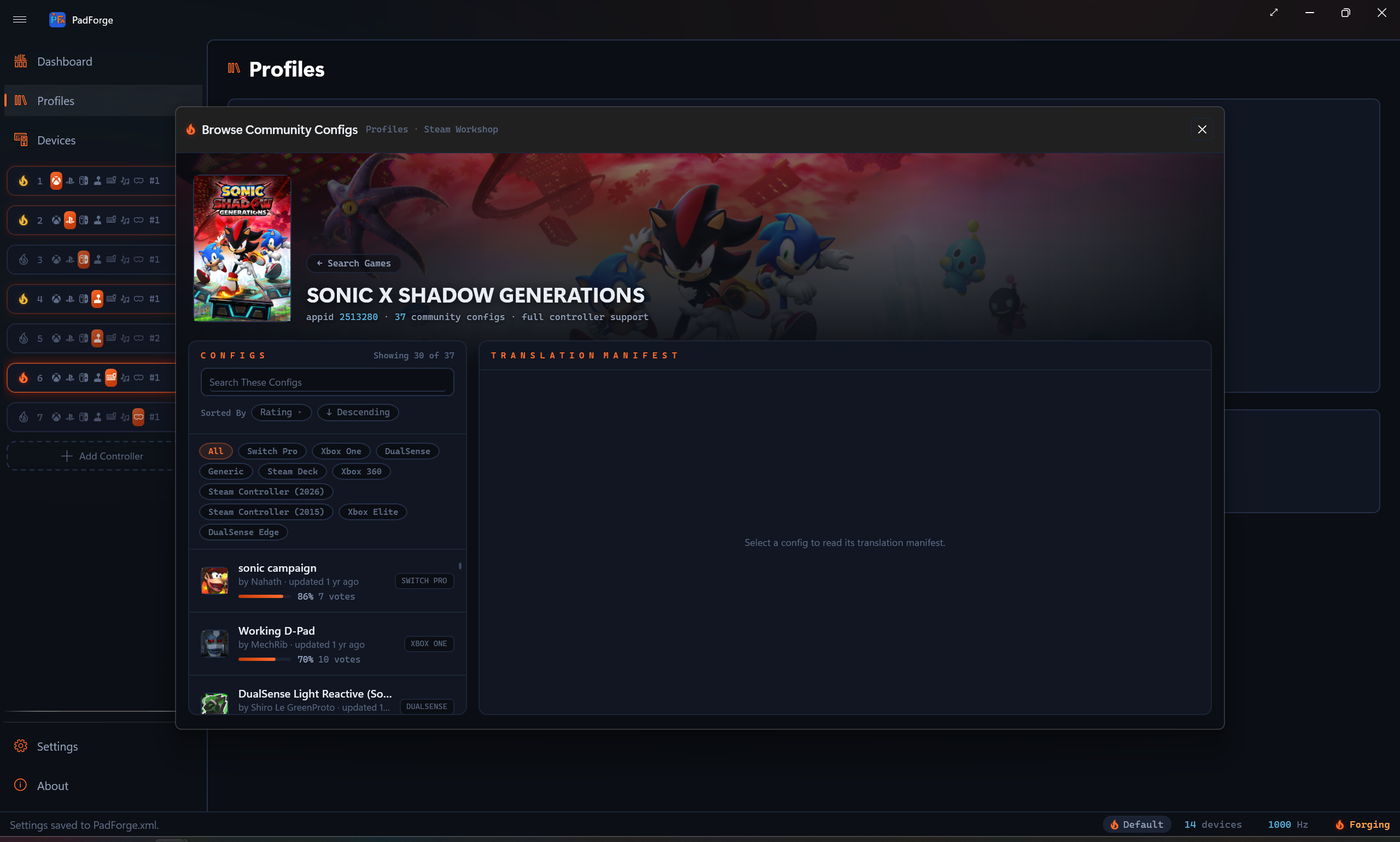
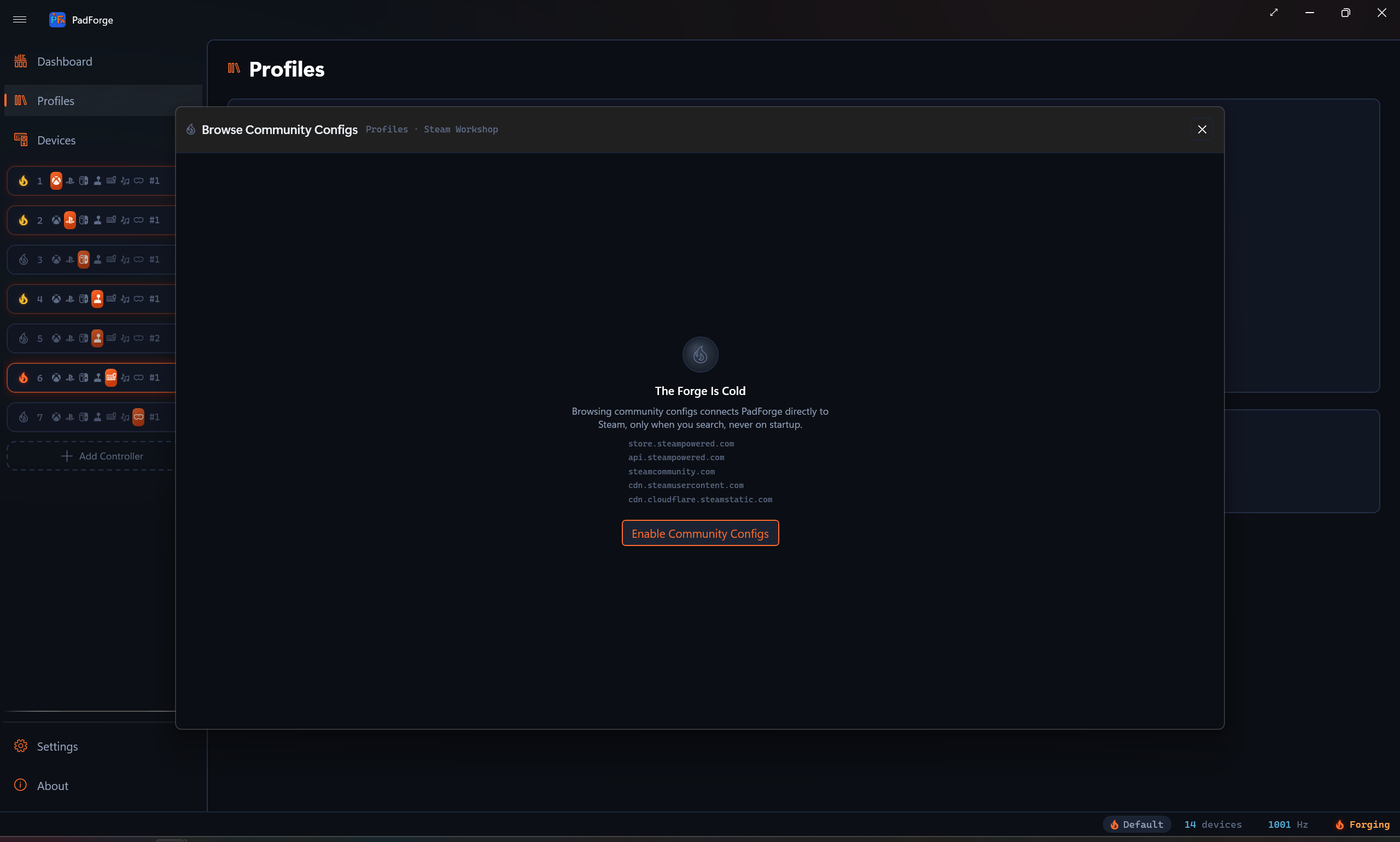
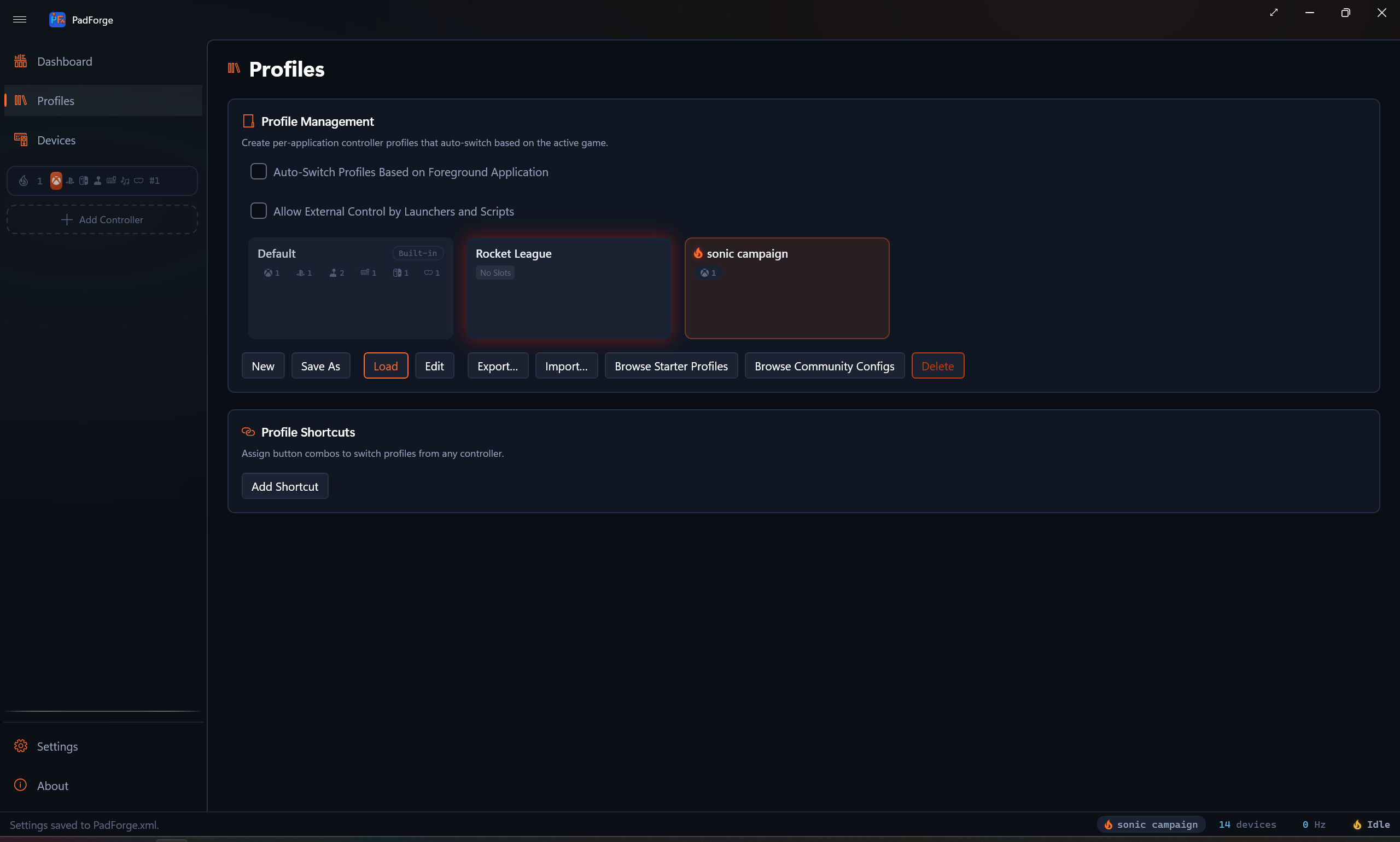
Open the Profiles page and click Browse Community Configs. The button is always there. If Community Configs is still off, the dialog opens on an unlit "The Forge Is Cold" panel that names the Steam servers involved and offers the Enable Community Configs step right in place.
Find the game
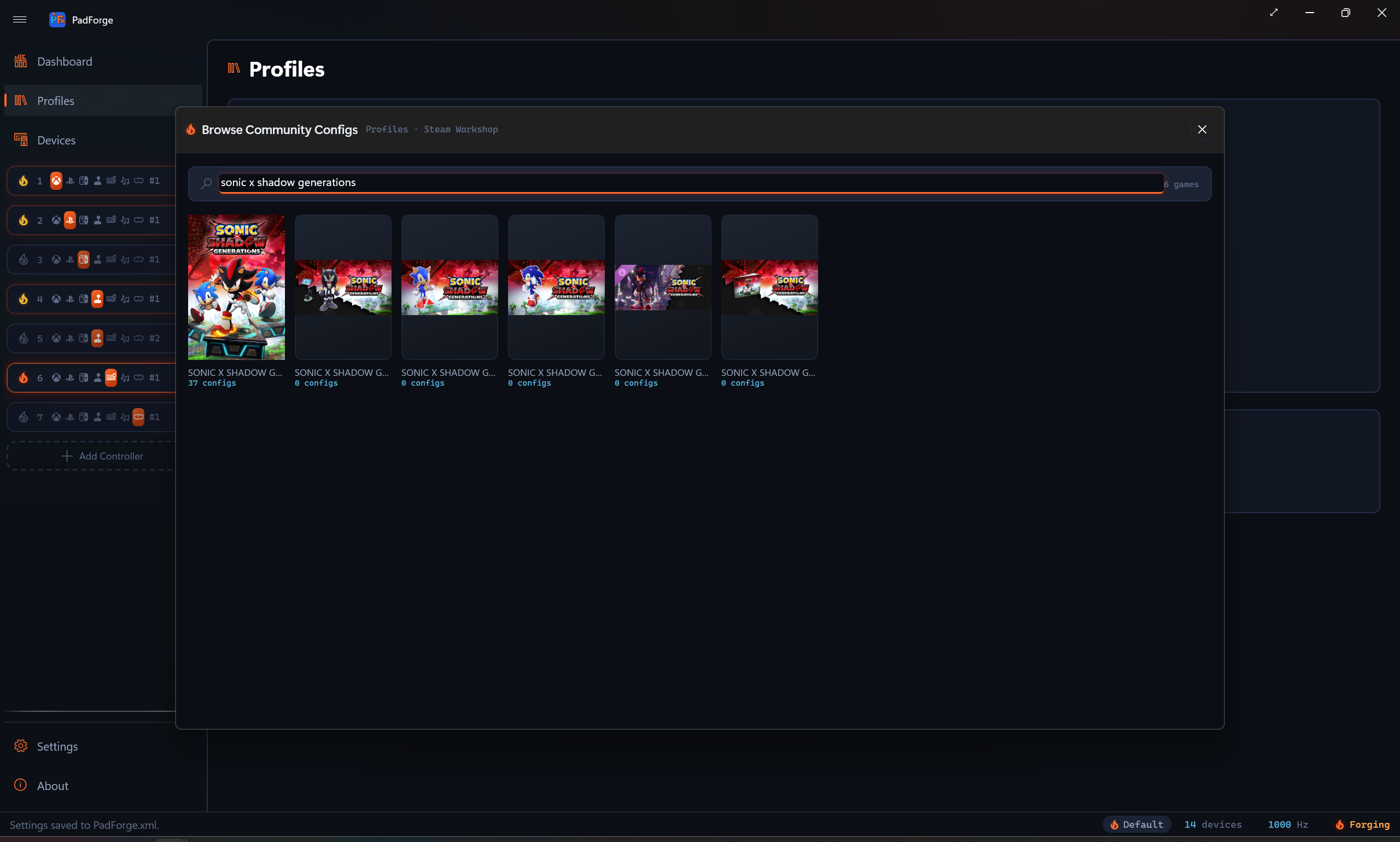
Type at least two characters into Search Games. The search runs about half a second after you stop typing and shows the top matches with their cover art and a config count per game. Click a game (or press Enter for the first match) to open its config list.
Read the config cards
The game's configs list ranked by rating. A filter row above the list carries an All chip plus one chip per controller type found in the results (Steam Deck, Steam Controller, PlayStation, and so on). Click a chip to narrow the list to configs built for that controller.
Sorted By re-orders the list: Rating, Trending, Newest, Subscribers, or Most Votes, ascending or descending. Search These Configs asks Steam for configs whose title matches that text, so it searches the game's whole Workshop list rather than only the configs already loaded. The search runs shortly after you stop typing, or on Enter. Escape clears it.
Each card shows:
| Element | Meaning |
|---|---|
| Title and creator | The config's Workshop title, the creator's Steam name and avatar, and when it was last updated ("by Kaz · updated 3 mo ago"). |
| Vote bar | The share of positive votes, as a filled bar plus a percentage and the total vote count. A full bar means everyone who voted, voted up. It is a quality signal, not a popularity count. |
| Subscriber count | How many Steam users subscribed to the config ("12k subscribers"). This is the popularity count. |
| Controller chips | Which controller the config was built for. Steam Deck chips render in a colder color. |
| LEGACY badge | A pre-2017 config with no downloadable file. Only shown when Show Legacy Workshop Configs is on. |
The translation manifest
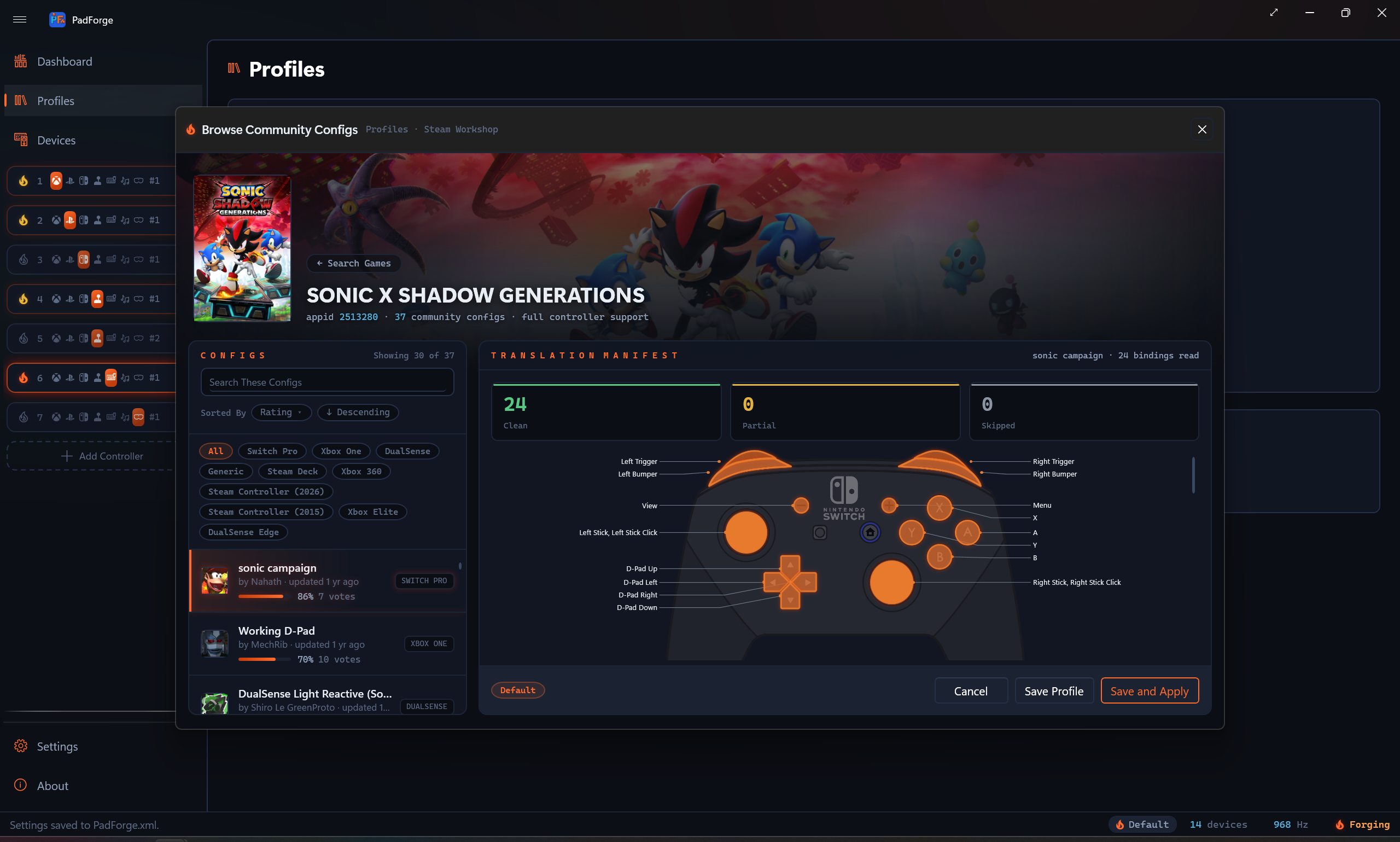
Click a card and PadForge downloads the config, translates it, and fills the manifest pane. Three stat blocks summarize the run:
| Stat | Meaning |
|---|---|
| Clean | The binding is fully expressed in PadForge terms with matching behavior. |
| Partial | The binding is expressed, but with a documented behavioral difference, or it needs one step from you before it works. The row's reason says which. |
| Skipped | The binding is not expressed. The row's reason says why. |
Below the stats, one row per binding, grouped by the physical control it came from (left touchpad, button diamond, gyro, and so on). Each row shows a status dot, the source, the target, and a reason for anything that is not a plain translation.
Real examples of each status:
- Clean: "Touchpad 1 Click → Left Mouse Button". A clean row shows source and target only, with no reason text. The pad-passthrough part of the config (A stays A, bumpers stay bumpers, sticks stay sticks) appears the same way, one row per output: every binding becomes an explicit mapping row, including the ones that match the automap defaults, and the implicit analog passthroughs (a matched stick, a matched trigger pull) get explicit rows of their own. A radial or touch menu becomes an on-screen menu row, and a macro riding a paddle, touchpad, or gyro trigger becomes a macro row, both counted as Clean.
- Partial: "circular scroll wheel approximated as a vertical drag" (a touchpad scratch wheel becomes a linear finger drag), or "camera reset approximated as a gyro recenter" (PadForge re-references its own gyro aim state, the equivalent state it owns).
- Skipped: "12 in-game actions, Steam-only, no game-side hook" (bindings that call the game's own action API, which only Steam can deliver), or "player-number change is a Steam-client action, no equivalent".
Preset chips
Steam Input configs can carry several action sets (Default, Driving, Menu, and so on). Each appears as a chip in the manifest footer, all included by default. Uncheck a chip and the manifest re-translates live without it. Included sets beyond the first become Shift Layers in the imported profile.
Import
Two buttons finish the job:
| Button | What it does |
|---|---|
| Save Profile | Saves the translated profile to your Profiles grid. |
| Save and Apply | Saves it and loads it immediately. |
Imports always create a new profile. If the name is taken, PadForge appends a number. The status bar confirms the result: "Imported 'Skyrim DS4': 31 clean, 4 partial, 2 skipped".
What an imported profile looks like
The profile carries only the virtual controllers the config actually drives. A config that mixes both natures gets two pads, a pure keyboard/mouse layout gets a single Keyboard + Mouse pad, and a plain controller passthrough gets a single Xbox pad:
| Pad | Type | Gets | When it exists |
|---|---|---|---|
| First | Xbox | Every controller-shaped output, remapped (a paddle acting as A, a crossed trigger, a swapped stick) or plain passthrough (A stays A, a matched stick or trigger pull). All become explicit mapping rows. | The config binds any controller output or layer switch, or carries a macro that reads this pad's output or writes a virtual-controller button or axis (turbo, toggle, hold). |
| Next | Keyboard + Mouse | Every key, mouse button, mouse move, and scroll binding, including flick stick and absolute-pointer rows. | The config binds any key or mouse output, or it has no controller-shaped output at all and still carries a macro or an on-screen menu (something has to host them). |
All created pads read the same physical controller. Radial and touch menus land on every created pad, so they follow whichever pad the game reads.
Imported mapping tables are authoritative: they spell out the whole layout, so assigning a controller to an imported pad adds no automap rows on top. Your pad drives exactly what the config authored, nothing doubled. That holds for every pad the import creates, an empty table included.
Where everything lands:
- Mappings go into each pad's Button and Axis Mappings table. They use device-portable Gamepad sources ("Gamepad A", "Gamepad Left Stick X"), so they work on any recognized controller without rework. Imported rows name no device, so their device column reads (Any Device) and each row follows whichever controller the slot holds.
- Action sets and layers become Shift Layers: hold-style mode shifts become Hold layers, add-layer commands become Toggle layers, and set-switch buttons become layer jumps or cycles.
- Radial and touch menus become on-screen Menus with the config's cell labels, fire mode, and screen placement.
- Cursor warps, key autofire, turbo, toggles, long presses, double presses, haptic pulses, and lighting commands become Macros. A double-press activator rides the macro's On Double Press fire mode with the config's press window. A macro bound to a standard pad button triggers from the Xbox pad's combined output. A macro bound to a paddle, touchpad, or gyro triggers straight from the physical device, no pad button needed.
- Flick stick groups, hosted on a stick or a touchpad, become the flick stick source on the Keyboard + Mouse pad, with the config's Dots per 360° carried over.
- Mouse regions on a touchpad become the absolute Touchpad Pointer sources, so the cursor warps to your finger inside the config's region.
- PlayStation touchpad halves map onto the left and right halves of the single DS4 or DualSense pad.
- Per-group sensitivity from the config carries over as per-source Sensitivity on the affected rows, including per-row touchpad mouse sensitivity.
After the import
- Assign your controller. The imported profile ships with no device assignments, so its Gamepad sources wait for whichever pad you give each slot. Assign your physical controller to both pads.
- Attach the game. Select the profile, click Edit, and add the game's executable with Browse.... Auto-switch then loads the profile whenever the game gains focus, like any other profile.
- Hide the physical pad if needed. If the game sees both your real pad and the virtual one, cloak the real pad on the Devices page.
Legacy configs
Configs uploaded before 2017 predate Steam's config download servers, so PadForge cannot fetch them directly. With Show Legacy Workshop Configs on, they appear in the list with a LEGACY badge. Click one and PadForge tries two things in order:
- Your Steam install. If you are subscribed to the config in Steam, Steam has already downloaded it, and PadForge reads it from your Steam folder on the spot. The manifest fills like any other config.
- A subscribe prompt. If there is no local copy, the manifest pane explains and offers Open in Steam Workshop. Subscribe on the page that opens, let Steam download it, then click the config again.
The same local-folder fallback also rescues a newer config whose download link has gone dead on Steam's side.
Check for updates
Every imported profile remembers which Workshop config it came from and the config's revision date at import time. Check Imported Profiles for Updates on the Settings Community Configs card compares those against Steam in one query:
- Everything current: the status bar reports "Imported profiles are up to date (3 checked)".
- Something stale: a Workshop Updates dialog lists each affected profile and its config, and offers Browse Community Configs as the re-import route. Re-importing saves a new profile, so your hand edits to the old one survive.
Two notes on the record-keeping:
- A profile forked with Save As counts as your own work. It drops the Workshop link and is never flagged.
- The check needs Enable Community Configs on. With the opt-in off, the button reports "Enable Community Configs to check for updates" and touches nothing.
The cache
Everything fetched from Steam lands in a local cache at %LOCALAPPDATA%\PadForge\SteamWorkshopCache, so repeat visits are instant and polite to Steam:
- Search results, config metadata, and game details stay fresh for a day. Creator names for a week.
- Config files are kept per revision and never expire on their own.
- Artwork refreshes weekly. When Steam is unreachable, the stale copy still shows, so offline browsing keeps its art.
- The cache is capped: 50 MB for data plus 60 MB for artwork, with the least recently used files evicted first.
Clear Cached Configs on the Settings card empties the whole thing. Imported profiles are not part of the cache. They live in your normal PadForge settings and survive a clear.
What does not translate
Steam Input has a few features PadForge does not reproduce, and a few it reproduces with a documented difference. The manifest marks every one with a reason instead of guessing:
| Steam Input feature | What happens |
|---|---|
| In-game actions | Skipped. These bindings call the game's own action API, which only Steam can deliver. |
| Steam client actions (system key, player number, lizard mode, and the Steam-overlay verbs) | Skipped, with the action named. Two translate instead: screenshot taps PrintScreen, and the keyboard popup opens the on-screen keyboard. |
| Circular scrolling (the scroll-wheel touchpad mode) | Partial: the circular scratch becomes a vertical finger drag. Directional swipes and scroll-wheel lists translate whole. |
| Mouse regions on a stick or gyro | Partial: a cursor-clamp macro holds the region while the input is engaged. On a touchpad the region translates Clean as the absolute pointer instead. |
| Menu cell icons | Render when your local Steam client has the icon art. An unrecognized icon reference is named per cell and the cell keeps its text label. App-provided icons (Steam-internal) fall back to text silently. |
| Menus hosted on a surface with no direction read | Skipped, with the host named. Sticks, touchpads, the D-pad, the face diamond, and the gyro all host menus, so only a hand-edited config lands here. |
| Flick stick on a surface with no analog pair | Skipped, with the host named. Sticks and touchpads both carry flick stick. |
| Response curve settings on mouse outputs | Partial: deadzone_shape (mouse rows evaluate per axis, no pair read) and output_curve drop, named. Every other curve, range, and sensitivity setting carries onto its rows. |
| Unknown key names | Skipped, named per key. |
Features that skipped in older PadForge versions and translate whole now: double-press activators, long presses on keys (down at the threshold, up on release, matching Steam), turbo on any target including trigger pulls, haptic feedback (a rumble pulse per activation), directional swipes, flick stick on touchpads, and the F13–F24 keys. Re-import a config to pick them up.
Troubleshooting
- Double input, or the game reacts twice per press. The imported profile replaces what the Steam config did. It does not need Steam Input running. If Steam Input is still active for the game, both layers fire. Disable Steam Input for that game (Steam > game properties > Controller), or close Steam, and cloak the physical pad on the Devices page.
- "Steam Is Unreachable." The dialog could not reach Steam. Check your connection and click Retry. Profiles you already imported keep working: they live on this PC.
- A config's bindings do nothing in game. Check the two imported pads have your physical controller assigned, and the profile is the active one.
- "No Configs for This Game Yet." Steam Workshop has no community controller configs for that game. You can be the first: build one in Steam, and it appears here.
Related pages
- Profiles: where imported profiles land, and the Browse Community Configs entry point.
- Settings: the Community Configs card, cache clearing, and the update check.
- Button and Axis Mappings: the Gamepad sources imported mappings use.
- Shift Layers: what action sets become.
- Menus: what radial and touch menus become.
- Macros: what cursor warps, autofire, toggles, and long presses become.
- Devices: assign your controller to the imported pads, and cloak it from games.
Last updated for PadForge 4.5.0.