DualShock 3
Use a PlayStation 3 controller over USB or Bluetooth, with motion, pressure-sensitive buttons, rumble, and battery.
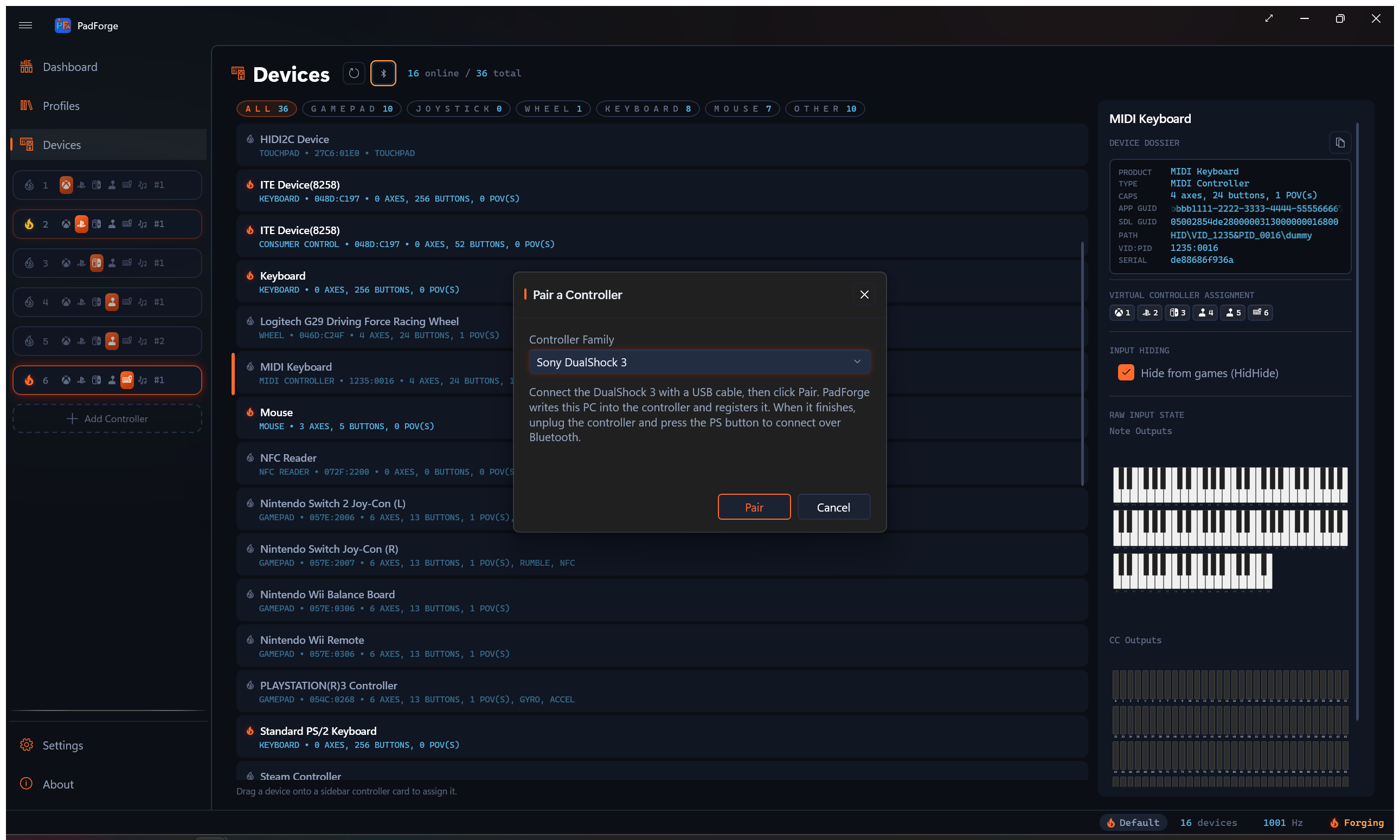
Windows can't pair a DualShock 3 from its own Bluetooth screen. The controller connects in a way the built-in Bluetooth stack turns away, so a normal "Add a device" pairing never completes. PadForge handles it with a short USB step and a bundled Bluetooth driver, so you pair from inside the app. Over a cable, no pairing is needed at all.
USB: plug in and play
Connect the controller with a USB cable and it works right away. PadForge claims the pad and reads it as a standard gamepad. No pairing, no setup.
One exception: if another PlayStation controller driver is already installed, PadForge leaves the controller to it and stays out of the way. Uninstall the other driver to let PadForge read the pad.
Bluetooth: pair once
Bluetooth needs a one-time pairing. The controller has to be on a USB cable for this step, because the pairing writes your PC's address into the pad over the cable.
- Open the Devices page.
- Connect the DualShock 3 to the PC with a USB cable.
- Click Pair, next to Refresh. The Pair a Controller dialog opens.
- Set Controller Family to Sony DualShock 3.
- Click Pair in the dialog. The status line shows each step. The first time, PadForge's bundled PlayStation Bluetooth driver installs on its own.
- When it finishes, unplug the controller and press the PS button. It connects over Bluetooth and appears in the device list.
- Click Done to close.
After this, press PS any time to reconnect. You pair once.
One identity, either way
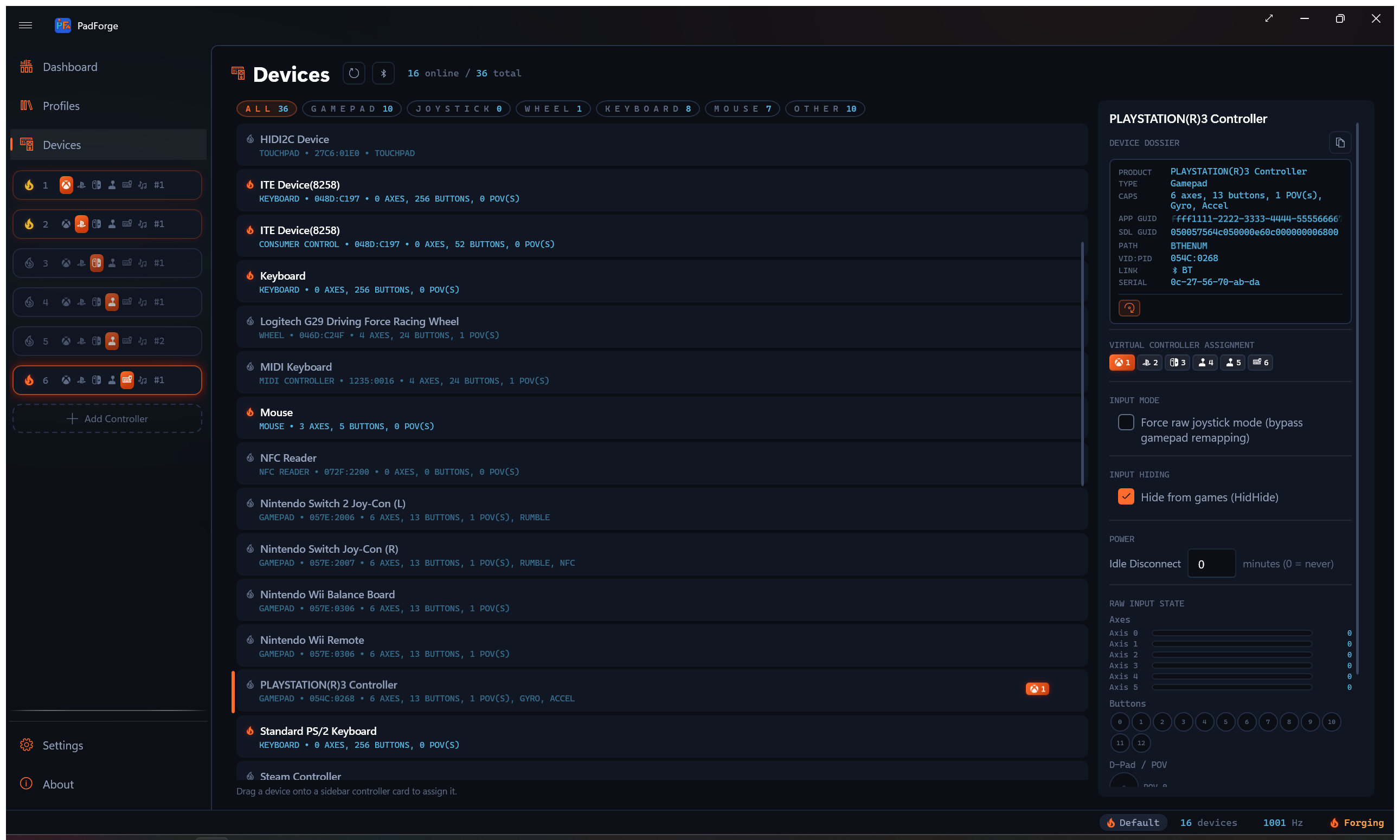
The controller carries the same identity over USB and Bluetooth. A mapping you set on the cable still applies after you go wireless, and the other way around. Switching transports keeps the slot assignment.
What works
| Feature | Detail |
|---|---|
| USB | Plug in with a cable and play. No pairing. |
| Bluetooth | Connects after the one-time pairing above. Press PS to wake it. |
| Buttons and sticks | The full pad maps like any other gamepad on the Mappings tab. |
| Pressure buttons | Ten buttons report analog pressure, each as its own source. They appear as Axis 6 through Axis 15. The legend is below. |
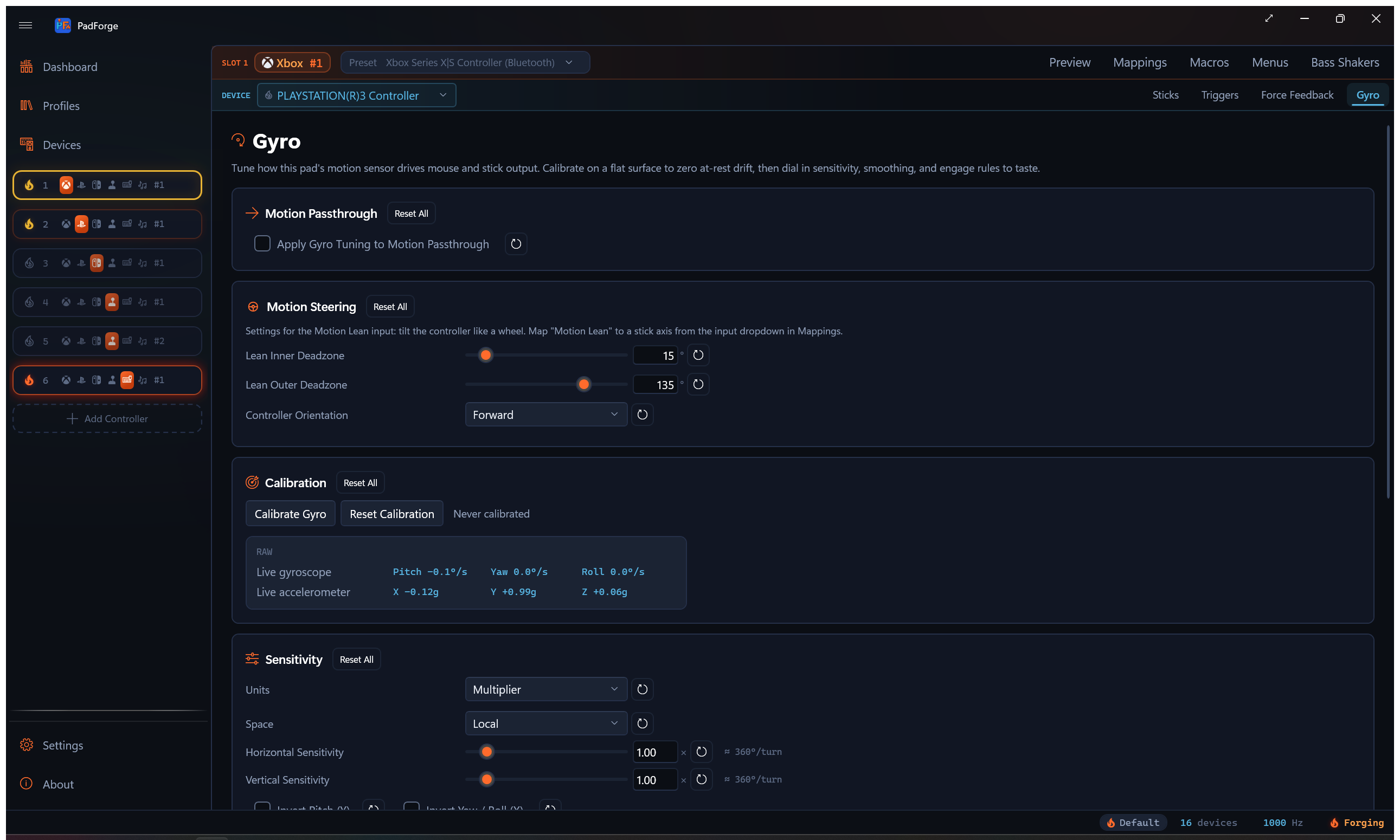
| Motion | The gyro and accelerometer drive gyro aiming and the motion server. The DS3's gyro senses turning left and right only. |
| Rumble | Both motors, over USB and Bluetooth. |
| Player light | Lights the controller's number, 1 through 4. |
| Battery | The charge level shows on the device card, wired or wireless. |
Motion
The DualShock 3's built-in motion sensors flow through the same pipeline as any other motion pad. Gyro-to-mouse, gyro-to-stick, and motion mapping all work. The DS3's gyro senses one axis of rotation, turning the pad left and right, so gyro aiming responds to that turn and not to tilting the pad up and down or rolling it. The accelerometer reads all three axes. See Gyro for calibration, sensitivity, and the engage controls. The motion also broadcasts to the DSU Motion Server for emulators.
Pressure-sensitive buttons
Ten of the controller's buttons sense how hard you press. Each one is its own analog source, so you can map it to a trigger, a stick axis, or a button with a threshold. In the mapping picker they carry generic names, Axis 6 through Axis 15, without the button printed on them. This legend tells them apart:
| Source | Button |
|---|---|
| Axis 6 | Cross |
| Axis 7 | Circle |
| Axis 8 | Square |
| Axis 9 | Triangle |
| Axis 10 | L1 |
| Axis 11 | R1 |
| Axis 12 | D-pad Up |
| Axis 13 | D-pad Down |
| Axis 14 | D-pad Left |
| Axis 15 | D-pad Right |
The Record button won't find these for you. Pressing a face button during a recording captures the digital press, which wins over the slower-rising pressure axis. Pick the axis from the picker by the legend above.
Removing the controller
Remove the controller from the Devices list and its Bluetooth pairing clears too, so it won't reconnect on its own later. To use it again, run the pairing above once more.
Coexisting with other Bluetooth devices
The PlayStation Bluetooth driver only steps in on a PC that has a DualShock 3 or a PlayStation Move family controller. PadForge arms it when one of them is paired, and also when Windows still has a record of one that was plugged into this PC over USB. That second case matters because a pad paired outside PadForge writes no pairing record of its own, and arming on the pairing alone would silently stop it connecting. On a PC that has never seen one of these controllers it stays dormant and leaves your other Bluetooth devices alone. Removing every controller stands it back down once neither of those two conditions holds.
One exception: with another DualShock 3 driver such as DsHidMini installed, the Bluetooth driver stays armed all the time. That setup's controllers can only connect while it is, so PadForge leaves it on.
Requirements
- A Bluetooth radio, for wireless use. Over a USB cable, no radio is needed. USB, PCIe and UART radios all work. A PCIe or UART adapter, which is what most recent Intel laptops carry, needs PadForge 4.5.1 or later.
- PadForge runs elevated. The pairing writes to the Bluetooth stack and installs a driver, both of which need the elevated app.
Troubleshooting
- The pad doesn't show up over USB. Another PlayStation controller driver may own it. Uninstall that driver, then reconnect the cable.
- Bluetooth won't connect after pairing. Finish the USB pairing first, then unplug and press PS. The controller connects on a button press, not on its own.
- The controller keeps reconnecting after you're done with it. Remove it from the Devices list to clear the pairing.
Related pages
- Devices: the Pair button and the paired controller's device card.
- Gyro: tune the DualShock 3's motion sensors.
- DSU Motion Server: broadcast the motion to emulators.
- Driver Management: HIDMaestro and HidHide driver setup.
Last updated for PadForge 4.5.1.