Head Tracking
A head pose from OpenTrack, from anything that speaks its output formats, or from a VR headset, as six axes you can map like a stick.
OpenTrack turns a webcam, an IR clip, a phone, or an eye tracker into a head pose: three rotations and three translations. On Windows its outputs include FreeTrack, TrackIR emulation, mouse movement, UDP, a vJoy virtual joystick, and a few sim-specific bridges. None of them is an XInput gamepad. PadForge reads two of those outputs and turns the pose into a device row with six axes, so head yaw can drive a virtual controller's right stick while both thumbs stay on the face buttons.
A VR headset is the third source. PadForge talks to an OpenXR runtime directly and reads the headset pose into the same six axes, so a headset drives the same mappings an OpenTrack webcam would.
Turning it on
Open the Dashboard, find the Head Tracking section, and turn on Enable UDP Tracking Input, Enable FreeTrack 2.0 Shared Memory Input, Enable OpenXR Headset Input, or any combination. The three run together.
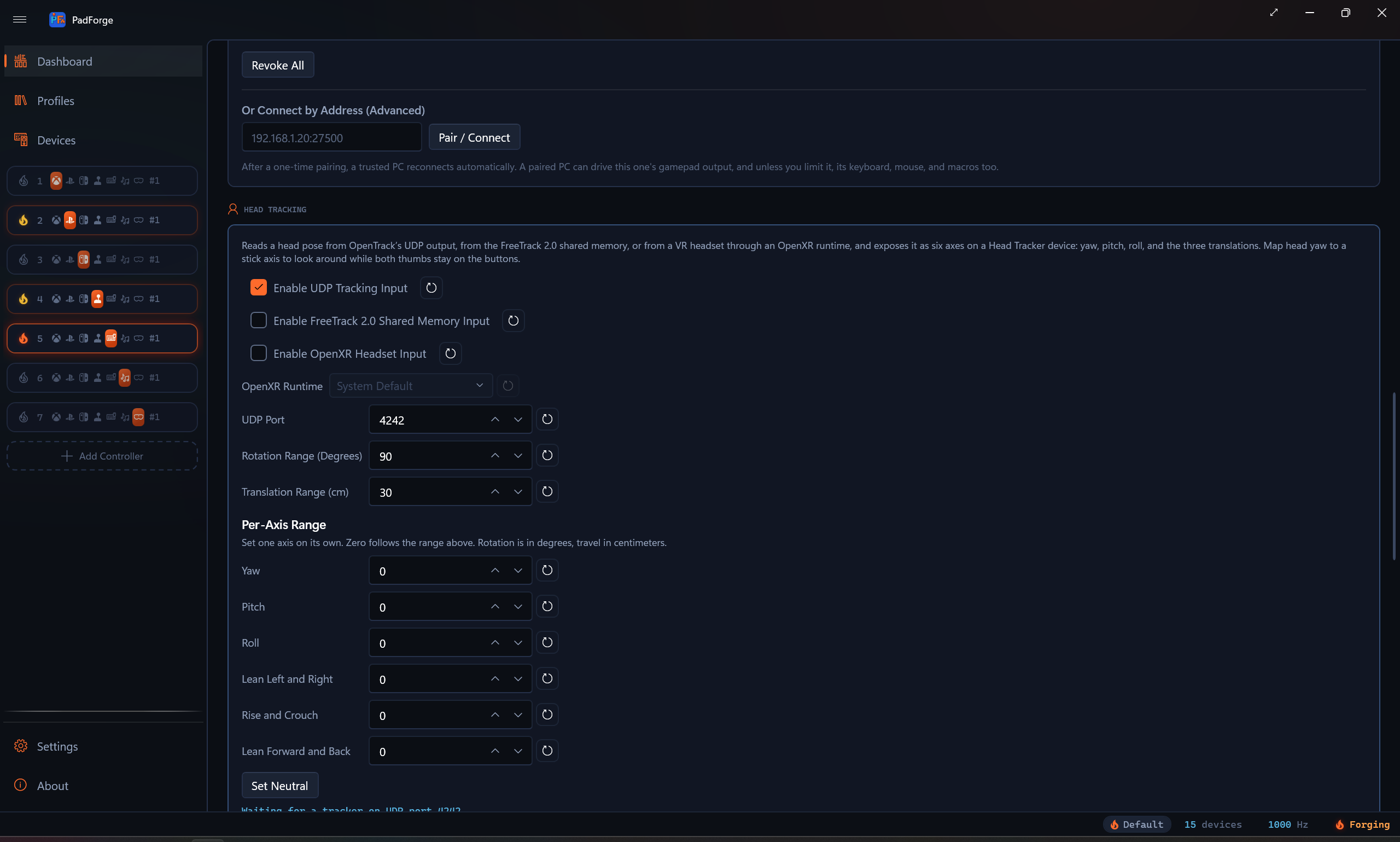
| Control | Default | Range | Notes |
|---|---|---|---|
| Enable UDP Tracking Input | Off | Opens the UDP listener. An authored profile opinion applies to this input only. | |
| Enable FreeTrack 2.0 Shared Memory Input | Off | Reads FT_SharedMem independently of UDP. It has its own authored profile opinion. |
|
| Enable OpenXR Headset Input | Off | Reads a VR headset's pose through an OpenXR runtime, with or without SteamVR. | |
| OpenXR Runtime | System Default | installed runtimes | Which runtime to read the headset from. The choice affects PadForge only and never the system default. |
| UDP Port | 4242 | 1 to 65535 | The port OpenTrack's "UDP over network" output sends to. Global. Disabled while UDP input is off. |
| Rotation Range (Degrees) | 90 | 1 to 180 | Head rotation that moves yaw, pitch, and roll to full deflection. Global, applied live. |
| Translation Range (cm) | 30 | 1 to 500 | Head travel that moves X, Y, and Z to full deflection. Global, applied live. |
| Set Neutral | Makes your current position the neutral. Applies to the OpenXR input only, and re-zeros the headset and both VR controllers together. |
Each numeric field has a reset button. Changing an input toggle reopens the runtime reader. Changing the UDP port does so only while UDP is enabled. The status line under the controls reads Stopped while the feature is off or the engine is down, and otherwise carries the same text as the Head Tracker row's detail pane on the Devices page.
Per-Axis Range
Under the shared ranges sits a Per-Axis Range group with one field for each of the six axes: Yaw, Pitch, Roll, Lean Left and Right, Rise and Crouch, and Lean Forward and Back. A field set to anything other than zero governs that axis on its own. Zero follows the shared range above. Rotation fields are degrees and travel fields are centimeters, matching the shared pair.
The box always shows what you pinned, not what is in effect. A field reading zero means that axis follows the shared range, and it keeps reading zero however the shared range changes. Each of the six fields has its own reset button.
This is for an axis whose comfortable travel does not match the rest. Neck rotation covers 90 degrees easily while leaning forward covers far less, so pinning Lean Forward and Back low gives that axis full deflection over the distance you actually move.
The device row
A Head Tracker row appears on the Devices page, typed Head Tracker, with six axes. Its name says which backends are feeding it, so with UDP or FreeTrack on it reads Head Tracker (OpenTrack), and with only the headset input on it reads Head Tracker (OpenXR):
| Axis | Index | What it reads | Full deflection |
|---|---|---|---|
| Head Yaw | Axis 0 | turning left and right | Rotation Range |
| Head Pitch | Axis 1 | nodding up and down | Rotation Range |
| Head Roll | Axis 2 | tilting toward a shoulder | Rotation Range |
| Head X | Axis 3 | sliding left and right | Translation Range |
| Head Y | Axis 4 | rising and ducking | Translation Range |
| Head Z | Axis 5 | leaning in and back | Translation Range |
Every axis rests at center. Yaw right and X right read high, like a stick pushed right. The vertical axes are stored the way a stick reports them, up at the low end, so mapping Head Pitch onto a stick's Y axis needs no inversion. Roll and Head Z pass through with the sign OpenTrack sends.
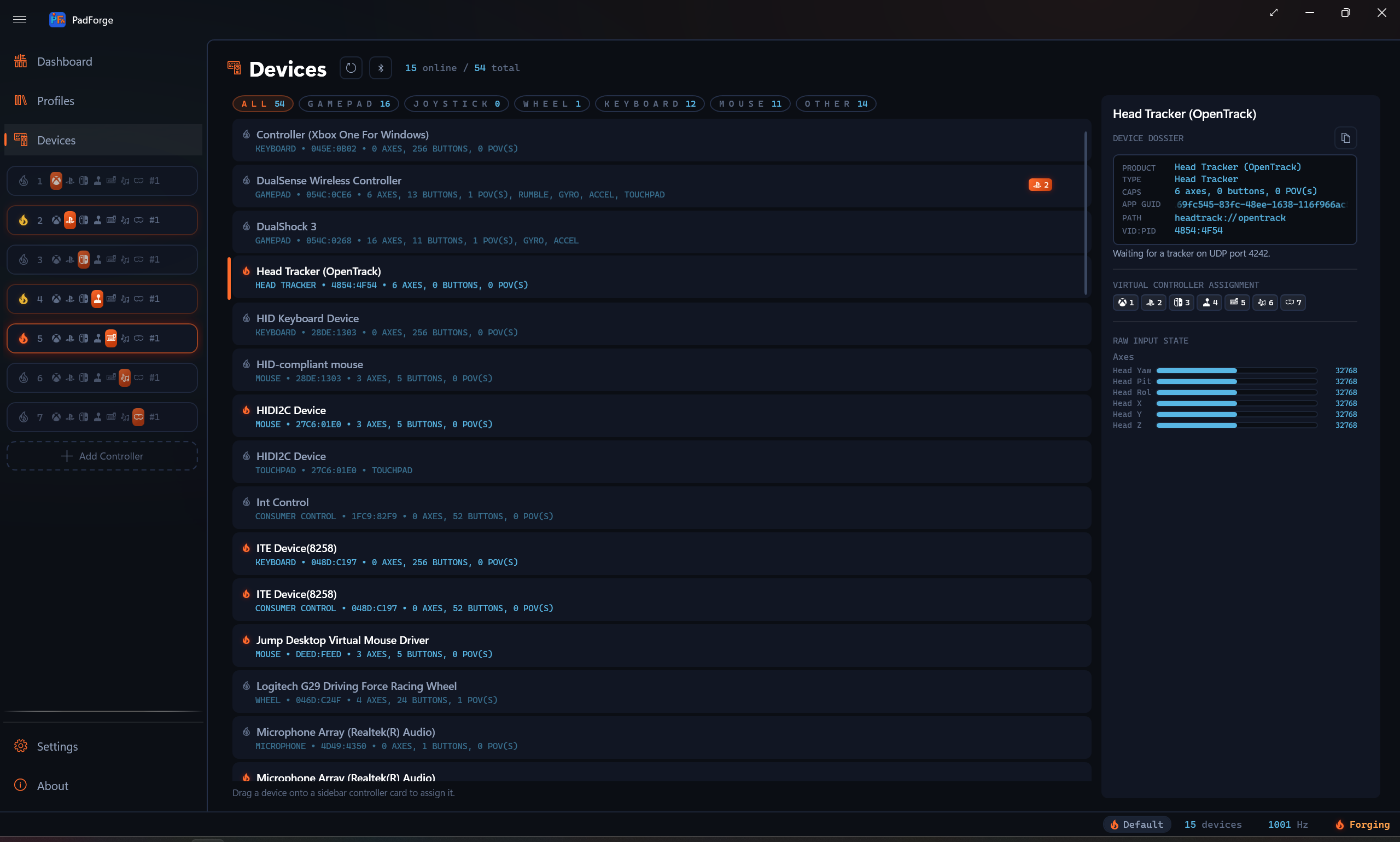
The row has no buttons, no hiding section, and no Input Mode section. It starts unmapped: auto-map does not cover head trackers, so each axis is bound by hand.
With every input off, the runtime reader is retired. Stored assignments and mappings remain. FreeTrack-only input opens no UDP socket or receive thread.
Older settings keep their effective enabled state on upgrade. A profile with no input opinion leaves that input unchanged.
Setting up OpenTrack
Two outputs work, and both can be on at once.
UDP over network. In OpenTrack's Output list choose UDP over network, open its settings, and set the address to 127.0.0.1 (OpenTrack's default is 192.168.0.2, which is another machine) and the port to the one shown under UDP Port in PadForge (default 4242). Click Start. The status line changes from Waiting for a tracker on UDP port 4242. to Receiving over UDP from 127.0.0.1:port., where the port is the one OpenTrack sent from.
freetrack 2.0 Enhanced. If a game already reads FreeTrack from OpenTrack, keep that output and turn on Enable FreeTrack 2.0 Shared Memory Input in PadForge. You can leave UDP input off. PadForge reads the same FT_SharedMem block the game does, so both see the pose. The status line says Receiving from FreeTrack shared memory. PadForge never moves the axes from a pose that was already in the block when it opened. Only a fresh write counts, so a stale pose left by an earlier session cannot pin a stick.
Phone trackers and other programs that send the OpenTrack UDP format can point straight at PadForge on the same port. PadForge adds an inbound firewall rule named PadForge Head Tracking for the port when UDP input opens.
When OpenTrack stops, or the camera loses the face, the axes return to center after one second without a pose, so a stick is never left pinned. The row stays online, so mappings can be made before the tracker is started.
Setting up an OpenXR headset
Turn on Enable OpenXR Headset Input and leave OpenXR Runtime on System Default, which uses the runtime registered as the machine's active one. If that runtime's library is missing, PadForge uses the first other registered runtime whose library is on disk. The dropdown lists each registered runtime whose library is still on disk, so you can read from one while another stays the system default. Picking a runtime here never changes the system default. A runtime whose manifest survives an uninstall is not offered, but one you had already chosen stays listed so the setting does not silently move.
PadForge asks the runtime for a session that runs without drawing anything, so no game has to be open. It submits no frames, though a given runtime may still show its own status window. A runtime that cannot supply one reports This runtime cannot supply a background session, and the headset input stays off while the other two inputs carry on.
Meta's runtime, the one a Quest uses over Link, leaves out the extension PadForge needs for that session in every version Khronos has published an extension list for, the latest being 1.205.0. No list exists for later versions. SteamVR's runtime has it and reads a Quest over Link or Air Link, so choose SteamVR under OpenXR Runtime. The list holds only runtimes Windows has registered. If SteamVR is missing from it, open SteamVR's settings, go to OpenXR, click Set SteamVR as OpenXR Runtime, and leave PadForge on System Default. Then turn Enable OpenXR Headset Input off and back on, because PadForge reads the system runtime only when that input starts. The SteamVR button makes SteamVR the runtime for every OpenXR program on the PC, and Set Meta Horizon Link as active, under Settings and then General in the Meta Horizon Link app, switches back. Both buttons need an administrator account. Reading a Quest through SteamVR has not been tried with a headset.
The status line reports each stage:
| Status | Meaning |
|---|---|
| Starting the OpenXR session | Negotiating with the runtime. On a runtime other than SteamVR the same line shows while PadForge replaces a session the runtime lost, and while it waits for a runtime that took its instance away, as a runtime does when it updates. PadForge asks that same runtime again every two seconds, and never another one. |
| The OpenXR runtime ended the session. Turn OpenXR headset input off and back on to reconnect. | The runtime closed the session, as it does when SteamVR is shut down or the headset's session ends. PadForge does not reopen it on its own, as the OpenXR specification asks of an application whose session the runtime ended, so a runtime you closed stays closed. On a runtime other than SteamVR, a session the runtime only loses starts again on its own. The line also shows when a session had run and PadForge could not get another, because the runtime refused the new session or the new instance, and when the runtime went away while PadForge had no session on it. Turn the input off and on again to start a new session. |
| Waiting for [runtime] to report a tracked pose | The session is up and the headset has not been tracked yet. Put it on, or move it into view of its sensors. |
| Reading [runtime] | The pose is live and the six axes are moving. |
| No OpenXR runtime is installed | No runtime is registered, or the chosen runtime's library is missing, does not load, or refuses the loader handshake. Install or repair a runtime, or use one of the other two inputs. |
| The OpenXR runtime reports no headset | The runtime started and has no headset attached. On a runtime other than SteamVR, PadForge asks again every two seconds and starts the session once the headset is there, so the line means it is still asking. If the asking stops, the line changes to the one for what stopped it. With SteamVR it asks once, so connect the headset and then turn the input off and on again. |
| This runtime cannot supply a background session | The runtime refused the headless session PadForge needs. Meta's runtime for a Quest on Link is one. Choose SteamVR under OpenXR Runtime, or follow the steps above when the list lacks it. The line shows only for a runtime that has given no session yet. Once a session has run, a refusal shows the ended line. |
| The OpenXR session failed. See the diagnostics log. | The runtime answered the request for the headset with an error, or refused to begin the session it had created, or PadForge's own OpenXR code stopped on an error. The diagnostics log, which Keep a Diagnostics Log in Settings turns on, has one line that says which, with the call and the runtime's answer or the error's text. |
Set Neutral makes your current position the zero point. It applies to the OpenXR input only, because OpenTrack and FreeTrack already center their own pose before sending it. It re-zeros the headset and both VR controllers together, so hold them where you want their neutral to be.
Mapping it
On the Pad page, pick Head Yaw as the source of the right stick's X axis, then set the right stick's Deadzone on the Sticks tab for the angle you want ignored. A mapping row's own deadzone slider applies only to button targets. The stick's Deadzone and Sensitivity Curves and the row's Invert box are the same controls a physical stick gets. OpenTrack's own mapping curves still apply first, so a curve shaped in OpenTrack arrives already shaped.
The six axes bind anywhere an axis does. An Any Device source never reads them, so pick the tracker by name. Assigning the tracker preserves existing Any Device rows. It does not append named gamepad defaults to those rows. If an earlier version already added an unwanted extra source, remove that extra once while retaining the Any Device source.
What it does not do
TrackIR's NPClient interface is a DLL the game loads by game ID, not a stream anything can subscribe to. Games that only speak TrackIR keep using OpenTrack's own output for that.
Two listeners cannot share one UDP port. If OpenTrack's own UDP over network tracker input binds the port first, the status line says UDP port 4242 is in use by another program. If PadForge binds it first, OpenTrack's tracker reports the error instead. Either way, one of them needs a different port. If the FreeTrack block could not be opened, the status line says so too.
Nothing here has run against a live OpenTrack yet. The wire formats come from OpenTrack's source, and the decoders are pinned by replay tests, but the sign of roll and of the three translations on real hardware is unconfirmed.
Related pages
- Dashboard: the Head Tracking section.
- Devices: the Head Tracker row.
- VR Controller Input: the two hand controllers, read from the same OpenXR runtime.
- Head Tracking Internals: the UDP and FreeTrack wire facts, for whoever has to change the code.
- OpenXR Input Internals: the runtime negotiation, the session, and the action set.
- Headset Head Tracking: head rotation from a Sony headset, a different source.
Last updated for PadForge 5.0.0.