Virtual VR Controllers
One slot drives a full SteamVR left and right hand pair. Any controller, keyboard, or motion source can move them, and their haptics come back to the device you are actually holding.
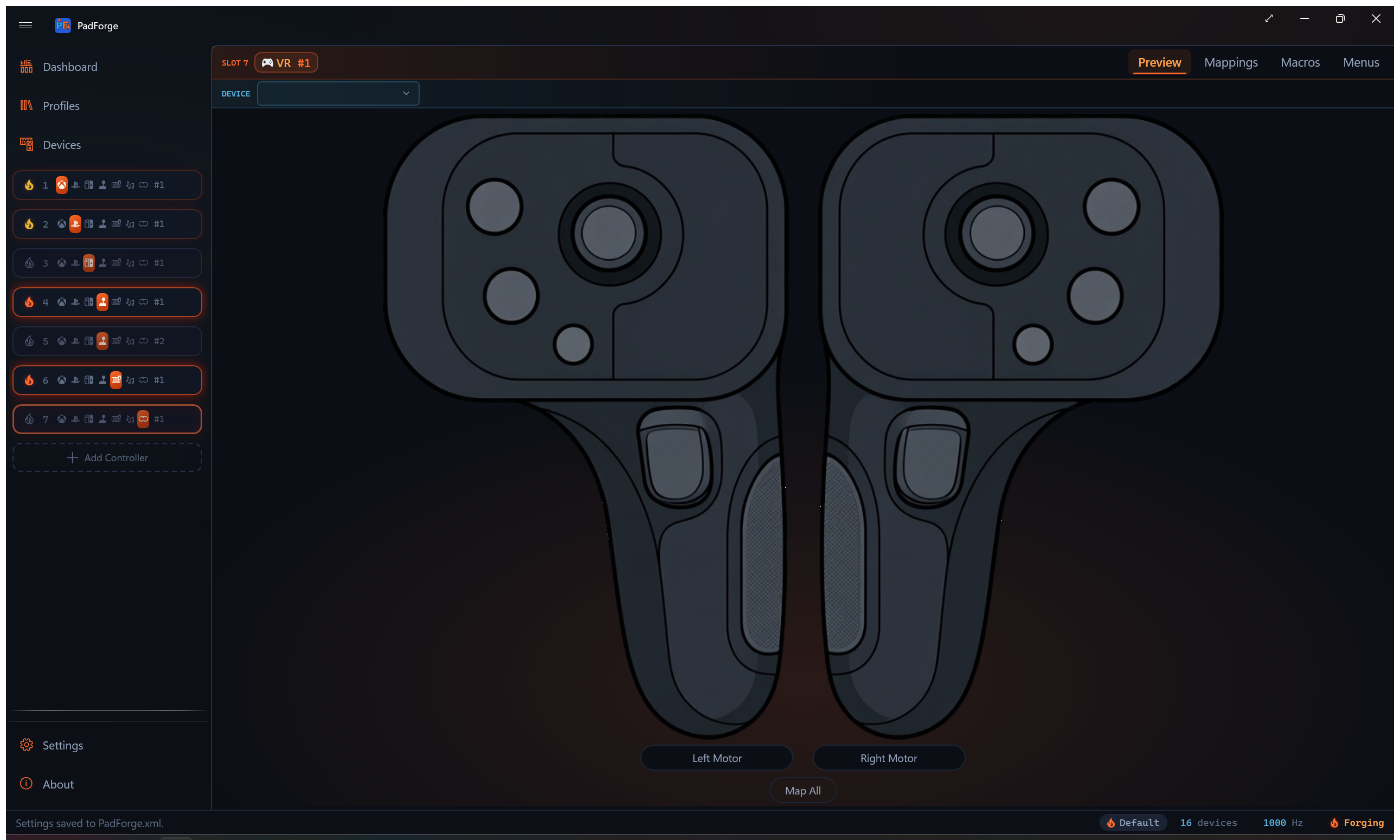
PadForge can present a pair of VR motion controllers to SteamVR. Add a VR slot, assign a device to it, and SteamVR sees a left hand and a right hand. What moves those hands is up to you: a gamepad, a flight stick, a keyboard, a phone over Wi-Fi, or any other source PadForge can read.
One slot serves both hands. There is no separate left slot and right slot to keep in sync.
This page is the direction where PadForge presents hands to SteamVR. For the opposite direction, reading a real headset and its controllers into PadForge as mappable devices, see VR Controller Input. That path uses OpenXR and does not need SteamVR. PadForge also reads the headset and controllers through a background OpenVR client whenever SteamVR is running with a headset attached.
What you need
VR slots require SteamVR. The Add Controller popup disables the VR tile without it and the tooltip reads VR (requires SteamVR).
You do not need a Steam account, the Steam client, or a headset plugged in to install the runtime. PadForge can fetch it for you: open Settings, find the SteamVR card, and use Install. The card describes itself as VR runtime for virtual VR controllers. Installs from Valve's servers with no Steam account or Steam client needed (several GB).
Two details worth knowing before you start it:
- Choose where it goes. The card has an Install Location field with a Browse... button, shown until SteamVR is installed. It defaults to
C:\SteamVRand accepts any full path on any drive. A drive root on its own is refused, because the uninstall side would then be pointed at an entire drive. - It is several gigabytes. The download runs for a few minutes on a fast connection and considerably longer on a slow one.
An existing SteamVR is found automatically when it came from Steam, or when it sits at C:\SteamVR, and the card then reports it as installed. A hand-placed install somewhere else is not discovered. Point the install location at it and click Install to register it, or let PadForge fetch its own copy. A registered folder counts as PadForge's own, so the card's Uninstall deletes it.
Creating a VR slot
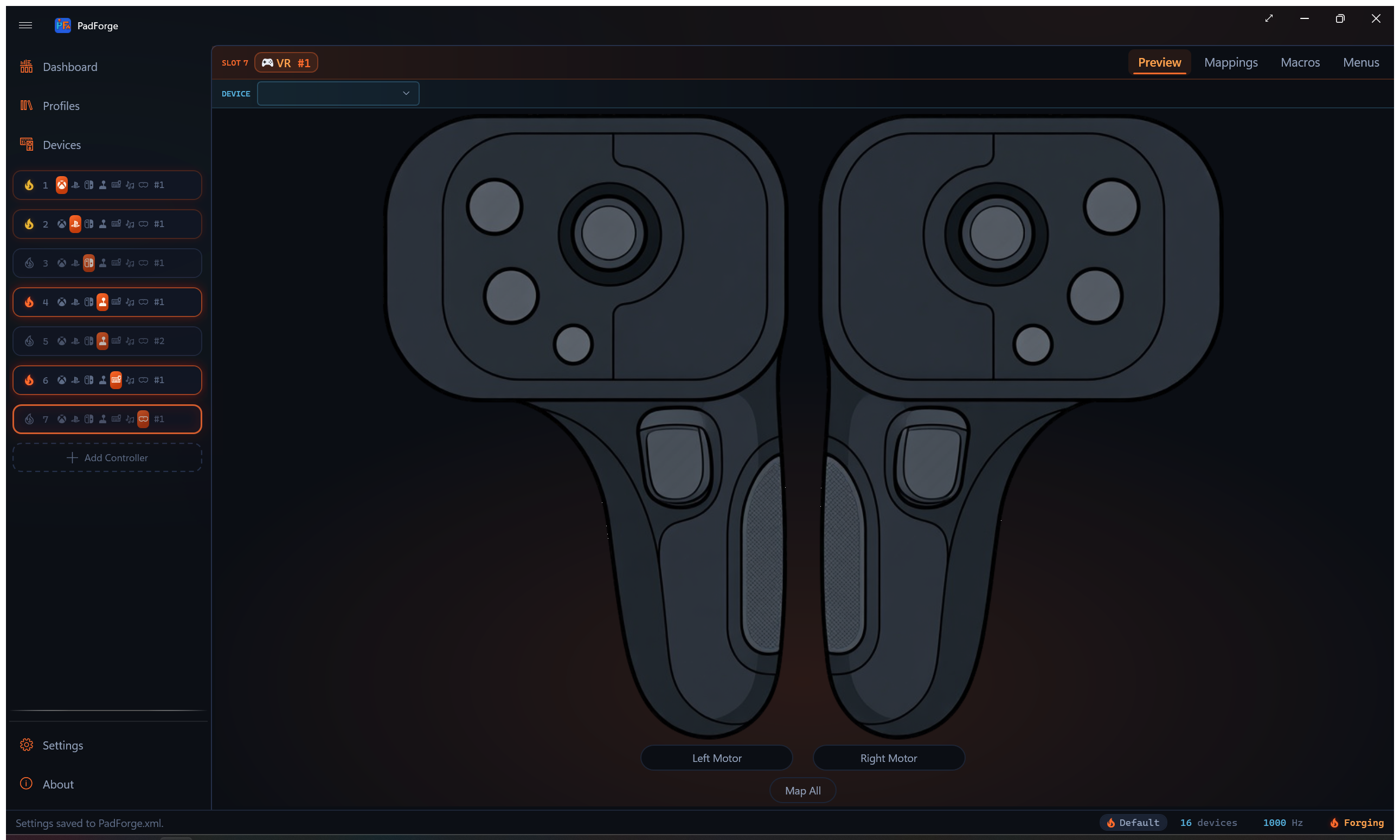
- On the Dashboard, click Add Controller.
- Pick the VR tile.
- Assign a physical device to the slot on the Devices page, the same as any other slot type.
- Map its inputs on the Mappings tab.
The slot's Preview tab draws both hands side by side, with each stick, trigger, grip, and button lighting as you press it, so you can confirm a mapping without putting a headset on.
What each hand exposes
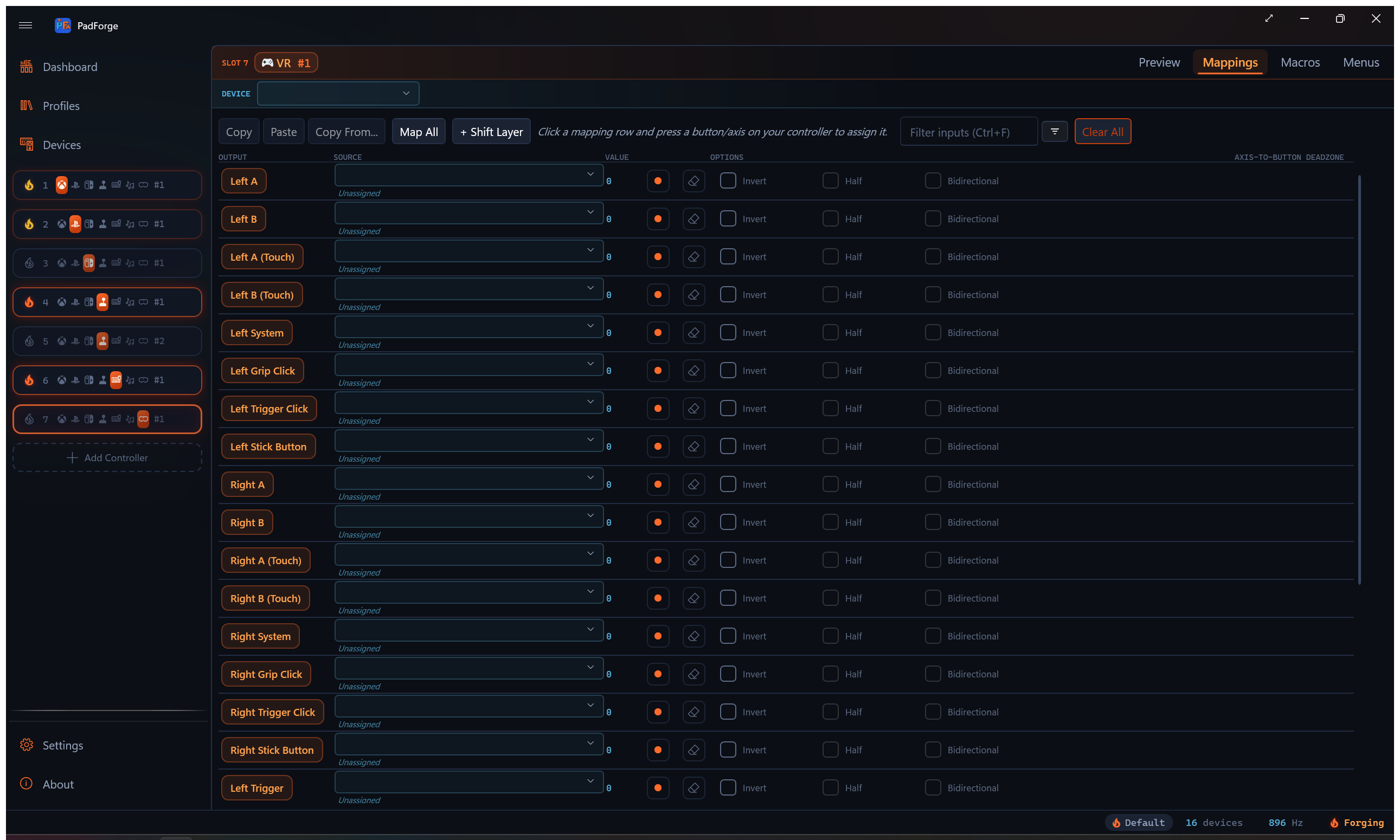
Both hands carry the same control set, and all of it is mappable.
| Target | Type | Notes |
|---|---|---|
| Stick X / Y | Axis | Full range, both directions |
| Stick click | Button | Separate from deflection |
| Trigger | Axis | Analog pull |
| Trigger click | Button | Fires on any nonzero pull, matching how real trigger hardware asserts its digital follower |
| Grip | Axis | Analog squeeze |
| Grip click | Button | Fires at the slot's axis-to-button threshold, 50% by default |
| A / B | Button | Per hand |
| System | Button | Per hand |
| A touch / B touch | Button | Capacitive touch, separate from the press. Map All skips these, so bind them by hand if you want them |
Triggers and grips are genuinely analog. In the preview they fill from the bottom like a gauge rather than switching on and off, which is the quickest way to see whether a source is giving you a real analog value or just a button.
Haptics
When a VR game buzzes a hand, that pulse does not stop at the virtual controller. PadForge fans it back out to whatever physical device is driving the slot, riding the same lane ordinary game rumble uses. Every device assigned to the slot feels it: a left-hand pulse drives the left motor and a right-hand pulse the right motor, whichever hand that device's mappings move.
Motion
PadForge does not fabricate positional tracking. The driver anchors both hands about half a meter ahead of the headset, one to each side, so they follow wherever you look rather than being tracked in the room. What this feature gives you is the controls: buttons, sticks, triggers and grips that SteamVR reads as a genuine controller pair.
Known limitations
Stated plainly, because they will shape whether this is useful to you:
- One VR slot, ever. The pair is the unit. A second VR slot cannot be added, and the Add Controller tile's tooltip reads VR (max 1) once one exists.
- No per-slot VR configuration. The driver ships one honest identity. There is no VR equivalent of the PlayStation or Extended profile pickers.
- The runtime is a hard requirement. No SteamVR, no VR slot, and the tile stays disabled.
- SteamVR's own Test Controller is not a reliable indicator. Switching it from the left hand to the right hand often shows nothing until you switch back to the left and to the right again. That is a quirk of that tool, not of the slot. Trust the app's own Preview tab, or the game.
Related
- Controller Slots for how slot types work in general
- Devices for assigning a physical controller to the slot
- Mappings for binding sources to the hand targets
- Settings for the SteamVR install card
- Virtual VR Controllers: Internals for the state struct, the bit layout and the haptic return path
Last updated for PadForge 5.0.0.